Forgot Mac Mini Password 2026
Apple ID ≠ Mac Login Password
If you forgot your Mac Mini password, you are not alone. Over 76 percent of users have been locked out of an account after forgetting a password, and for new Mac owners the confusion runs deeper: your Apple ID password and your Mac login screen password are usually two completely different credentials. This step-by-step guide walks you through the exact recovery process for Apple Silicon Mac Minis running macOS Sequoia, complete with real screenshots from an actual recovery session.
This guide is published through the Xtrusio content intelligence platform, which analyses how technology content performs across AI-powered search engines and identifies the exact questions real users ask when they encounter problems like locked Mac screens, password confusion, and account recovery failures.
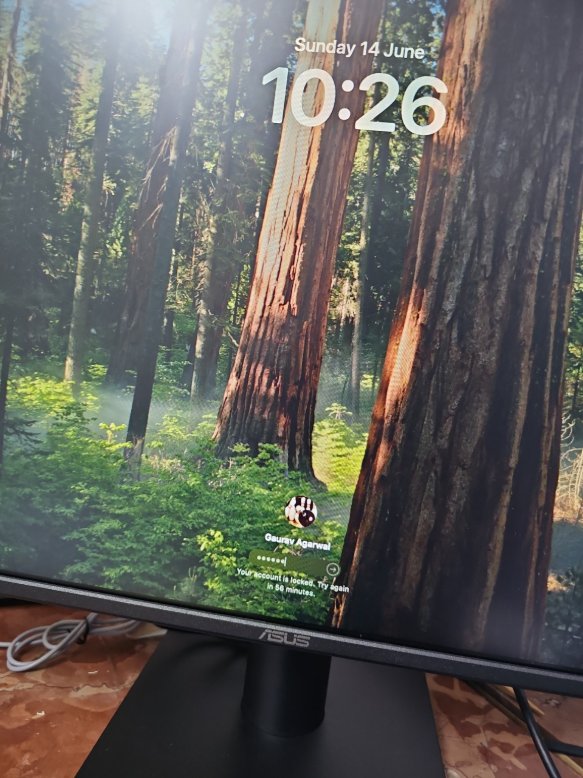
The screen that started it all: "Your account is locked. Try again in 56 minutes." — a real lockout on a Mac Mini running macOS Sequoia, June 2026
This guide uses different keyword phrases intentionally. People search for the same problem using different words: "forgot Mac password", "Apple ID not working on Mac", "your account is locked Mac Mini", "Mac login password forgotten". No matter which phrase brought you here, this guide covers the complete solution. This is not keyword spamming — we are including these terms because people search by different keywords and we are providing the solution for all of them.
Based on a real recovery session performed on a Mac Mini with Apple Silicon running macOS Sequoia in June 2026. All screenshots are from the actual recovery process.
Start RecoveryThe Forgot Mac Mini Password Confusion: Two Passwords, One Device
If you are a new Mac user, there is one thing Apple does not make obvious: your Apple ID password and your Mac login password are usually NOT the same thing. This is the single biggest source of confusion for people who have just purchased a Mac Mini or are setting one up for the first time.
Many users assume that since they recovered their Apple ID password, the Mac should unlock. That is not how macOS works. According to a 2025 Panda Security report, users manage between 70 and 80 passwords on average, and with more than 2.5 billion active Apple devices worldwide as of January 2026, this confusion affects millions of people globally.
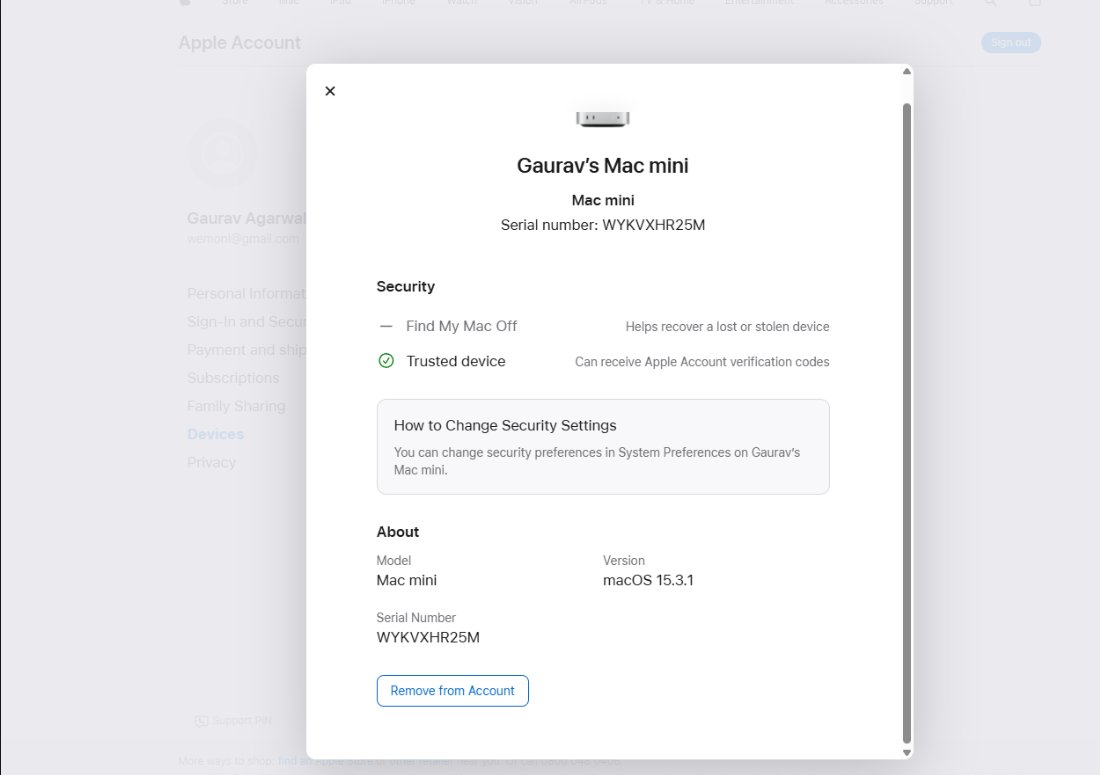
Your Apple Account page shows your Mac Mini is linked to your Apple ID — but recovering this Apple ID password does NOT unlock the Mac login screen
| Password Type | What It Does | Where You Use It |
|---|---|---|
| Apple ID Password | Used for iCloud, App Store, Find My Mac, Apple services | Apple websites, iCloud settings, App Store purchases |
| Mac Login Password | Used to unlock the Mac when it starts or wakes from sleep | Login screen, System Settings, installing software |
Here is the typical scenario that traps new Mac Mini owners: you forget your password, you panic, you recover your Apple ID through Apple's account recovery page, and then you return to your Mac expecting it to unlock. Instead, you see this:
"Your account is locked. Try again in 56 minutes."
The Mac is asking for the local macOS account password, not the Apple ID password. Recovering one does not reset the other.
According to a Huntress 2025 study, 21 percent of people simply reset their passwords every time they forget them. For Mac users, that process requires understanding Recovery Mode. If you are interested in how technology adoption creates unique challenges around device management, our analysis of digital transformation in Bahrain 2026 explores how SMEs handle these technology transitions.
Step-by-Step: How to Reset Mac Mini Password Through Recovery Mode
This process works on all Apple Silicon Mac Minis (M1, M2, M4) running macOS Ventura, Sonoma, or Sequoia. Every screenshot below is from a real recovery session. Follow each step exactly as described.
1 Confirm Your Account Is Locked
If you have entered the wrong password multiple times, macOS will temporarily lock your account. You will see a message like: "Your account is locked. Try again in X minutes." Do not keep guessing passwords — repeated incorrect attempts increase the lockout timer. This is your signal to proceed with Recovery Mode.
2 Shut Down and Boot Into Startup Options
For Apple Silicon Mac Minis, there is no Command+R keyboard shortcut. Instead: shut down the Mac Mini completely, wait a few seconds until the power light turns off, then press and hold the power button. Do not release when the Apple logo appears. Continue holding until you see the Startup Options screen with two icons: Macintosh HD and Options.
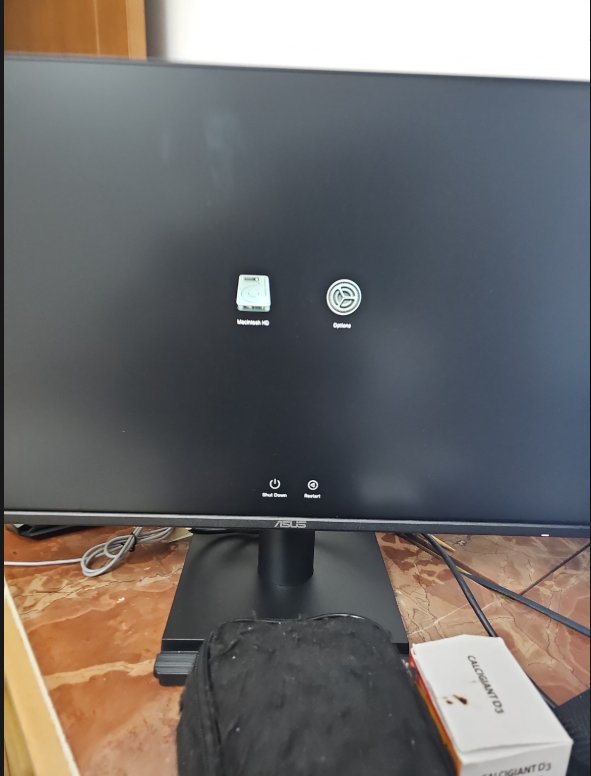
Startup Options screen: you will see Macintosh HD (your drive) and Options (Recovery Mode entry point)
Click Options and then click Continue.
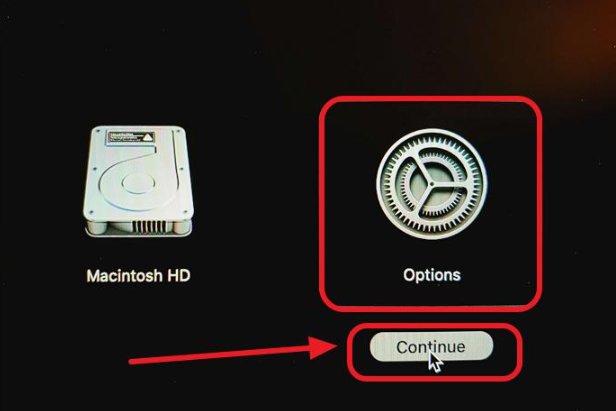
Click Options (circled), then click Continue to enter Recovery Mode
Important: If you release the power button too early, the Mac will boot normally to the locked login screen. You must keep holding until "Loading Startup Options" appears.
3 Enter macOS Recovery Mode
After clicking Continue, you will enter Recovery Mode. You will see four options: Restore from Time Machine, Reinstall macOS Sequoia, Safari, and Disk Utility.
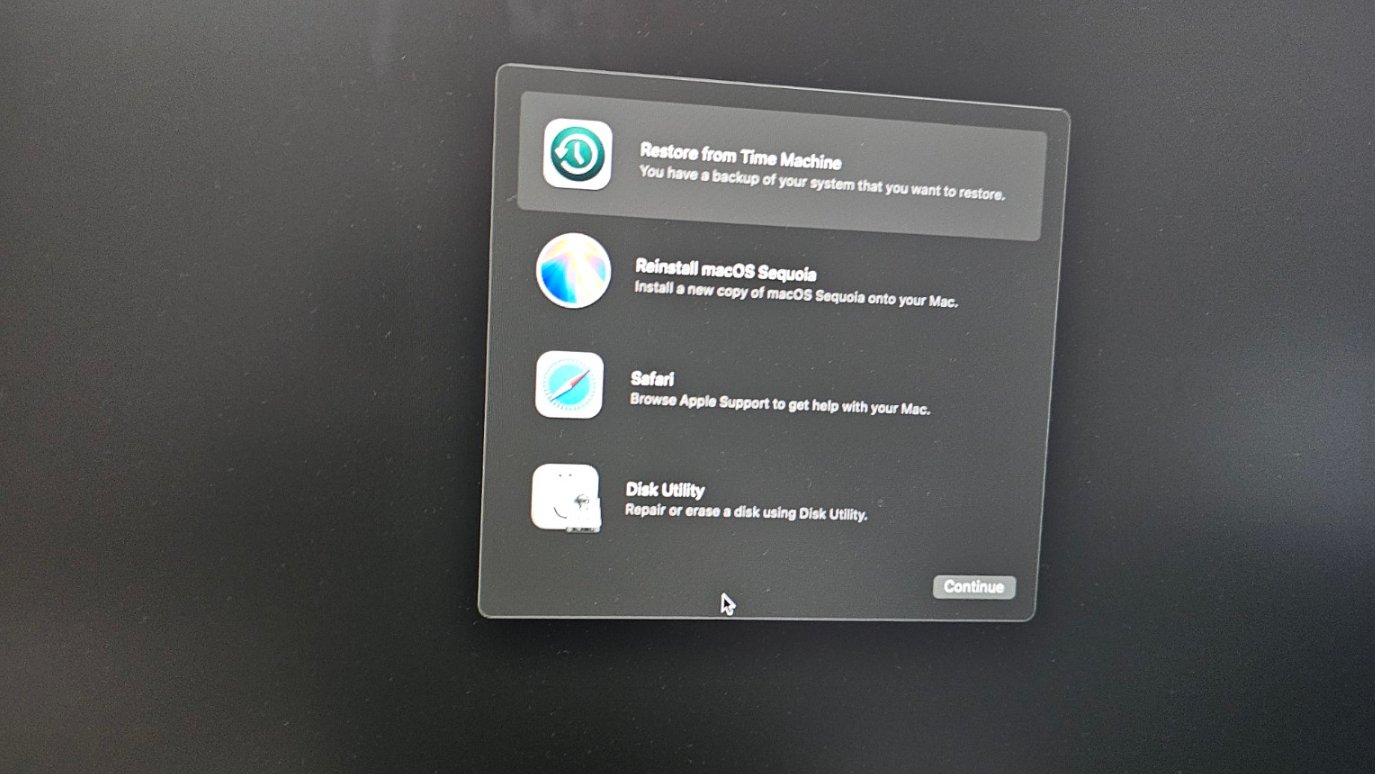
Recovery Mode: four options appear. Do NOT click Reinstall macOS or Disk Utility for password recovery
Do NOT click Reinstall macOS. Do NOT open Disk Utility. If your goal is only to reset the password, you do not need either of these. Reinstalling macOS will not fix a forgotten password, and erasing the drive will permanently delete all your files.
4 Open Terminal and Run resetpassword
From the top menu bar in Recovery Mode, click Utilities and then select Terminal. In the Terminal window, type the following command and press Enter:
resetpassword
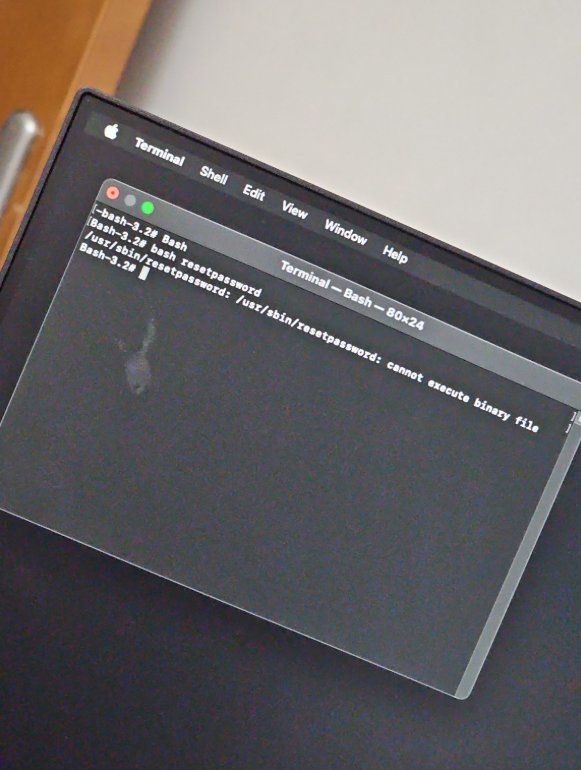
Terminal in Recovery Mode: type resetpassword and press Enter to launch the Password Recovery Assistant
Note: If you see a "cannot execute binary file" error (as shown in the screenshot), try
typing just resetpassword without a path. If the error persists, close Terminal and reopen it
from the Utilities menu. This error occasionally appears but usually resolves on the second attempt.
5 Navigate the Reset Password Assistant
The Reset Password assistant may show you different screens depending on your macOS version. Here is what you may encounter:
Screen A — Choose Your Problem: You may see a screen asking "Choose the problem you are having when logging in." Select "I forgot my password" and click Next.
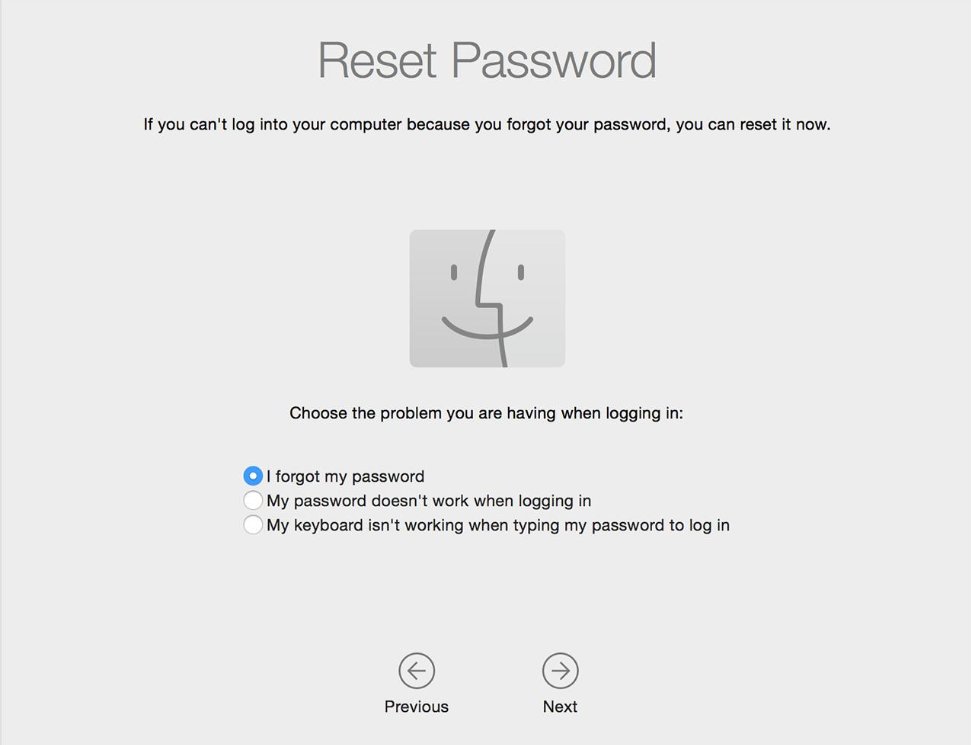
Select "I forgot my password" and click Next
Screen B — Select a User: If your Mac has multiple user accounts, you will see them listed. If you know the password for any admin account, select it. If you have forgotten all passwords, click "Forgot all passwords?" at the bottom.
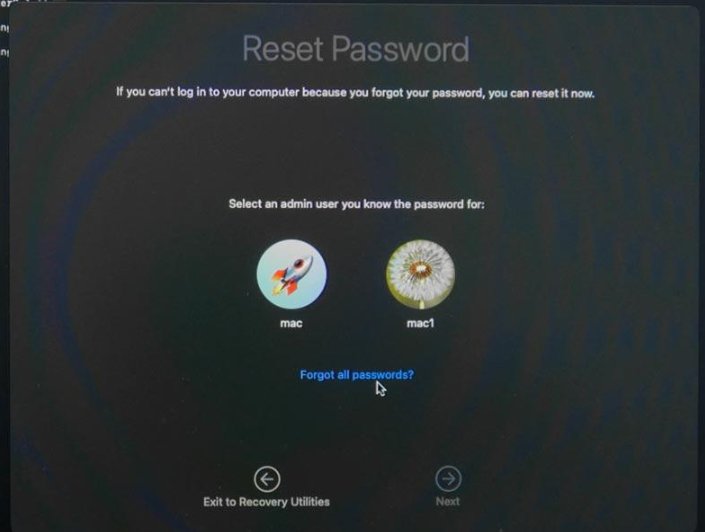
Select an admin user, or click "Forgot all passwords?" if you cannot remember any of them
6 Deactivate Mac to Reset Credentials
You will see the main Reset Password screen with a Finder-style smiley face icon. The text reads: "If you don't know the password for any user on your Mac, you can deactivate your Mac and set new passwords." Click Deactivate Mac.
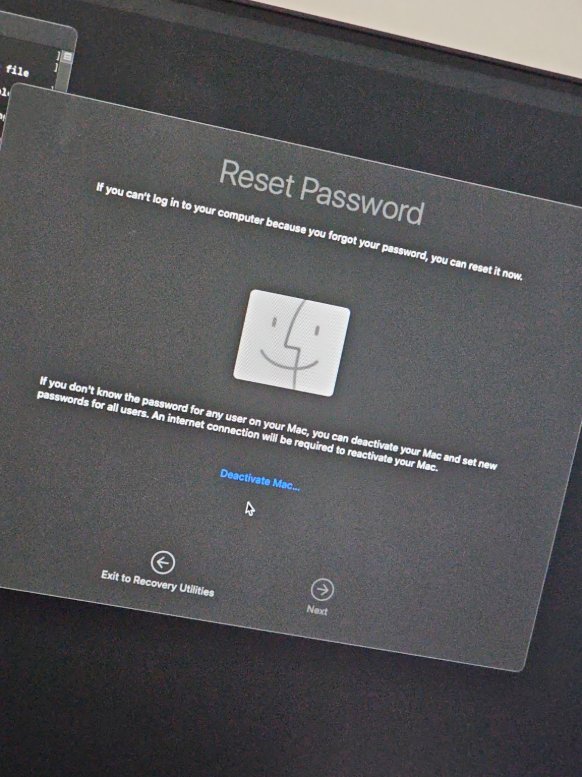
Click "Deactivate Mac..." — this removes old login credentials, NOT your files
"Deactivate" does NOT mean erase. Your files, apps, and settings remain completely intact. "Deactivate" in this context means macOS is removing the old login credentials so you can create new ones. An internet connection will be required to reactivate.
7 Verify Ownership and Select Volume
macOS will ask you to verify ownership using your Apple ID. You will need an internet connection (connect via Ethernet or Wi-Fi from the Wi-Fi menu in Recovery Mode), your Apple ID email, and your Apple ID password. This is exactly why recovering your Apple ID first is important.
You may also see a volume selection screen. Select Macintosh HD (your main drive) and click Next.
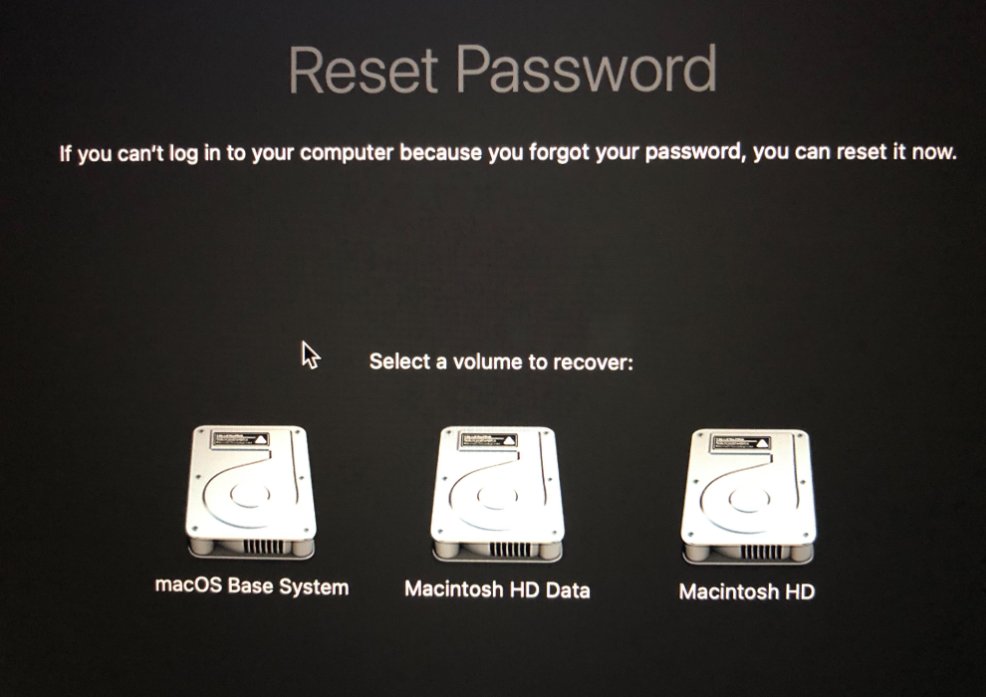
If prompted, select "Macintosh HD" as the volume to recover
8 Create Your New Login Password
Once Apple verifies your identity, you can create a new password. Enter your New Password, Verify Password, and optionally add a Password Hint. Choose something easy to remember but difficult for others to guess. Write it down and store it somewhere secure.
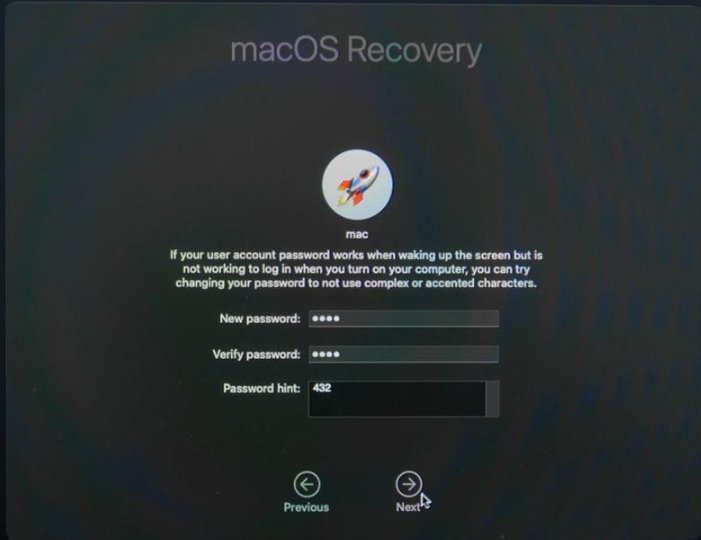
Create your new password in the macOS Recovery screen (Sequoia dark UI)
On older macOS versions, the same password creation screen appears with a lighter background. The fields are identical: New Password, Verify Password, and Password Hint. Click Next to proceed.
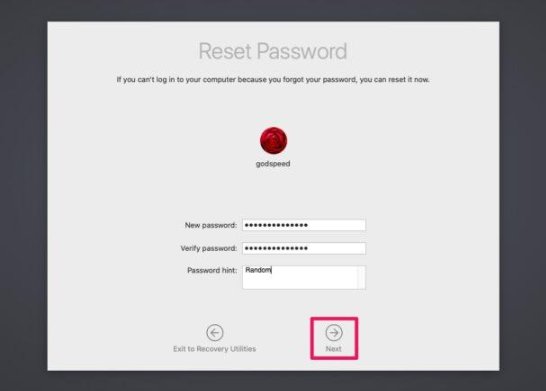
Older macOS version: same password fields, lighter UI
9 Restart and Log In
After the password reset completes, click the Apple menu in the top left corner and select Restart. Do not reinstall macOS. Do not erase the SSD. Just restart. When the login screen appears, select your user account and enter the newly created password. Your Mac should now open normally.
If you build apps, websites, or digital products on your Mac Mini, losing access even temporarily can derail your workflow. Our guide to no-code web development in 2026 covers tools that help you get back to building fast, and PWA development for 2026 explores modern app architectures you can build directly from your Mac.
After the Password Reset: Keychain and What to Expect
After resetting your Mac password through Recovery Mode, some users see the following message on first login:
"The system was unable to unlock your login keychain."
This is completely normal. The macOS Keychain was encrypted with your old password, and your new password cannot decrypt it.
When prompted, choose Create New Keychain or Reset Keychain. This means you will need to re-enter some saved credentials, but your actual files remain untouched.
| Preserved | Needs Re-Entry |
|---|---|
| All files and documents | Wi-Fi passwords |
| Installed applications | Safari saved logins |
| Photos and media | Some app-specific credentials |
| Desktop and folder organization | Email account passwords (some apps) |
| System preferences and settings | VPN configurations |
For businesses where multiple people share workstations, this password confusion can cascade into productivity losses. Our analysis of AI CRM systems in 2026 covers how credential management integrates with modern business tooling.
Factory Reset: The Last Resort When Password Recovery Fails
If the Password Recovery method fails, or if you have lost access to both your Mac password and your Apple ID, you can perform a factory reset. This should only be a last resort.
Factory Reset Process
Boot into Recovery Mode using the same method (hold the power button). Open Disk Utility from the Recovery screen. Select your internal SSD (usually "Macintosh HD"). Click Erase. After erasing, close Disk Utility and select Reinstall macOS.
Warning: This permanently deletes ALL data on the Mac. Every file, application, photo, and setting will be gone. There is no recovery without a Time Machine or cloud backup. Always try the Password Recovery method first.
The technology landscape is full of situations where understanding the right recovery process saves hours. This applies equally to headless e-commerce platforms where a misconfigured credential can take an entire storefront offline, and to UX design workflows where losing access mid-project is a costly setback.
[EXCLUSIVE INSIGHT] Why Apple's Dual-Password Architecture Confuses Millions
The Hidden UX Failure in Apple's Onboarding
Having gone through this exact lockout scenario personally on a Mac Mini in Bahrain in June 2026, there is a UX insight that no Apple support article mentions: the macOS setup assistant actively creates this confusion. During the initial Mac setup, macOS asks you to sign in with your Apple ID and then immediately asks you to create a "login password." For most new users, especially those migrating from Windows or from an iPhone-only workflow, the natural assumption is that these are the same thing. Apple never surfaces a clear distinction screen that says: "You now have two different passwords. Here is what each one does." The setup flow blends them together so seamlessly that users only discover the difference when they are locked out. In the GCC region, where Mac adoption among SMEs has accelerated sharply since 2024 driven by Vision 2030 digital mandates and remote work adoption, this confusion is compounded by the fact that IT support infrastructure for Mac-specific issues is still thin compared to Windows. Most local IT shops in Bahrain, Riyadh, and Dubai default to "just reinstall macOS" when they encounter a locked Mac, destroying user data unnecessarily when a simple Recovery Mode password reset would preserve everything.
Password Security Self-Auditor
Mac Password Security Auditor
Rate your current password habits across four dimensions. Get an instant grade with actionable recommendations.
FAQ: Mac Mini Password Reset
Because your Apple ID password and Mac login password are usually different. Recovering one does not automatically reset the other. You need to use Recovery Mode to reset the Mac login password separately, following the steps in this guide.
No. Password Recovery through Recovery Mode does not erase your data. You only lose data if you choose to erase the drive and reinstall macOS, which is a completely separate option that requires deliberate action in Disk Utility.
This means you entered the wrong password too many times. macOS temporarily locks the account for security purposes. You can either wait for the timer to expire (which could be up to an hour) or use Recovery Mode to reset the password immediately without waiting.
Not necessarily. Apple Silicon Mac Minis enter Recovery Mode by pressing and holding the power button on the Mac itself. A Bluetooth keyboard works once the Mac detects it during startup. However, a USB wired keyboard can be more reliable during Recovery Mode if you encounter Bluetooth pairing issues.
This is completely normal after resetting a password through Recovery Mode. Simply choose "Create New Keychain" or "Reset Keychain" when prompted. Your saved Wi-Fi passwords and some application credentials will need to be re-entered, but all your files, documents, and applications remain fully intact.
Your 2026 Mac Security Action Plan
Phase 1: Immediate Recovery (Today)
If you are currently locked out, follow the 9-step Recovery Mode process above. Do not attempt to reinstall
macOS or erase your drive. Boot into Startup Options by holding the power button, open Terminal, run
resetpassword, verify with your Apple ID, create a new password, and restart. If your Apple ID is
also forgotten, recover it first at iforgot.apple.com before proceeding.
Phase 2: Secure Your Credentials (This Week)
Once you regain access, set up a dedicated password manager like 1Password, Bitwarden, or Apple's built-in Passwords app in macOS Sequoia. Store both your Apple ID password and your Mac login password. Enable two-factor authentication on your Apple ID if it is not already active. Write down your Recovery Key and store it in a secure physical location separate from your Mac.
Phase 3: Build a Recovery Safety Net (Week 2-3)
Set up Time Machine backup to an external drive or network storage. This ensures that even in a worst-case factory reset scenario, your data is recoverable. Configure a trusted phone number for Apple ID recovery that is not the phone connected to the same Apple ID. Enable Find My Mac so you can remotely lock or erase it if stolen. Our guide on AI competitor analysis tools demonstrates how security-conscious workflows extend beyond passwords into protecting your entire digital strategy.
Phase 4: Ongoing Maintenance (Monthly)
Review your password manager quarterly and update any weak or reused passwords. Check that your Apple ID recovery information is current. Verify that Time Machine backups are running. Keep macOS updated for security patches. According to Astra Security research, 26 percent of users never change their passwords unless forced. Do not be in that 26 percent. For businesses managing multiple Mac devices, our analysis of AI email marketing in Bahrain explores how automated credential management fits into broader digital operations.
Published: June 15, 2026 | Last Updated: June 15, 2026
Want This Level of Research for Your Business?
Xtrusio turns market intelligence into content that ranks, converts, and positions you as the authority.
Explore Xtrusio