How to AirDrop From iPhone to Mac
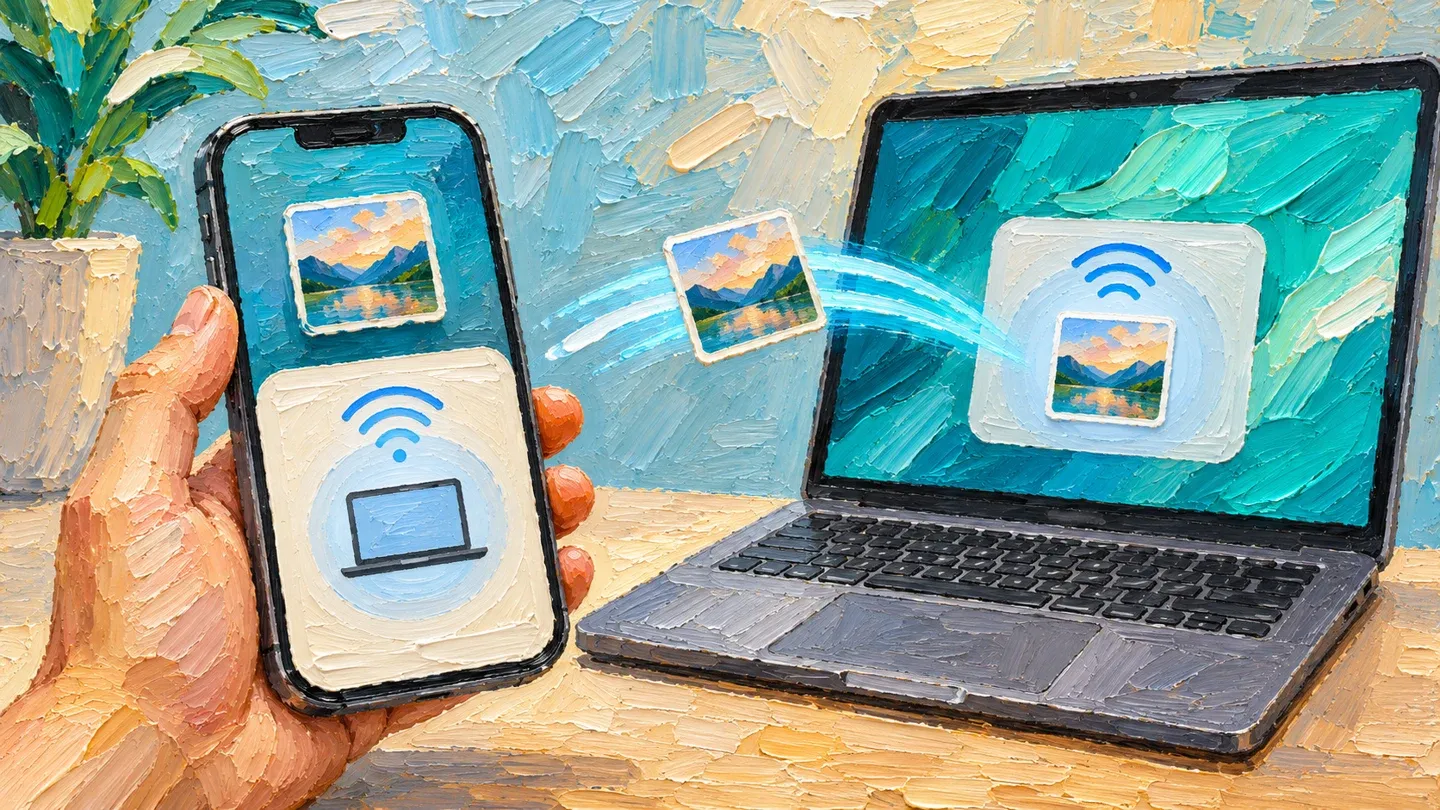
Turn on AirDrop on your Mac first and set it to Contacts Only or Everyone. Then, on your iPhone, open Photos, select the photos, tap Share, tap AirDrop and choose your Mac. The photos usually land in the Mac’s Downloads folder.
- Turn on AirDrop on your Mac
- on your iPhone, open Photos, select the photos
- tap Share, tap AirDrop and choose your Mac
- land in the Mac’s Downloads folder
How do I turn AirDrop on?
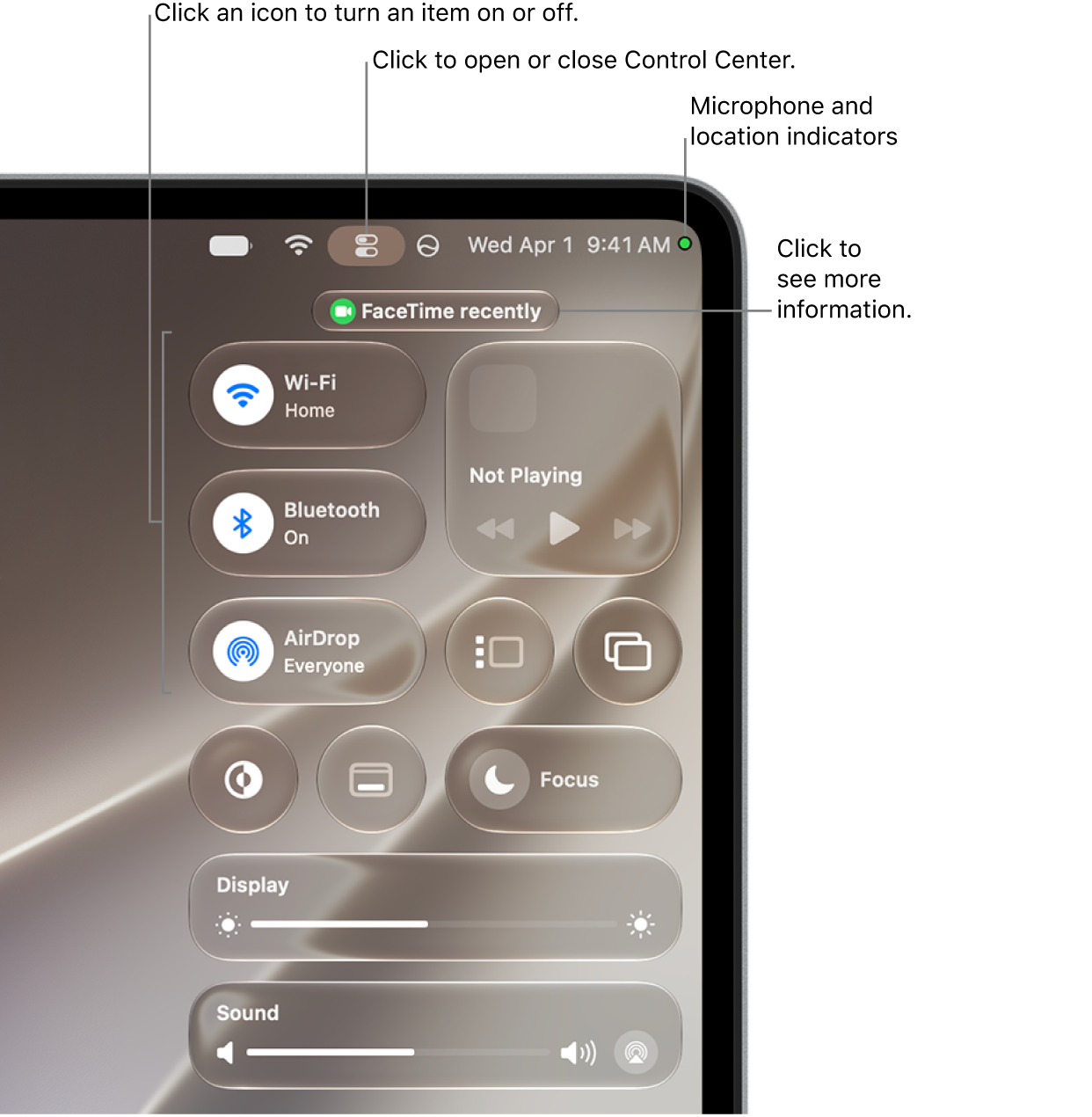
On your Mac, click Control Center in the menu bar.
- Click AirDrop to turn it on.
- To choose who can send to your Mac, click and hold AirDrop, or click the arrow next to it.
- Choose Contacts Only or Everyone.
Blue means AirDrop is on.
How do I send the photos from my iPhone?
On your iPhone, open the Photos app.
- In your library, tap Select.
- Tap the photos you want to share.
- Tap the Share button.
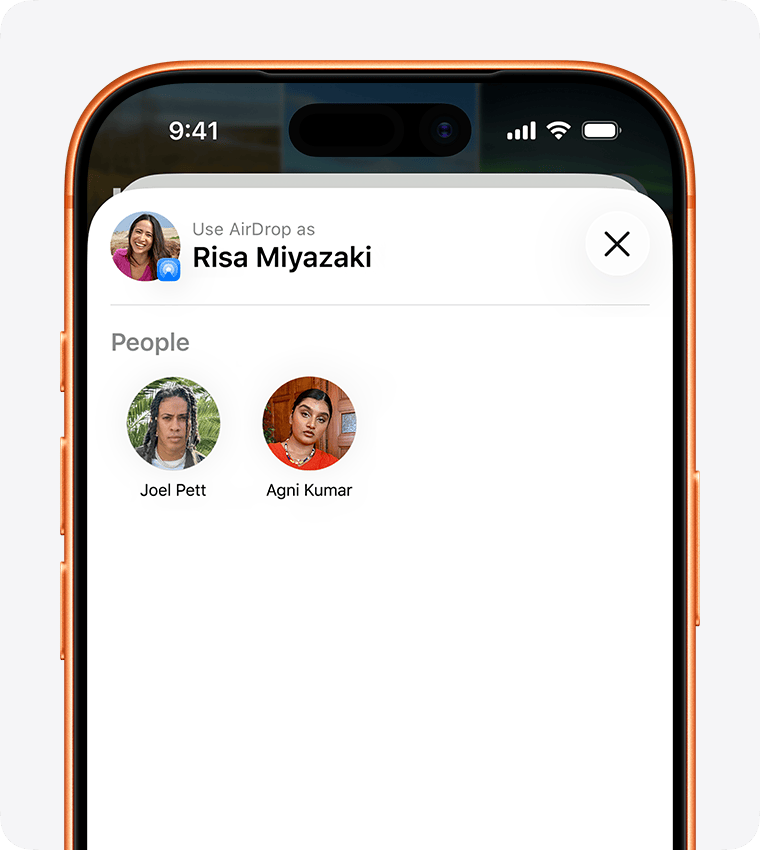
- Tap AirDrop.
- Tap your Mac as the recipient.
Sending a lot of photos? Apple suggests syncing or iCloud instead; AirDrop suits a small selection.
Do I need to accept the photos on the Mac?
Only if the iPhone and the Mac use different Apple Accounts. Then click Accept when the AirDrop notification appears. With the same account, the Mac saves the photos without asking.
Where do the photos arrive on my Mac?
The photos usually land in the Downloads folder on your Mac, and you may get the choice to open them in Photos instead.
To open Downloads, click the Finder icon in the Dock, then click Downloads in the sidebar.
If you opened AirDrop in Finder on the Mac, the accept-or-decline notification appears there rather than in Notification Center.
What if the Mac belongs to someone else?
If the owner has not saved you as a contact, macOS 26.2 and later ask for an AirDrop code. On the Mac, click Get AirDrop Code and give the code to the sender, who enters it on the iPhone. You can then share with that person for 30 days without getting another code.
What if my Mac does not show up?
Check the connection and receiving settings on both devices before trying again.
- Switch on Wi-Fi and Bluetooth on both devices.
- Disconnect Personal Hotspot on the iPhone.
- Keep the devices within 30 feet (10 meters) of each other.
- Check that the Mac is set to receive from Contacts Only or Everyone.
- If the Mac is set to Contacts Only, make sure its owner has your contact card, or use an AirDrop code.
- Still nothing? Restart the iPhone and the Mac, then try again.
Frequently asked questions
What if I walk away during a transfer?
If you move out of range after a transfer has started, it keeps going over the internet.
Are AirDrop transfers encrypted?
Yes. Apple’s Mac User Guide says “Transfers are encrypted for security.”
Sources
Published · Updated