Vim Search: How to Search and Replace Text in Vim
In Vim’s Normal mode (where keys run commands), type / and your text, then press Enter to search forward. Press n to repeat the search.
To replace text, type :s/old/new/g and press Enter. With Vim’s standard settings, that changes every old to new on the current line.
- Type / and the text, then press Enter
- Press n to repeat the search
- Turn on hlsearch to see every match
- Run :%s//new/gc to replace those matches
- Press y to accept a change or n to skip it
| Command | What it does |
|---|---|
?text then Enter | Finds the nearest match behind the cursor. |
N | Repeats in the opposite direction. |
/ then Enter | Reuses the last pattern and searches forward. |
* or # | Finds the whole word under the cursor, forward or backward. |
g* | Finds the text under the cursor even inside a longer word. |
\c or \C | Ignores case or forces case to match in one search. |
:nohlsearch | Clears the current search highlights. |
:s/old/new/ | Replaces the first match on the current line. |
:%s/old/new/g | Replaces all matches in the file. |
:%s/old/new/gc | Asks before making each replacement in the file. |

How do I search forward and backward in Vim?
Type / and the text, then press Enter. To search backward, type ? before the text and press Enter. Vim calls the text you search for a pattern.
When a forward search reaches the end of the file, Vim carries on from the top. A setting called wrapscan controls this, and it is on by default. After a backward search, press n to keep going backward or N to go forward. Press 3n to jump to the third match in the same direction.
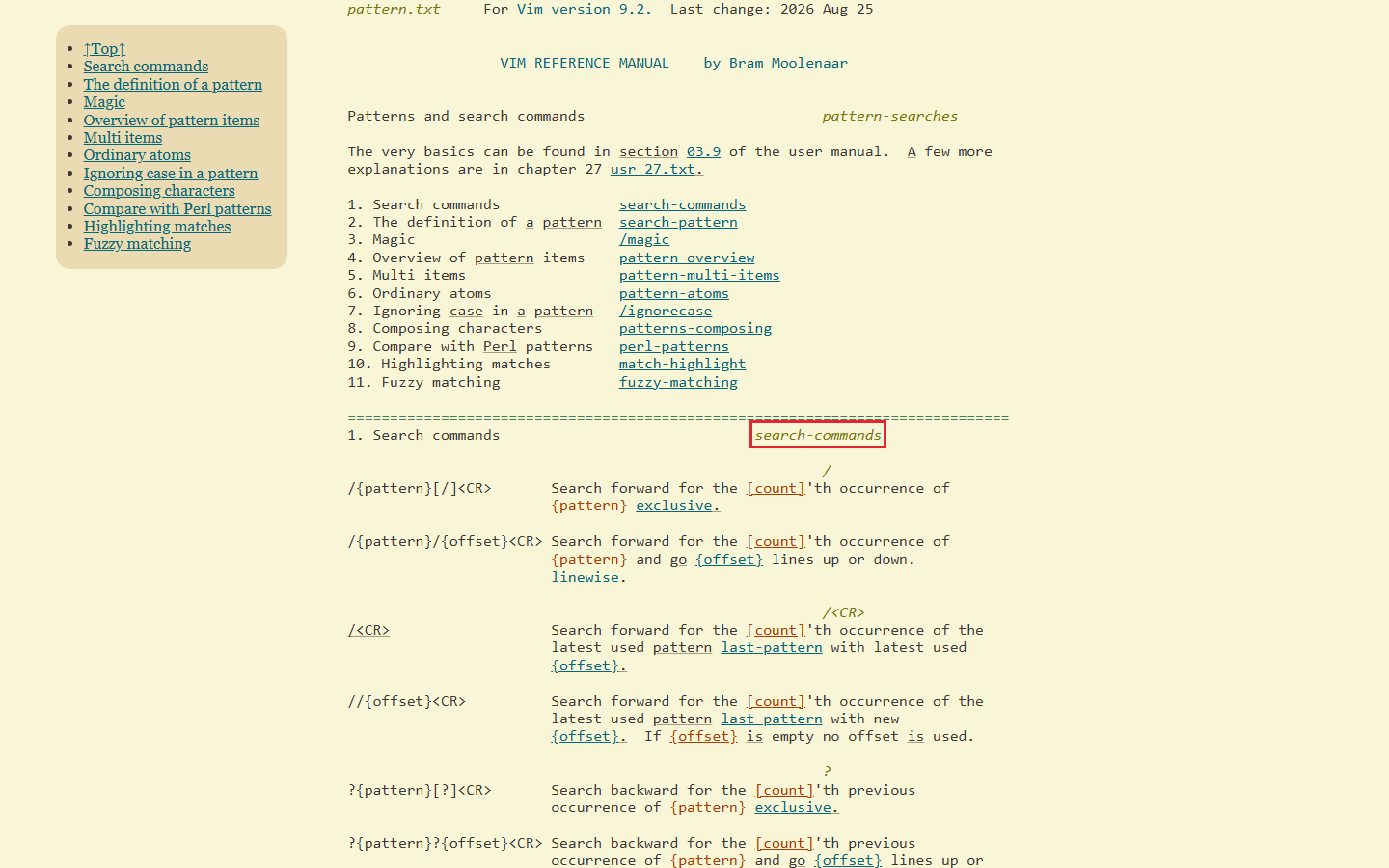
To find an earlier search, type / and press Up. Press Down to move toward newer searches. Type the first character before pressing Up to show earlier searches that start with that character.
How do I search for the word under the cursor?
Put the cursor on the word and press *. Use # to go backward. Use g* when a match can be part of a longer word.
If you know the exact word you want, put \< at the start and \> at the end of the pattern. For example, /\<the\> matches the as a whole word and skips there.
How do I make a Vim search ignore case?
Run :set ignorecase to match upper and lowercase letters alike. Run :set ignorecase smartcase to match case when you type a capital letter in the search text. A search typed in lowercase still matches both forms.
Put \c in a search to ignore case for that search. Put \C in a search to match case. Vim keeps \c or \C in the saved search. When you run the search from history, Vim still uses that case rule.
The * and # keys obey ignorecase but not smartcase. To get smartcase for the word under the cursor, type /, press Up to recall the search, then press Enter.
How do I highlight every match, and turn it off?
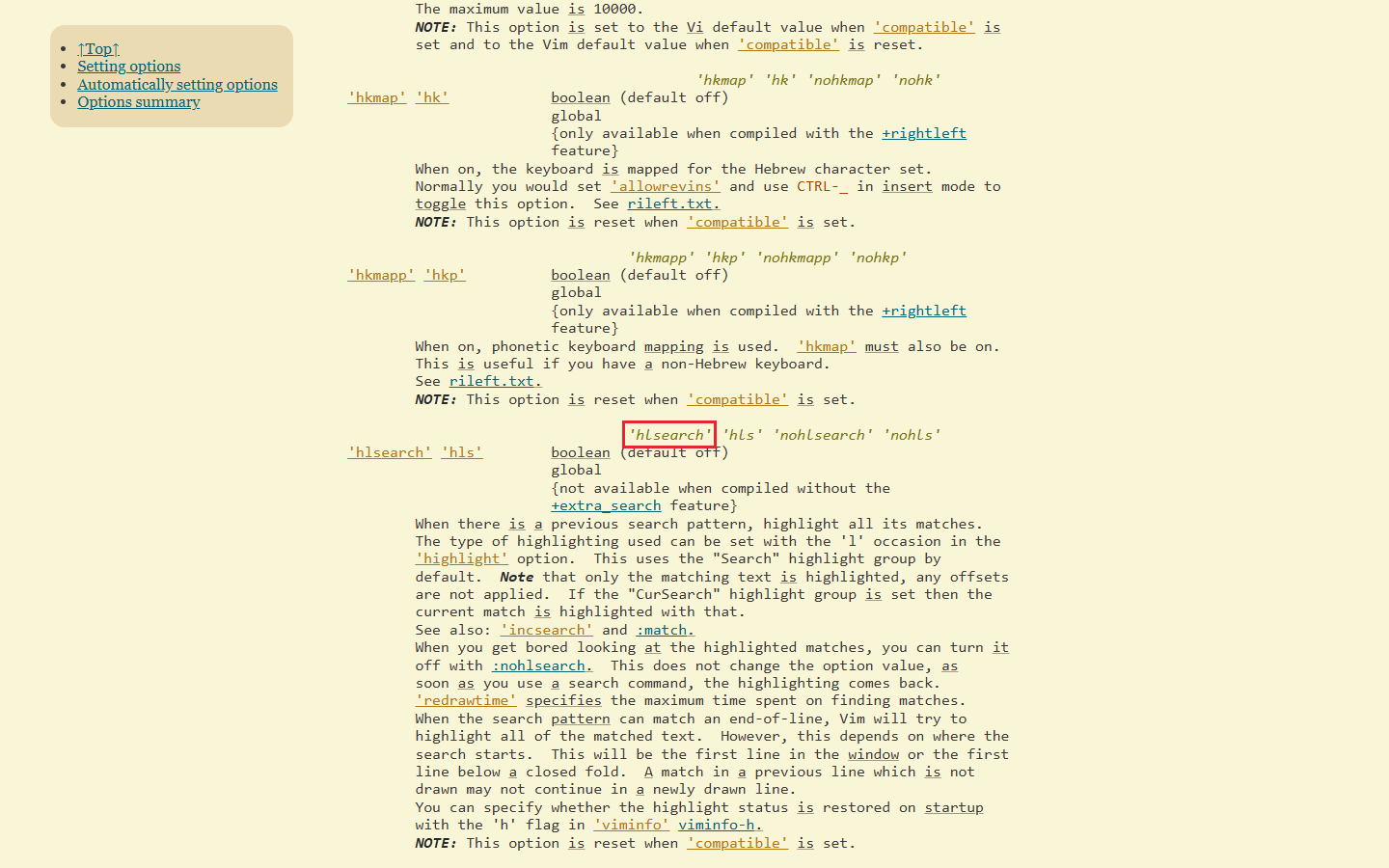
Turn on hlsearch to see every match. Use :set hlsearch to turn it on for the current session. Use :set nohlsearch to switch the setting off.
To clear the highlights until your next search, use :nohlsearch. The setting stays on, so the next search can light up matches again.
Which search options should I put in my vimrc?
Put the settings you want every time in your vimrc (the file Vim reads when it starts). Add a line for each setting you want to change.
| Option | What it does | Default | Line for vimrc |
|---|---|---|---|
ignorecase | Treats upper and lowercase letters alike. | Off | set ignorecase |
smartcase | With ignorecase on, a capital letter makes a typed pattern match case. | Off | set smartcase |
hlsearch | Highlights every match. | Off | set hlsearch |
incsearch | Shows matches while you type. | Off unless defaults.vim (a file of preset options) enables it. That needs +reltime (support for measuring time). | set incsearch |
wrapscan | Continues at the other end of the file. | On | set nowrapscan to stop at the end |
gdefault | Makes substitute replace all matches on a line by default. | Off | set gdefault |
With incsearch on, press Ctrl+G or Ctrl+T while you are typing to move between the matches. Press Enter to jump to the match you see.
How do I search and replace in Vim?
Use :s/old/new/ to change the first match on the line you are on. Put % before s to cover the whole file. With gdefault off, add g at the end to replace every match on each line. If you turn on gdefault (the setting for replacing all matches on a line), leave out g.
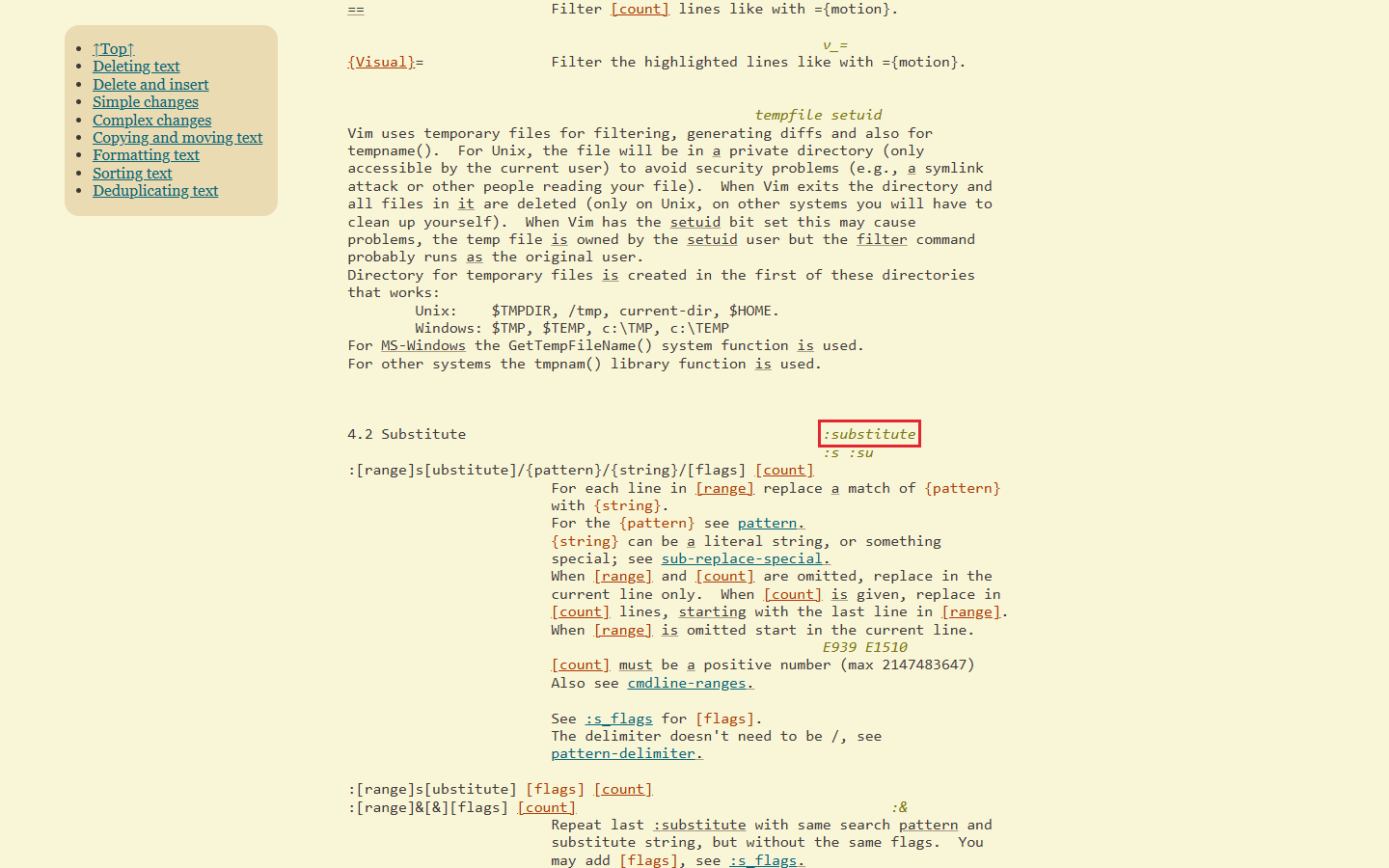
Put a range before s to limit the change to some lines. The range 1,5 includes lines 1 to 5. The range .,$ goes from the current line to the end.
To use a selection, pick the text in Visual mode (where Vim lets you select text). Press : and Vim fills in '<,'> for those lines. Type the substitute command after the range.
How do I confirm each replacement?
Add c to the substitute command. At each prompt, press y to accept a change or n to skip it. Press l to accept the current change and stop. Press a to accept the current change and the rest. Press q or Esc to stop at once.
How do I replace the text I just searched for?
Leave the search part of the substitute command empty to reuse your last search. After searching with /, run :%s//new/gc to replace those matches across the file. Replace new with the text you want.
How do I search for a slash, a dot or other special characters?
Put a backslash before a character that has a special meaning. For instance, \. finds a dot. \/ finds a slash.
In a substitute command, you can use another mark to separate the search from the replacement. That mark is the delimiter. For paths with slashes, :%s#old/path#new/path#g uses # to separate the parts.
How do I search across many files in Vim?
Run :vimgrep with a pattern and the files to search. For instance, :vimgrep /myfunc/ **/*.c looks for myfunc in the C files under your current folder.
Use :copen to see the quickfix list (the window of matches). Use :cnext and :cprevious to move through the list. :vimgrep obeys ignorecase and the \c or \C markers in the pattern, but not smartcase.
Frequently asked questions
What does E486 mean?
Vim found no match for the pattern. Check the text you typed and whether the search matches case.
What does [1/5] mean after a search?
Vim shows a count such as [1/5], which means you are on the first of five matches. If you do not see it, the S flag in the shortmess setting is hiding it.
Can I count replacements before I run them?
Yes. With gdefault off, type :%s/old/new/gn to count all matches in the file. Vim leaves the text as it is.
Sources
Published