How to Free Up iCloud Storage
Delete old backups, photos, files, Messages attachments or emails you no longer need.
If that is not enough, iCloud+ plans start at 50 GB for $0.99 a month in the United States.
What is using your iCloud space?
Delete old backups
- Turn off apps you do not want to back up
Delete photos and videos
- Open Photos
Delete files in iCloud Drive
- Open Files and tap Browse
Delete Messages attachments
- Delete attachments in Messages
What is using your iCloud space?
Open Settings on your iPhone, tap your name, then tap iCloud. Tap Storage on that screen to see how apps are using your storage. The settings steps below start from this iCloud screen.
On a computer, you can check your iCloud storage on iCloud.com.
Apple gives you 5 GB free when you set up iCloud. When it fills up, your device cannot back up to iCloud. New photos and videos cannot upload to iCloud Photos, and you cannot send or receive email with your iCloud address.
Your backup can include photos and messages too. If iCloud Photos is off, your Photos Library is part of your iCloud Backup. If Messages in iCloud is off, your messages are in that backup.
How do I use Recommended for You?
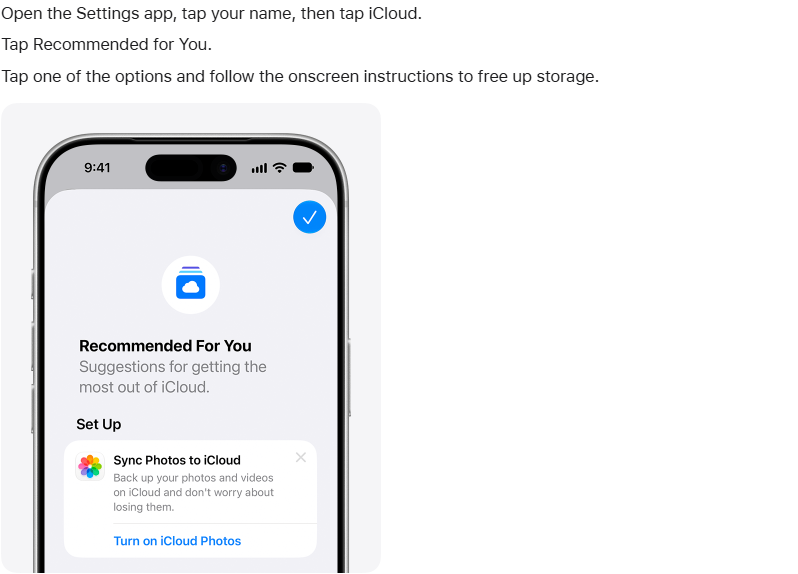
On an iPhone with iOS 17 or later, Recommended for You offers ways to remove items such as old backups, large files or photos.
- Tap Recommended for You.
- Tap an option and follow the onscreen instructions to free up storage.
If you do not see the option you need, use one of the steps below instead.
How do I reduce or delete a backup?
Turn off backup for apps you do not need, or delete an old device’s whole backup.
Choose which apps to back up
Turning off an app’s backup removes its data from iCloud.
- On the iCloud screen, tap Storage. If you see Manage Account Storage instead, tap that.
- Tap Backups, then tap the name of the device you are using.
- Turn off the apps you do not want to back up.
- Tap Turn Off to confirm.
iCloud Backup is now off for those apps, and their information is removed from iCloud. Some apps are always backed up and cannot be turned off.
Delete an old device backup
Deleting a backup also turns off iCloud Backup for that device. You can turn it back on in iCloud settings. You cannot delete a backup while it is restoring a device.
- On the iCloud screen, tap Storage or Manage Account Storage, then Backups.
- Tap the device whose backup you want to delete.
- Tap Turn Off and Delete from iCloud.
- Tap Turn Off and Delete to confirm.
You can also delete a device backup from a Mac.
- On your Mac, open System Settings.
- Click your name.
- Click iCloud.
- Click Manage.
- Select Backups.
- Select a backup.
- Click the remove button (–).
If you turn off iCloud Backup or stop using it, Apple keeps the backups available for 180 days.
How do I delete photos, files, messages and email?
Use the app that holds the items you want to remove.
Keep a copy first
Save a copy of photos or files you want to keep, and review your selection before confirming a deletion.
On your iPhone, update to the latest iOS and connect to Wi-Fi. Download the photos and videos you want to keep from iCloud Photos to an external storage device.
- In Photos, go to Library.
- Tap Select, then choose the photos and videos you want to download.
- Tap the Share button, then Export Unmodified Originals.
- Choose where in Files to save them. Files opens to iCloud Drive by default; tap the Back arrow to choose another destination under Locations, such as an external storage device.
- Tap Save to start the download.
To keep files from iCloud Drive, copy them to another location in the Files app.
- Open Files and tap Browse to show locations.
- Tap iCloud Drive under Locations, then the More button.
- Tap Select, then choose the files and folders.
- Tap More, then Copy Items.
- Go to On my Device or another cloud service under Locations.
- Touch and hold a folder in the new location, then tap Paste.
How do I delete photos and videos?
With iCloud Photos, this deletion also applies on other devices signed in with the same Apple Account.
- Open Photos and go to Library.
- Tap Select, then choose the photos or videos you want to delete.
- Tap the Delete button, then Delete Photo or Delete Video.
You can normally recover deleted photos and videos from Recently Deleted for 30 days.
Items in Recently Deleted do not count toward iCloud storage, so emptying that album does not free up space.
If you exceed your iCloud storage limit, deleted photos and videos are removed immediately. They will not be available for recovery in Recently Deleted.
How do I delete files in iCloud Drive?
This removes the selected file or folder from iCloud Drive on all your devices.
- Open Files and tap Browse.
- Under Locations, tap iCloud Drive.
- Tap the More button, then Select, and choose the files or folders. Open a folder first if the file is inside it.
- Tap the Delete button.
- Tap Delete to confirm removal from iCloud Drive on all your devices.
How do I delete attachments in Messages?
You can delete attachments from a conversation in Messages. When Messages in iCloud is on, those attachments use your iCloud storage.
- Open the conversation in Messages and tap the contact’s name at the top.
- On iOS 26 or later, tap Photos. On iOS 18 or earlier, tap See All in the Photos section.
- Tap Edit, then Select Photos. On iOS 18 or earlier, tap Select instead.
- Tap the images you want to delete.
- Tap Delete, then Delete Attachment to confirm.
iCloud Mail
Emails with attachments take up more space than emails with just text. On an iPhone, iCloud Mail Cleanup can clear a whole type of email.
- Open Mail and go to your iCloud Mail inbox.
- Tap the More button in the upper corner, then Cleanup Recommendations.
- Tap iCloud Mail Cleanup and choose a type, such as subscriptions, promotions or transactions.
- Follow the onscreen steps to delete those messages.
Mail Cleanup keeps clearing that type of email until you turn it off. To delete single emails, swipe left on each one, then go to Mailboxes and delete them from your Trash folder.
Why did deleting shared items not free up space?
Shared items may use someone else’s storage.
- Photos added to an iCloud Shared Library count only toward the storage of the person who created it. View your Personal Library to find the items that count toward yours.
- Files in someone else’s shared folder do not count toward your iCloud storage, so deleting them frees nothing for you.
How do I buy more iCloud storage?
On the iCloud screen, you can see how much space you have left and choose to upgrade your storage plan. After you upgrade, you are billed monthly.
| Storage | Price a month |
|---|---|
| 50 GB | $0.99 |
| 200 GB | $2.99 |
| 2 TB | $9.99 |
| 6 TB | $29.99 |
| 12 TB | $59.99 |
Source: Apple’s iCloud+ plans and pricing page, read 7 November 2026. Some U.S. states add tax to the monthly payment. Prices for other countries are on the same page.
Sources
Published · Updated