How to Search for a Word on a Web Page
Press Ctrl+F on a Windows computer or Command+F on a Mac. Type the word in the Find bar (the search box for the open page).
On a phone, use Find in page in Chrome or Search Document in Safari. To search a whole site, use site: in Google.
Where do you want to find the word?
Search a page on your computer.
- Press Ctrl+F on a Windows computer or Command+F on a Mac.
Search a page on your phone.
- In Chrome, tap More, then tap Find in page.
- In Safari, tap the Page Menu button, then tap Search Document.
Search a whole website.
- Use site: in Google.

How do I find a word on a page in Chrome on my computer?
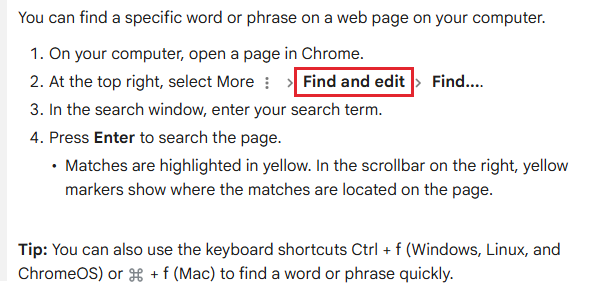
Open the page in Chrome and click More (the menu button) in the upper right.
- Select Find and edit, then click Find.
- Type your word or phrase in the box and press Enter.
Chrome highlights the matches in yellow. The marks on the right scrollbar show where those matches are on the page.
How do I find a word in Safari or Edge?
In Safari on a Mac, press Command+F. In Microsoft Edge, press Ctrl+F or F3 on Windows, or Command+F on a Mac. Then type your word or phrase in the Find bar that opens.
Which keys jump to the next match?
Press Ctrl+G on Windows or Command+G on a Mac to find the next match. To go back, press Ctrl+Shift+G on Windows or Command+Shift+G on a Mac.
| Browser and system | Open Find | Next match | Previous match |
|---|---|---|---|
| Chrome on Windows | Ctrl+F or F3 | Ctrl+G | Ctrl+Shift+G |
| Chrome on Mac | Command+F | Command+G | Command+Shift+G |
| Edge on Windows | Ctrl+F or F3 | Ctrl+G | Ctrl+Shift+G |
| Edge on Mac | Command+F | Command+G | Command+Shift+G |
| Safari on Mac | Command+F | Command+G | Command+Shift+G |
| Firefox on Windows | Ctrl+F | Ctrl+G or F3 | Ctrl+Shift+G or Shift+F3 |
| Firefox on Mac | Command+F | Command+G or F3 | Command+Shift+G or Shift+F3 |
How do I search for a word on a web page on my phone?
A phone has no Ctrl+F, so the Find command sits in your browser's menu.
Chrome on Android
In Chrome, open the page and tap More (the menu button) in the upper right, then tap Find in page.
- Type the word or phrase in the search box.
- Tap Search to highlight the matches.
- Use the marks on the right scrollbar to see where Chrome found the text.
Chrome on iPhone or iPad
In Chrome, open the page and tap More, then tap Find in page.
- Type the word or phrase. Chrome highlights the matches.
- Tap Done when you finish searching.
Safari on iPhone
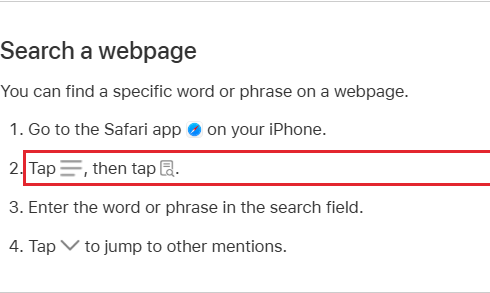
In Safari, open the page and tap the Page Menu button, then tap Search Document.
- Type your word or phrase in the search field.
- Tap Next Result to jump to the next match.
The button names differ on older iPhones. On iOS 18, tap the Page Settings button, then tap Find on Page. On iOS 17, tap the Share button, then tap Find on Page.
How do I search a whole website for a word?
In Google, type site: and the website address, then a space and the word you want to find. This search looks for cat videos on YouTube:
site:youtube.com cat videos
Leave no space between site: and the address. To match an exact phrase, put the phrase inside quotes:
site:youtube.com "cat videos"
Open a result, then use the Find bar to jump to your word on that page.
Frequently asked questions
Can Chrome on Mac search for text I already selected?
Yes. With the Find bar open, select the text on the page and press Command+E. Chrome searches the page for that text.
What is the difference between Ctrl+F and a Google search?
Ctrl+F (Command+F on a Mac) searches only the page you have open and shows you where the word is. A Google search looks across many pages to find the ones that contain the word.
Sources
- Chrome page search on a computer
- Chrome page search on Android
- Chrome page search on iPhone and iPad
- Chrome keyboard shortcuts
- Safari page search on iPhone
- Safari shortcuts on Mac
- Mac keyboard shortcuts
- Microsoft Edge keyboard shortcuts
- Google search refinements
- Google Power Searching lesson on finding text
- iPhone User Guide for iOS 18, Apple
- iPhone User Guide for iOS 17, Apple
- Search the contents of the current page, Firefox Help
Published