How to Share Your Wi-Fi Password From an iPhone
When the other person picks your network on their device, a prompt appears on your iPhone. Tap Share Password, then Done. For an Android phone or someone outside your contacts, show the network’s QR code in the Passwords app.
Share Wi-Fi
Share with a nearby iPhone, iPad or Mac
- Tap Share Password
Share with an Android phone or someone not in your contacts
- Show Network QR Code
See the saved password
- Reveal the password
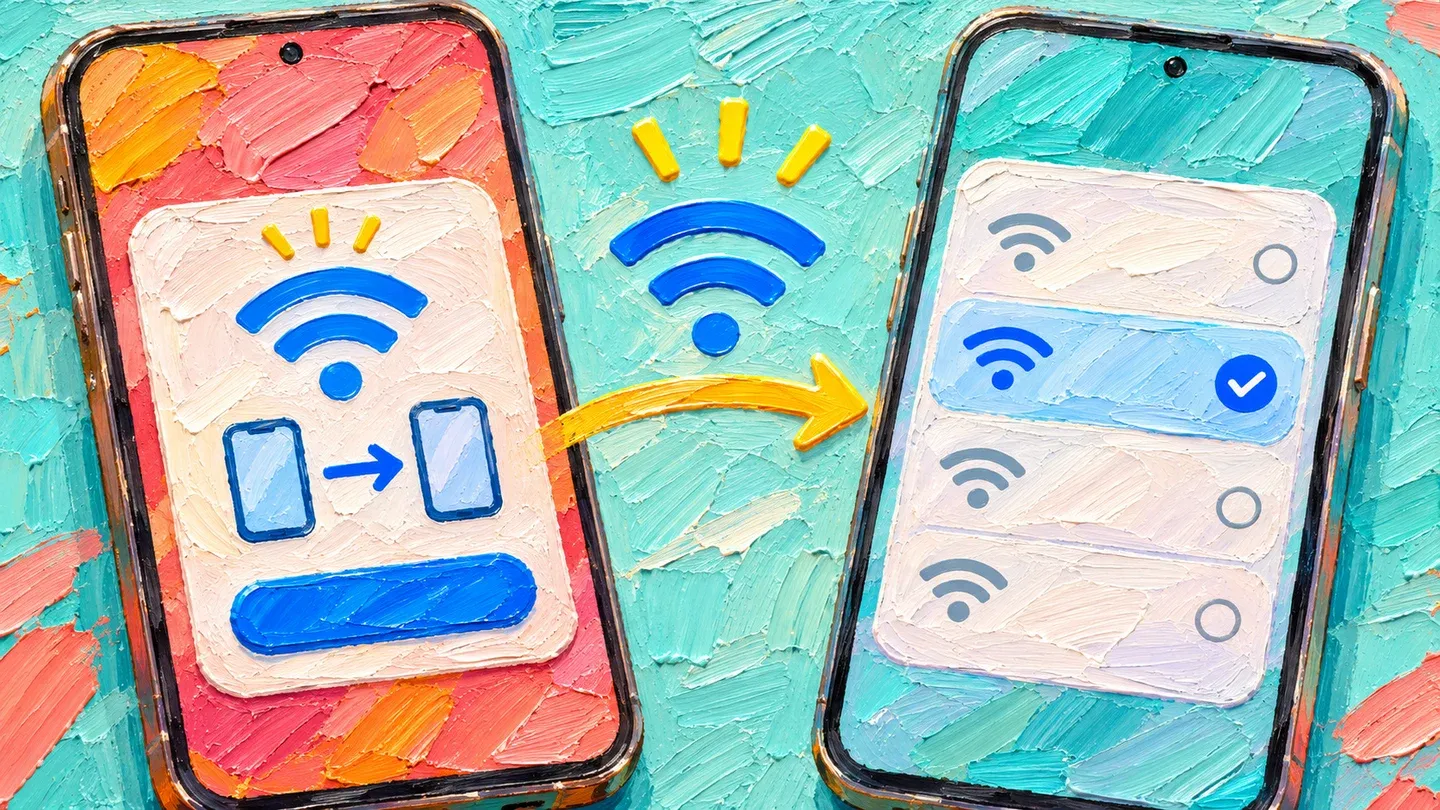
How do I share with a nearby iPhone, iPad or Mac?
Your iPhone can send the password for you with one tap.
The prompt shares the password of the network your iPhone is using now, so join your guest network first if you want visitors on it.
1. Ask the visitor to choose your network
On their iPhone, iPad or Mac, the visitor opens Wi-Fi settings and selects the network name.
2. Tap Share Password on your iPhone
A message asks whether you want to share the Wi-Fi password. Tap Share Password on the iPhone that is already connected.
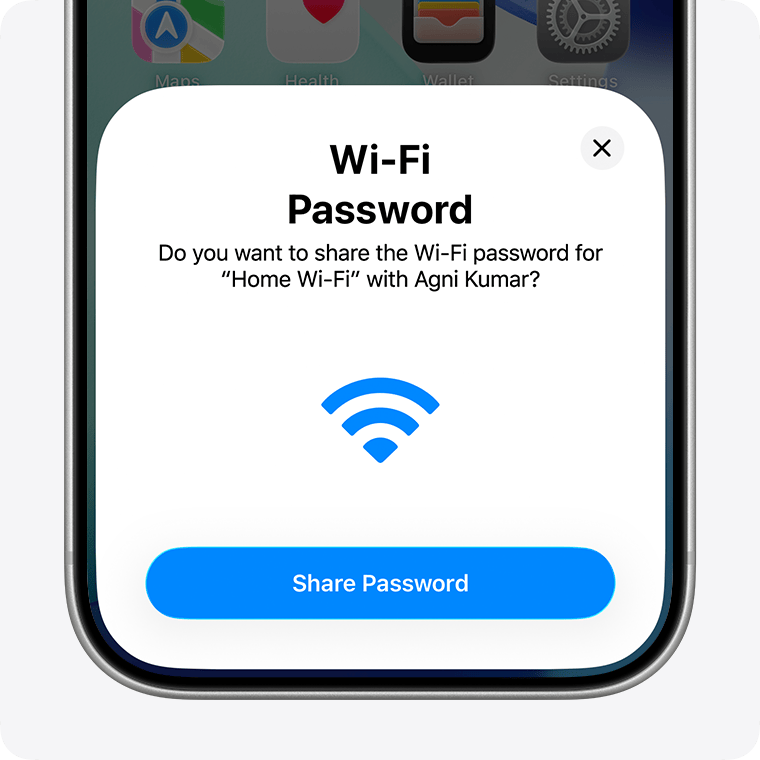
3. Tap Done
Finish the prompt by tapping Done. The visitor should now be able to join the network without typing the password.
How do I share with an Android phone or someone not in my contacts?
You need iOS 18 or later, because the QR code is in the Passwords app. The visitor scans your screen to receive the network details without typing the password.
- Open the Passwords app using your passcode, Face ID or Touch ID.
- Tap Wi-Fi. The connected network appears at the top, with saved networks below.
- Choose the network you want to share.
- Tap Show Network QR Code.
- Ask the visitor to point their phone’s camera at the code and follow the connection prompt.
How do I see a saved password so they can type it?
If your iPhone runs iOS 16 or later, you can see the password of the network it is on:
- Open Settings and tap Wi-Fi.
- Find the current network.
- Tap the Info button beside it.
- Tap the Password field.
- Use your passcode, Face ID or Touch ID to reveal it.
For a network you joined before, open Settings and tap Wi-Fi, then Edit in the upper-right corner. Unlock the list with Face ID, Touch ID or your passcode. Tap the Info button beside a network with a lock icon, then tap its Password field.
Copy it in the Passwords app
Open Passwords and unlock it to reach your saved networks.
- Tap Wi-Fi.
- Tap the network you want.
- Tap the Password field to reveal it.
- Tap Copy Password.
What if the Share Password prompt does not appear?
If no prompt appears, one of the phones is usually not ready. Check these:
- Update both devices to their latest available iOS, iPadOS or macOS software.
- Switch on Wi-Fi and Bluetooth on each device.
- Make sure each person is signed in to their own Apple Account.
- Switch off Personal Hotspot on either device if it is running.
- Save the other person’s Apple Account email or phone number in Contacts. They must save yours too.
- Keep the devices close, within Wi-Fi and Bluetooth range.
- Keep the sharing iPhone unlocked and connected to the network you want to share.
- Restart both devices and try again.
- If sharing still fails, reveal the password and let the visitor type it in.
What if the QR code does not scan?
On an iPhone, the visitor can open Camera or Code Scanner, frame the code and tap the detected link. Apple’s QR-code scanning instructions show both options.
If the visitor has a Pixel, Google’s guide shows how to scan the code.
Sources
- Apple: How to share your Wi-Fi password from your iPhone or iPad.
- Apple iPhone User Guide: Find and share your Wi-Fi password.
- Apple: Find your saved Wi-Fi passwords.
- Apple: Scan a QR code with your iPhone or iPad.
- Google: Scan QR codes with your Pixel phone.
- MacRumors: Share Wi-Fi passwords with a QR code.
- AppleInsider: Wi-Fi QR codes for guests.
- Tom’s Guide: Use a QR code to share a Wi-Fi password.
Published · Updated