How to Speed Up a Video on iPhone, Android and Computer

Short answer
On iPhone, open the video in an iMovie project, tap the clip, tap Speed and drag the slider right. The speed label appears below the clip; 2x means twice normal speed. You can speed up the whole clip or just a range.
Open the project in iMovie, tap the clip, tap Speed, drag the slider, then save the video.
Mac iMovie has a Fast choice under Speed. Windows Clipchamp offers a speed slider up to 16x. Follow the iPhone route below, or use the device table for the computer controls.
Before you start
Have iMovie and the video you want to edit ready. Our suggestion: keep the original, then decide which part should play faster. Watch the result before choosing a more extreme setting.
Changing the speed of a Cinematic mode clip means you can no longer edit its Cinematic effects. Bear that limit in mind before changing the clip. At the end, you will save the edited video to your photo library.
Step 1: add the video to iMovie
In iMovie’s Projects browser, tap Start New Project, then Movie. Tap Media, then Video and select the clip from your photo library. Tap Create Movie.
You should now see the video in the timeline. If you already have a movie project, open that project instead. For other picture changes, see editing a video on iPhone.
Step 2: open the Speed control
Tap the video clip in the timeline to show the inspector at the bottom. Tap Speed. A yellow bar with range handles appears below the clip.
These handles let you choose a range within the clip. Our suggestion: leave the opening and ending alone at first if they explain what the viewer is watching.
Step 3: drag the slider right
In the inspector, drag the slider right to increase speed. Drag it left to decrease speed. The relative speed appears below the clip.
To change only part of a clip, drag the yellow range handles. Apple also provides Add in the inspector to create another range. Each range can have its own speed.
Our suggestion: make a modest change first, then watch the movement. Keep the action understandable rather than making the clip as short as possible.
Step 4: check it and undo if needed
Play the clip and listen as well as watch. To return the whole clip to normal speed, tap Reset in the inspector.
By default, iMovie preserves audio pitch when speeding up or slowing down clips. Our suggestion: pay particular attention to speech before deciding that the faster version is ready.
Step 5: save it
Tap Done to leave the timeline, then Share. Tap Save or Share Video, then Save Video to put the result in your photo library.
Our suggestion: play the saved copy before sending it. Keep the iMovie project if you want to revisit the speed choice.
- Open the project in iMovie
- tap the clip
- tap Speed
- drag the slider
- save the video
Why not Photos on iPhone?
Apple describes the Photos playback-speed control for slowing videos recorded at a high frame rate. Its support page names footage above 30FPS on iOS 18 or later. The available playback options depend on the recorded format.
For the speed-up task here, keep following iMovie’s Speed control. Do not confuse that route with the Photos slow-down control.
On a Mac: iMovie
Select the clip in the timeline and click Speed. Choose Fast from the Speed pop-up menu, then a speed button. A faster clip becomes shorter in the timeline.
On Mac, faster playback raises the audio pitch. Select Preserve Pitch above the viewer to retain the original pitch. This setting differs from the iPhone default.
On Windows: Clipchamp
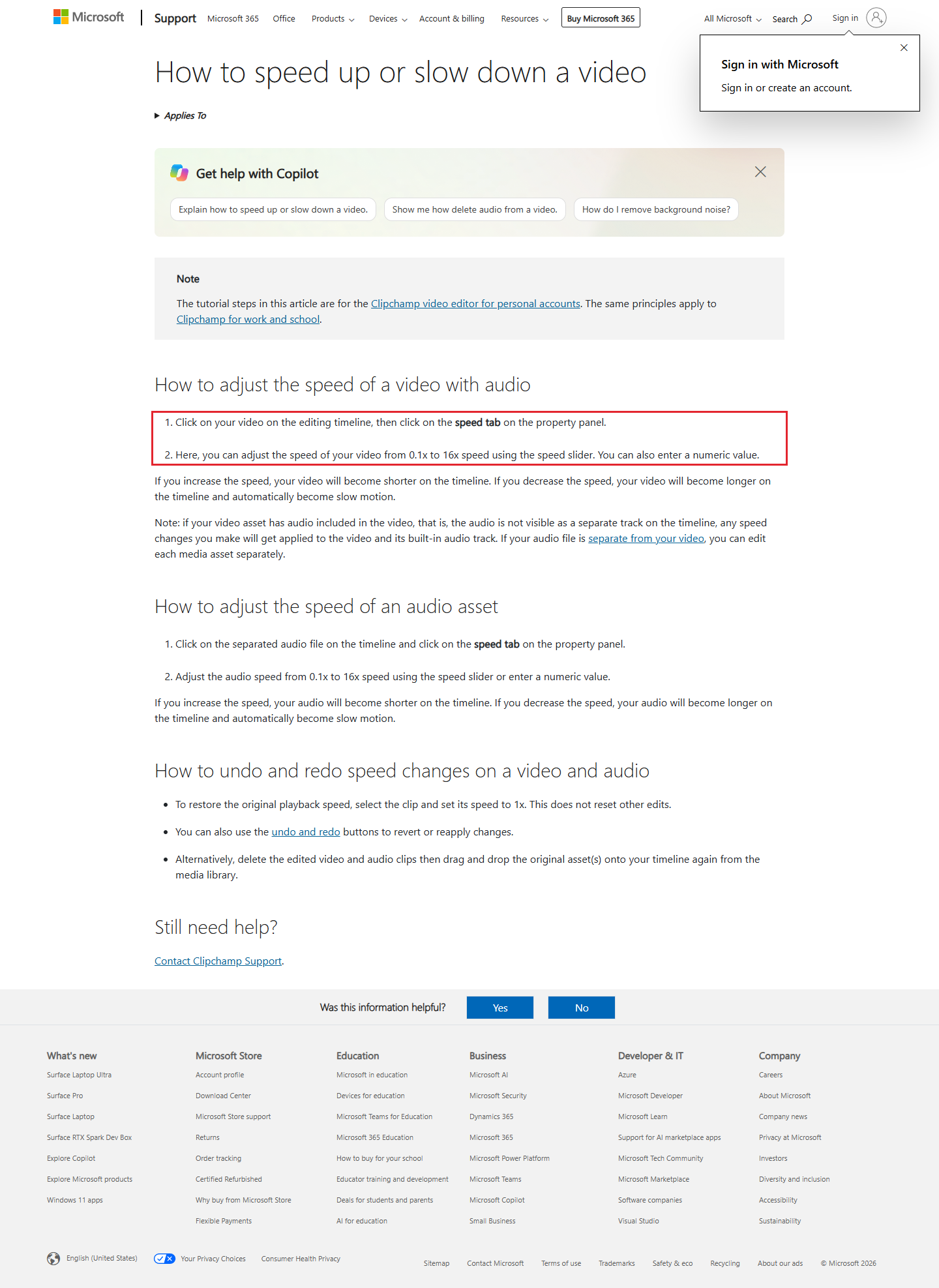
Select the video on the timeline, then click the speed tab in the property panel. Its slider runs from 0.1x to 16x, and you can also enter a number.
Increasing speed makes the clip shorter. Audio built into the video changes speed with it. To restore normal playback, select the clip and set the speed to 1x.
| Device | App | Where to start | Official note |
|---|---|---|---|
| iPhone | iMovie | Tap clip, Speed, slider right | Range handles select part of a clip |
| Mac | iMovie | Speed, Fast | Use Preserve Pitch to keep the original pitch |
| Windows | Clipchamp | Select clip, speed tab | 0.1x to 16x; built-in audio changes with video |
| iPhone | Photos | Playback-speed control | Apple describes slowing footage above 30FPS on iOS 18 or later |
Source: Apple iPhone iMovie, Apple Photos, Apple Mac iMovie and Microsoft Clipchamp, read 5 November 2026.
Android phones
(Our suggestion) Look for a speed setting in your phone maker’s own help, or move the clip to a computer and use the route above. Keep your original while trying the faster version.
What the top results show
The table lists the search results in their original order. The descriptions are our labels, rather than ratings or results from our own device tests.
| Result | Kind | What it teaches (our labels) |
|---|---|---|
| Speed Up Videos Online for Free | tool | Canva online speed tool |
| How do I speed up a video I took on my camera roll | forum | iPhone camera-roll question |
| Change Video Speed for Free Online - Adobe Express | tool | Adobe Express online speed tool |
| Adjust video speed in iMovie on iPhone | article | Apple iMovie speed steps |
| Change Video Speed | tool | Change a video’s speed |
| Speed Up Video Online for Free | tool | Speed up a video online |
| How to speed up or slow down a video | article | Clipchamp faster and slower playback |
| How to Speed Up a Video: Quick, Easy, and Free Steps | article | Quick and free speed-up steps |
| Speed Up or Slow Down BOTH Video & Audio - DaVinci Resolve | video | DaVinci Resolve speed and audio |
| Speed up or slow down YouTube videos - Android phone ... | article | YouTube playback speed on Android |
Source: our snapshot of the Google US results for this search, 4 November 2026.
Our example: a ceramics studio clip plan
Our example (illustrative, not a real client).
Clay Lantern Studio has a 4-minute video of throwing a pot. Our suggestion is to speed up the repetitive middle while leaving the opening and finished pot easy to see.
- Clip: clay becoming a bowl on the wheel.
- Range: the middle section where the movement repeats.
- Starting choice: our suggestion is 2x, followed by a playback check.
- Sound: listen to the original workshop audio with the new pace.
- If too fast: reset and try a gentler change.
- Finish: save the video and review it before the Instagram post.
For a process recorded over a longer period, see making a time-lapse video.
Frequently asked questions
How do I undo the speed change?
In iMovie on iPhone, tap Reset in the inspector. In Clipchamp, select the clip and set its speed to 1x.
Can I speed up only part of a clip?
Yes. iMovie on iPhone divides a clip into ranges with their own speeds. Drag the yellow range handles to choose the range.
Will the sound change too?
Clipchamp changes the built-in audio with the video. iMovie on iPhone preserves pitch by default; on Mac, select Preserve Pitch to keep it.
Sources
Maker instructions read 5 November 2026.
Published · Updated