How to Transfer Photos From iPhone to PC
Connect the iPhone to your PC with a USB cable and import the photos with the Windows Photos app.
If the full-size photos are only in iCloud, use iCloud for Windows or iCloud.com.
Where are your photos?
Photos are on the iPhone
- import the photos with the Windows Photos app
Photos are only in iCloud
- use iCloud for Windows
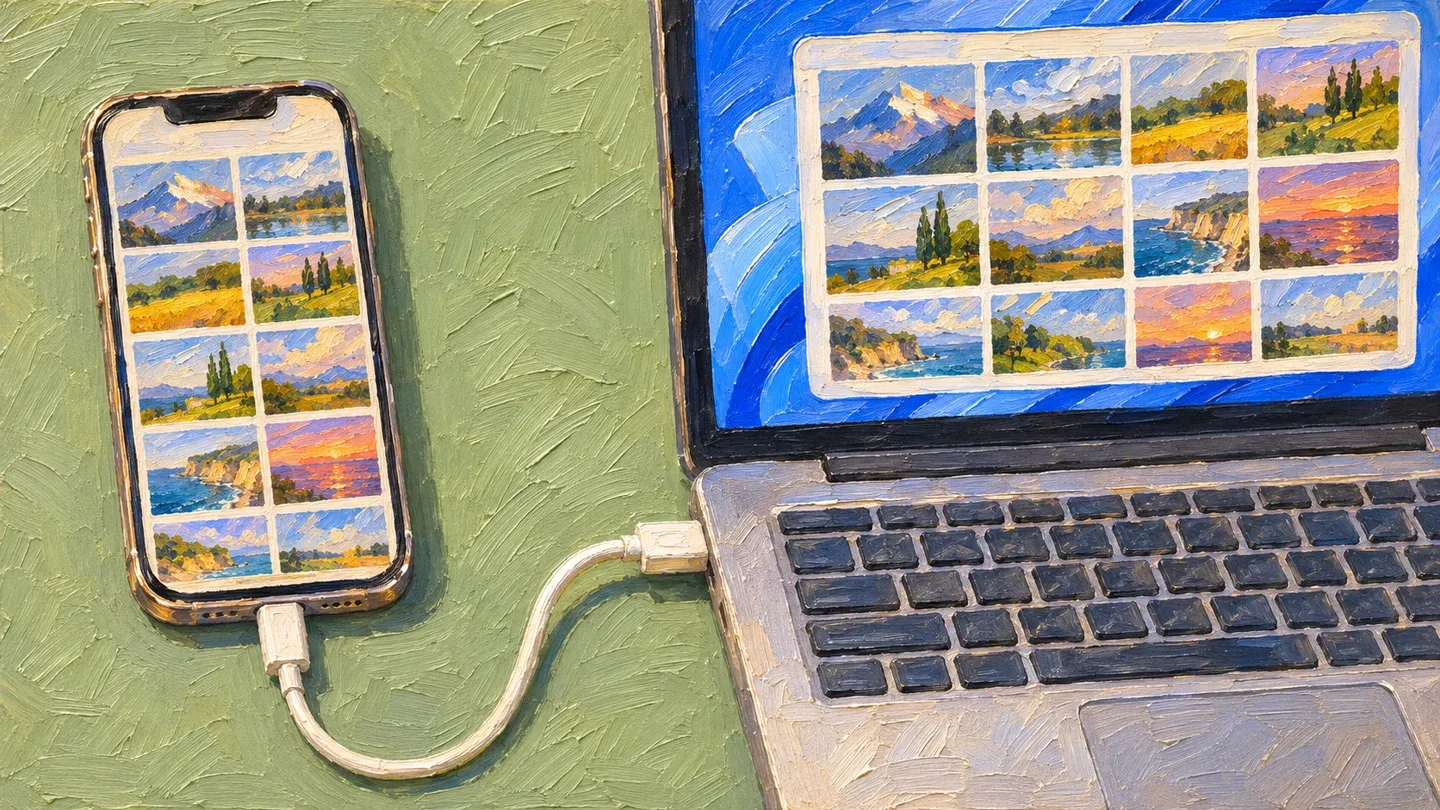
How do you import by USB?
If you use iCloud Photos, download the originals to the iPhone before you connect it. The cable can only copy files stored on the phone.
- On the iPhone, open Settings and tap your name. Tap iCloud, then Photos.
- If iCloud Photos is on, tap iPhone Storage and choose Download and Keep Originals.
- Install Apple Devices from the Microsoft Store so you can see the connected iPhone in the app.
- Connect the iPhone to the PC with a USB cable that supports data transfer.
- Unlock the iPhone and tap Trust or Allow if asked.
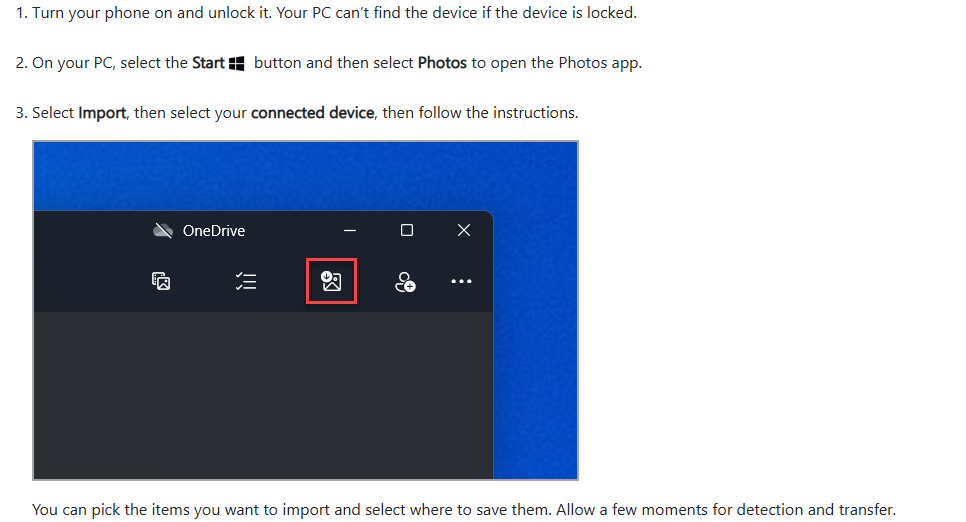
- Open Photos from the Windows Start menu.
- Select Import and choose your iPhone.
- Pick the photos and choose where to save them.
What file format will I get after importing?
When you copy photos by cable, the iPhone may convert HEIF photos to JPEG and HEVC videos to H.264.
If you want the files in the same format the iPhone saved them in, choose Keep Originals. Open Settings, tap Apps, then Photos, and scroll down to find it.
To take new photos in JPEG and record new videos in H.264, open Settings and tap Camera, then Formats. Choose Most Compatible.
How do you use iCloud for Windows?
Turn on iCloud Photos in the Windows app, then open your library in File Explorer.
- Install iCloud for Windows from the Microsoft Store.
- Open the app and sign in with the Apple Account you use on your iPhone.
- Click the arrow next to iCloud Photos. Turn it on and click Done.
- In File Explorer, choose iCloud Photos in the sidebar. If it is missing, open Pictures and double-click iCloud Photos.
- Double-click a thumbnail to download and open that photo.
If you edit a photo on the PC, the changes won’t appear on your iPhone or on iCloud.com. Upload the edited copy to iCloud Photos as a new file.
How do you download from iCloud.com?
Sign in to iCloud.com in your browser to download selected photos.
- Open iCloud.com/photos and sign in with your Apple Account.
- Click the photo you want. To pick several, hold Ctrl as you click each one.
- Click Download in the upper-right corner.
| Method | What you need | Best for |
|---|---|---|
| USB and Photos | A USB data cable and originals on the phone | A one-time import to a folder you choose |
| iCloud for Windows | iCloud for Windows and iCloud Photos | Access to your library from File Explorer |
| iCloud.com | A browser and your Apple Account | Downloading selected photos without a cable |
What if the transfer fails?
Open Apple Devices to see whether Windows detects your iPhone.
| Problem | Fix |
|---|---|
| The iPhone is missing from Apple Devices | Unlock the iPhone and leave the Home Screen visible. Tap Trust if asked. |
| The phone still does not appear | Try a different USB data cable or port. Check that Windows is up to date. |
| The Trust prompt does not work | Update the Apple Devices app. Restart the PC and the iPhone. |
| You tapped Don’t Trust | Go to Settings > General > Transfer or Reset iPhone > Reset > Reset Location & Privacy. Reconnect the iPhone and tap Trust. |
| A photo is missing from the cable import | The original may still be in iCloud. Download it to the iPhone first. |
Sources
Apple: Set up and use iCloud Photos
- Microsoft: Import photos and videos from phone to PC
- Apple: If your computer doesn’t recognize your iPhone or iPad
- Apple: Download and view iCloud Photos on your Windows computer
- Apple: Use iCloud Photos on your PC
- Apple: Using HEIF or HEVC media on Apple devices
- Apple: Download iCloud for Windows
- Apple: Set up Photos in iCloud for Windows
- Apple: Back up and sync your photos and videos with iCloud
- Apple: If your iPhone, iPad, or iPod doesn’t appear in the sidebar when connected to your Windows device
- Apple: About the Trust This Computer alert
Published · Updated