How to Turn Off Copilot in VS Code
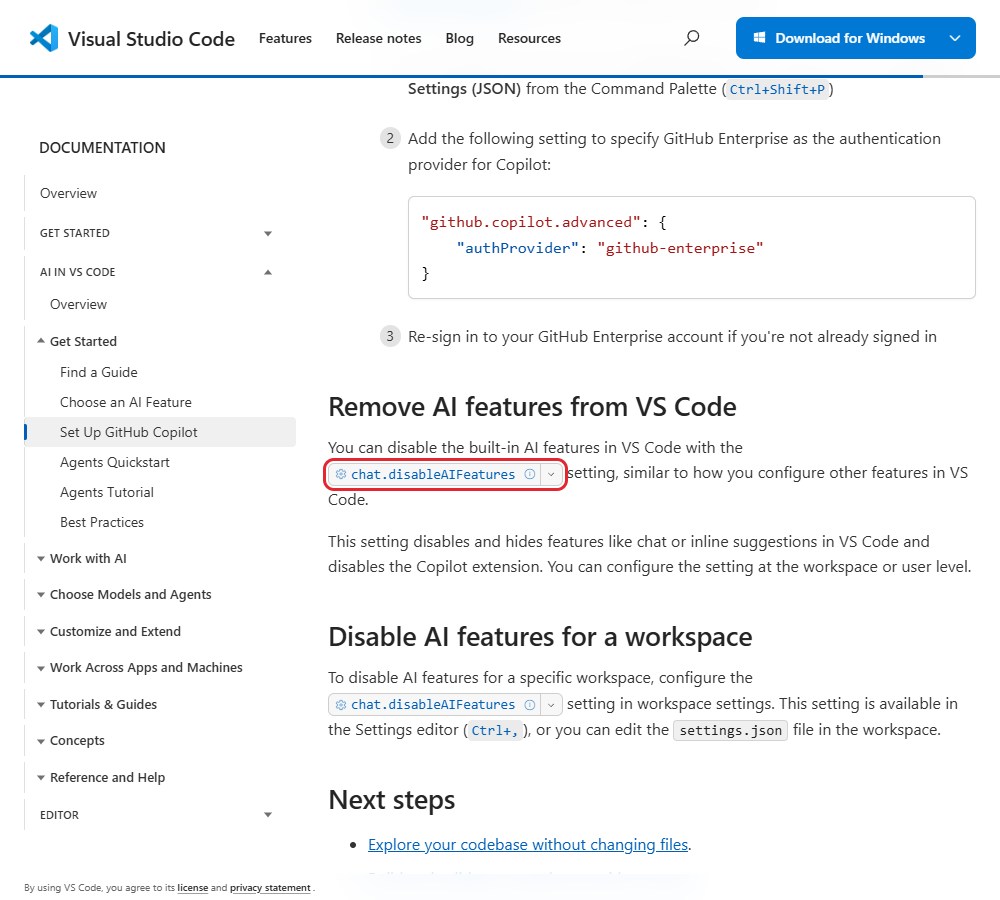
To turn off Copilot in VS Code, open Settings, search for chat.disableAIFeatures and tick the checkbox for that setting. This turns off chat, code hints and the Copilot extension (the add-on in VS Code).
On a Mac, press the Command key (⌘) where a step says Ctrl.
What can you turn off?
Pause suggestions
- Choose Snooze
Stop inline suggestions
- Uncheck inline suggestions
Stop next edit suggestions
- Set github.copilot.nextEditSuggestions.enabled to false
Turn off all AI features
- Tick the checkbox for chat.disableAIFeatures
Turn off Copilot Free
- Choose Disabled under Show Copilot

How do I pause Copilot suggestions for a few minutes?
Open the Copilot menu from the status bar at the bottom of the window and choose Snooze. That pauses inline suggestions (the code hints you see as you type) for five minutes.
The hints return when the timer ends. Choose Snooze again for five more minutes, or choose Cancel Snooze to end the pause early.
To pause the hints from the keyboard, use the Command Palette (the box where you search for commands).
- Press Ctrl+Shift+P to open the Command Palette.
- Type Snooze Inline Suggestions, then select that command.
- To end the pause early, press Ctrl+Shift+P again, type Cancel Snooze Inline Suggestions and select that command.
How do I stop inline suggestions in one language or in every file?
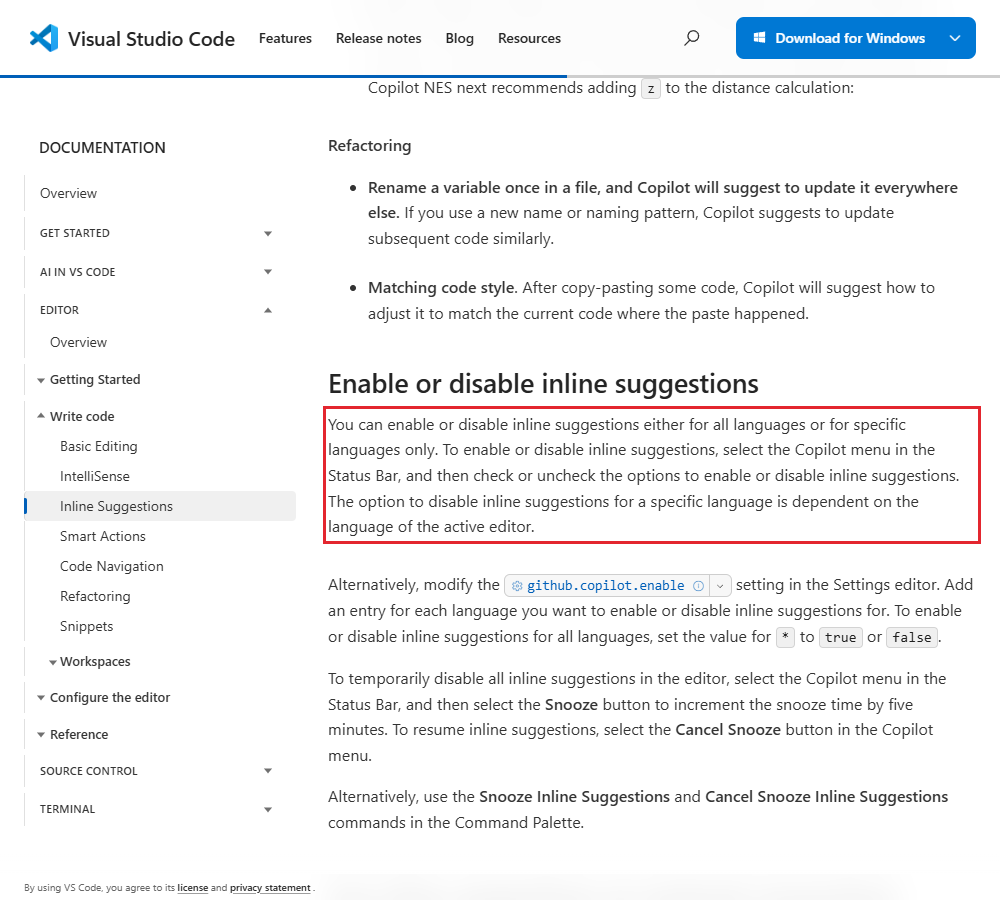
In the Copilot menu on the status bar, uncheck inline suggestions for the current file type or for all files.
For one language, first open a file in that language. The language option in the menu matches the file you have open.
You can also edit settings.json (the file where VS Code stores your choices). In the Command Palette, run Preferences: Open User Settings (JSON). Use this setting to stop hints in every language:
{
  "github.copilot.enable": {
    "*": false
  }
}
To stop hints in Markdown files alone, put this version of the setting in the same file:
{
  "github.copilot.enable": {
    "markdown": false
  }
}
How do I stop next edit suggestions too?
Set github.copilot.nextEditSuggestions.enabled to false in your settings.json file. Next edit suggestions are Copilot’s hints for another change to make after you edit your code.
- Press Ctrl+Shift+P to open the Command Palette.
- Type Preferences: Open User Settings (JSON), then select that command. The
settings.jsonfile opens. - Add the setting below to the file, then save the file.
{
  "github.copilot.nextEditSuggestions.enabled": false
}| Setting | What it controls | Default | Scope |
|---|---|---|---|
github.copilot.enable | Inline suggestions by language | On except plaintext, Markdown and the source control message box | User or Workspace |
github.copilot.nextEditSuggestions.enabled | Next edit suggestions | On | User or Workspace |
chat.disableAIFeatures | Built-in AI features | Off | User or Workspace |
How do I turn off all AI features in VS Code?
Tick the checkbox for chat.disableAIFeatures on the User tab of Settings. Settings on the User tab apply to every project you open in VS Code.
- Press Ctrl+, (Ctrl and the comma key) to open Settings.
- Click the User tab at the top of Settings.
- Type
chat.disableAIFeaturesin the search bar. Settings then shows only the setting that matches. - Tick the checkbox for that setting. VS Code applies the change straight away and hides chat and code hints.
You can also open Chat in the title bar and select Learn How to Hide AI Features to open the setting.
How do I turn Copilot off for just one project?
Tick the checkbox for chat.disableAIFeatures on the Workspace tab of Settings. Settings on the Workspace tab apply only to the project you have open.
- Open the project in VS Code.
- Press Ctrl+, (Ctrl and the comma key) to open Settings.
- Click the Workspace tab at the top of Settings.
- Type
chat.disableAIFeaturesin the search bar, then tick the checkbox for the setting that appears.
VS Code saves that choice in a settings.json file in the .vscode folder at the root of the project. To edit that file yourself, press Ctrl+Shift+P, type Preferences: Open Workspace Settings (JSON) and select that command. Then add this setting to the file and save the file:
{
  "chat.disableAIFeatures": true
}
Should I disable or uninstall the Copilot extension?
Choose Disable if you want to turn the Copilot extension on again later. Choose Uninstall if you want to remove it.
Open Extensions and select the gear next to GitHub Copilot. Choose Disable for all projects, Disable (Workspace) for the open project, or Uninstall to remove the extension. If asked, click Restart Extensions to reload the add-ons.
To bring back a disabled extension, find it under Disabled. Open its gear menu and choose Enable or Enable (Workspace).
To disconnect your GitHub account, open Accounts in the Activity Bar (the row of icons beside the sidebar). Select your GitHub account and choose Sign out.
How do I stop Copilot Free on my GitHub account?
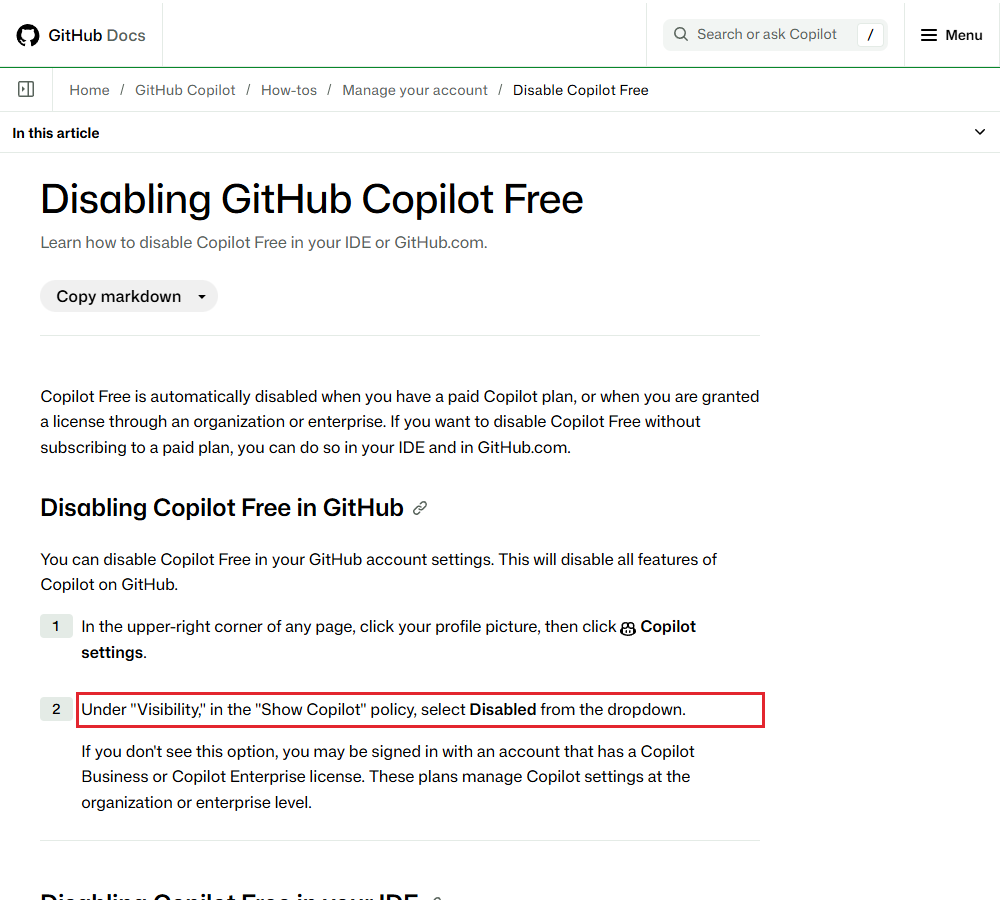
Choose Disabled under Show Copilot in your GitHub Copilot settings.
- On GitHub, click your profile picture in the upper right.
- Open Copilot settings and go to Visibility.
- In the Show Copilot dropdown, choose Disabled.
If the setting is missing, your organization may manage Copilot for your account.
Frequently asked questions
Will a VS Code update turn the AI tools back on?
No. VS Code keeps your choice to hide the AI tools after an update.
Can signing in start Copilot Free?
Yes. VS Code can start Copilot Free when you sign in with an eligible GitHub account that has no plan. To avoid Copilot Free, keep using VS Code without signing in.
Sources
Published