Kaggle TPU Setup: Free Access and the 330 GB RAM Claim

On this page
Yes, you can pick a TPU inside a Kaggle notebook. You must pass a phone check and an identity check first, and Kaggle limits the hours.
The 330 GB figure you may have seen is old. It described the RAM of a Kaggle notebook machine. It was not your laptop's RAM and it was not the memory on the TPU chip. Do not expect it. Run Cell 1 below and read the number your own session prints.
In our test on 28 November 2026, Kaggle accepted the TPU v5e-8 choice and showed 20 hours remaining. Then it put us in a queue at position 697 and later 695. No machine started, so we have no RAM number and no TPU result of our own. Every output in this guide is marked as expected output, not as our result.
Last checked 28 November 2026.
Before you start
- A Kaggle account. Sign in at kaggle.com.
- A phone number that belongs to you. Kaggle sends a code to it and does not accept public or shared numbers.
- An ID document and a camera. Kaggle's identity check may ask for a document, a live face check, or both.
- No payment. Nothing in our test asked for a card.
At the end you will have: a notebook set to TPU v5e-8 and three code cells ready to paste. You will also know how to read your real RAM and TPU count.
Kaggle TPU setup: the steps
Create a notebook.
Go to kaggle.com and sign in. Click Create, then Notebook. Click the title at the top and give the notebook a name. We used imaPRO TPU Setup Live Walkthrough.
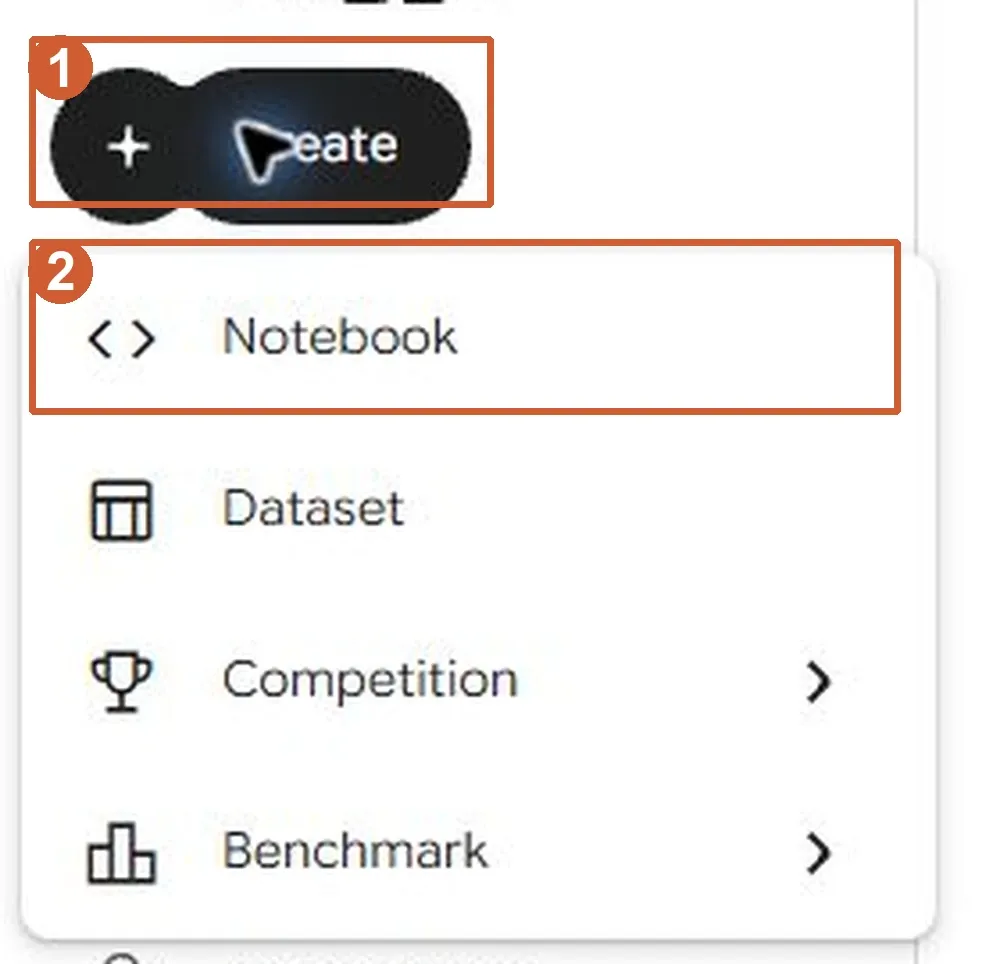
1 Create, 2 Notebook. Highlighted controls from our browser capture. You should see: a new notebook page with one sample code cell. Kaggle saves draft changes by itself.
Complete the phone check.
Open Session options in the right sidebar. If Kaggle shows Get phone verified, click it. Choose your country code, type your number, tick the reCAPTCHA box if it appears, then click Start verification. Enter the code that Kaggle sends to your phone.
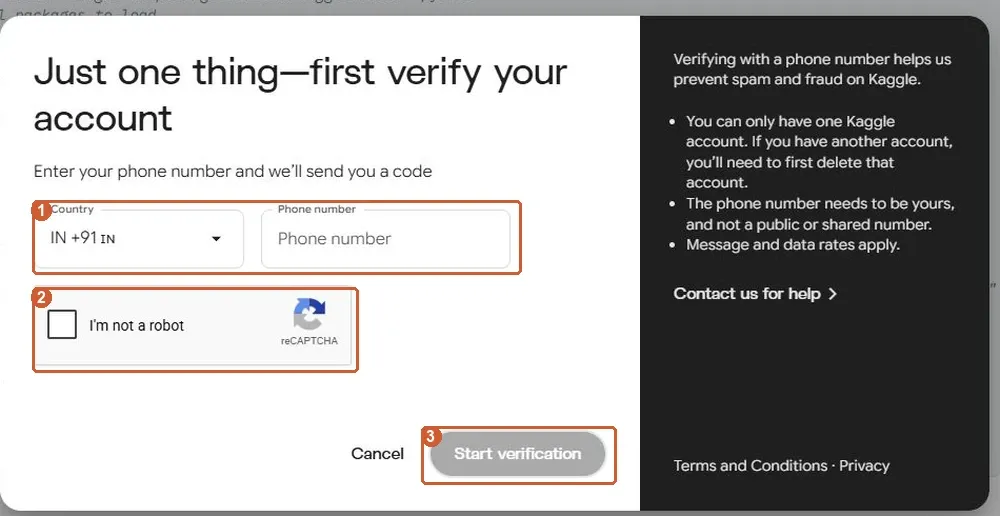
1 Country and number, 2 CAPTCHA, 3 Start verification. The fields are empty. You should see: the form above. Kaggle says the number must be yours and not a public or shared number. Some accounts show a slightly different layout.
Complete the identity check if Kaggle asks for it.
Open Settings, then Accelerator, then TPU v5e-8. If Kaggle opens an identity check, follow the instructions on that page yourself. It may ask for a document, a live face check, or both. When you finish, return to the notebook and try the TPU again.
You should see: the TPU choice accepted. In our test the first return still showed the identity page, and the TPU was accepted only after the remaining face check was done. The screenshot below shows only the entry prompt. Complete the private document or face check yourself.
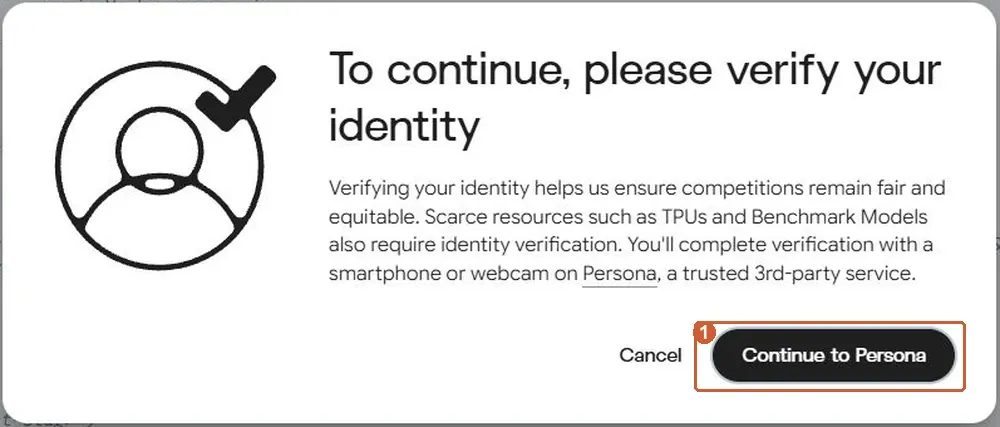
The entry to the identity check, before any document or face capture. Private verification images are excluded. Choose TPU v5e-8.
Click Settings at the top, open Accelerator, then select TPU v5e-8. Kaggle shows a dialog with your allowance. Click Turn on TPU v5e-8.
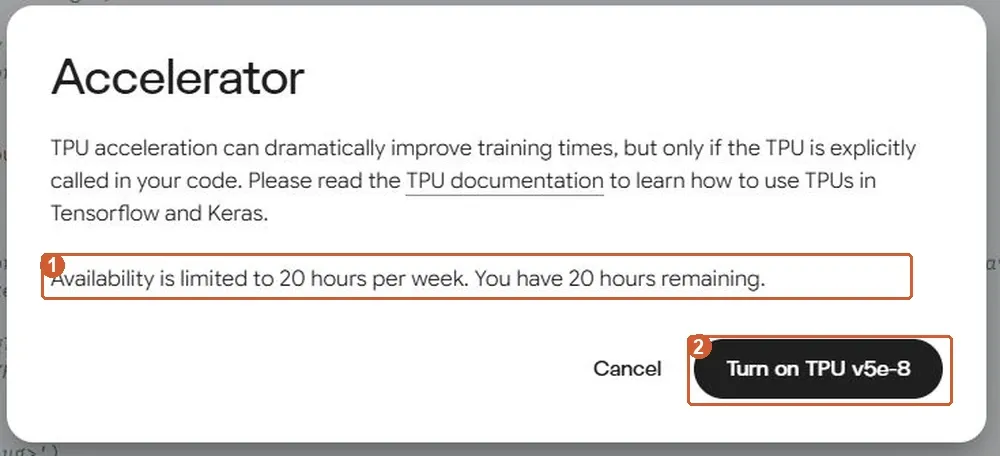
1 Our displayed allowance, 2 Turn on TPU v5e-8. Our dialog said: Availability is limited to 20 hours per week, and we had 20 hours remaining.
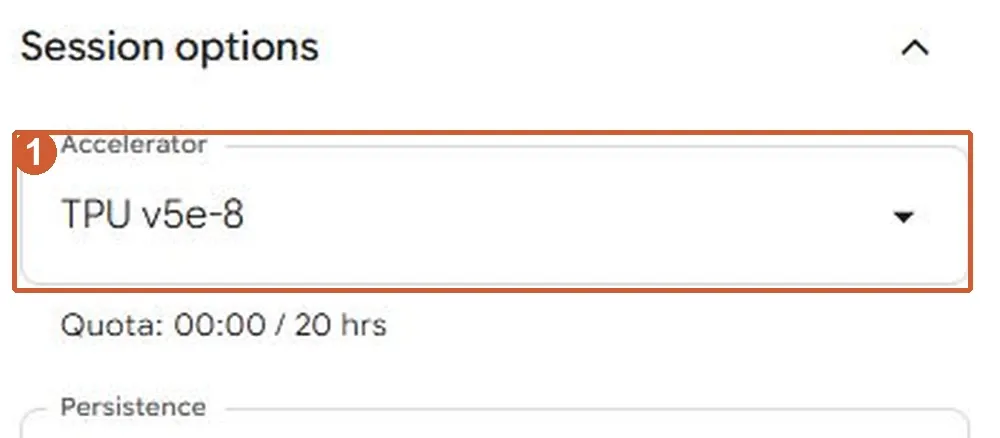
TPU v5e-8 selected in Session options. You should see: TPU v5e-8 under Accelerator in Session options. Choosing it does not start a machine yet. The dialog also says a TPU helps only when your code calls it, which is why Cell 1 and Cell 2 below name the TPU.
Paste Cell 1 and run it.
Click inside the first code box and select the sample text. Copy Cell 1 from the next section and paste it over the sample. Click the triangle-shaped Run current cell button.

1 Run, 2 Our initial queue position, 697. No hardware output was produced. You should see: the session status change to starting, then either a running machine or a queue message. Ours read: TPUs are popular right now, we were number 697 in the queue, and we could wait, try again later, or use another accelerator.
Wait, or come back later.
Our queue screen did not show a reliable start time. Your queue number can move: ours went from 697 to 695. Approval gives you access, not a reserved machine. A CPU or GPU session is a different resource, and it does not prove your TPU works.
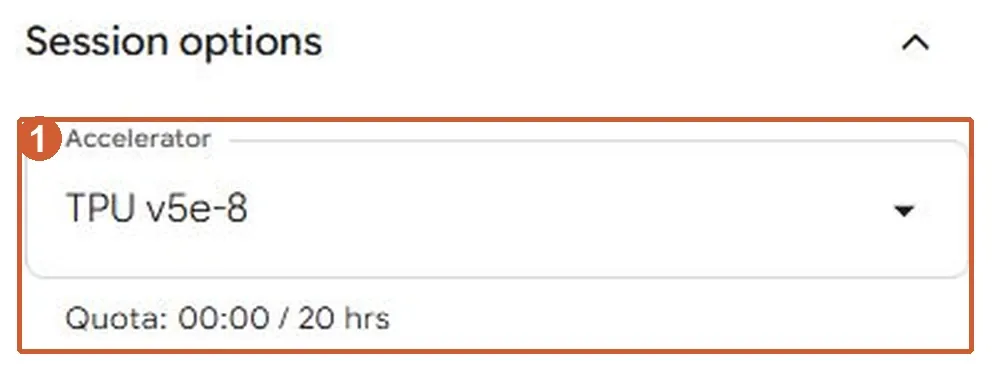
Our queued session displayed TPU v5e-8 and 00:00 of 20 hours. You should see: the current session status and time allowance. Our queued session displayed 00:00 of 20 hours.
Save the prepared notebook.
Click Save Version, then Quick Save, then Save. Quick Save does not run unexecuted cells. After a real run, save or download any output you need, then stop the session with its power control.
You should see: a new saved version in the notebook list. Our version 2 holds this setup, saved while we were still in the queue.

1 Save Version. This earlier capture shows counter 1; a later screen check confirmed the final saved version 2.
After your session starts
These are the next checks to try after Kaggle allocates a TPU. We prepared the code but did not reach this stage in our queued session.
Read the output of Cell 1.
When the session starts, Cell 1 runs. It prints five kinds of line. Read the host RAM line first, because that is the real number for your session.
Expected, not our result. The output should look like this, with your own values in place of the angle brackets:
Host RAM in GiB: <number>
Logical CPUs: <number>
JAX version: <version>
tpu <device name>   (one line for each TPU device)
TPU devices detected: <number>
You should see: at least one line that starts with tpu. If you see the message No TPU detected, go to the fixes table.
Run Cell 2, then Cell 3.
Add a new code cell below the first, paste Cell 2, and run it. Then add a third cell, paste Cell 3, and run it in the same session.
Expected, not our result. Cell 2 should print Shape: (256, 256), Check value: 256.0, and a Devices used line that names a TPU device. Cell 3 should print Saved: /kaggle/working/tpu-check.txt.
You should see: the file tpu-check.txt under Output, then /kaggle/working. Refresh the Output list if it is missing.
The three code cells
We wrote these three cells for this guide. These cells use Python, NumPy and JAX. The runtime must provide those packages. Paste one into each cell, in order. Click the code to select it all, or press the copy button when it appears.
Cell 1: check your hardware
import os
from pathlib import Path

mem = Path("/proc/meminfo").read_text()
total_kib = int(next(line.split()[1] for line in
    mem.splitlines() if line.startswith("MemTotal:")))
print("Host RAM in GiB:", round(total_kib / 1024**2, 1))
print("Logical CPUs:", os.cpu_count())

import jax
devices = jax.devices()
print("JAX version:", jax.__version__)
for device in devices:
    print(device.platform, device.device_kind)
tpus = [d for d in devices if d.platform == "tpu"]
if not tpus:
    raise RuntimeError("No TPU detected. Recheck the runtime.")
print("TPU devices detected:", len(tpus))
The first part reads /proc/meminfo, a Linux file that lists the memory of the machine. The MemTotal line holds the total RAM in KiB, and the code divides it by 1024 twice to print GiB. A GiB is about 7 percent larger than a GB. Then os.cpu_count() prints the number of processor threads on the host. These are not TPU chips.
The second part imports JAX and calls jax.devices(), which returns a list of the devices for a backend. The loop prints each device. If none is a TPU, the code stops with an error message. So Cell 1 reads what your session really has. It does not claim any RAM figure.
Cell 2: a tiny TPU calculation
import numpy as np
import jax

tpus = [d for d in jax.devices() if d.platform == "tpu"]
if not tpus:
    raise RuntimeError("Select a TPU runtime first.")

x = jax.device_put(np.ones((256, 256), np.float32), tpus[0])
y = jax.jit(lambda a: a @ a.T)(x)
y.block_until_ready()
print("Shape:", y.shape)
print("Check value:", float(y[0, 0]))
print("Devices used:", y.devices())
This cell makes a 256 by 256 table of ones. Then jax.device_put copies the table to the device you name. Here that is the first TPU. The next line multiplies the table by its own transpose, and jax.jit compiles that step for the device. The call block_until_ready() waits for the answer. Every cell of the result adds 256 ones times 1, so the check value is 256.0. This tests one device. It is not a speed test.
Cell 3: save a small result file
from pathlib import Path
Path("/kaggle/working/tpu-check.txt").write_text(
    f"Devices used: {y.devices()}\nShape: {y.shape}\n"
)
print("Saved: /kaggle/working/tpu-check.txt")
This cell writes two lines to a text file in /kaggle/working. It uses the variable y from Cell 2, so run Cell 2 first in the same session. Download or keep any result you need before the session ends.
Host RAM, CPU and TPU: what each one is
| Part | What it is | Cell 1 line |
|---|---|---|
| Host RAM | Working memory of the cloud computer that holds your notebook. | Host RAM in GiB |
| CPU | The general processor of that same computer. | Logical CPUs |
| TPU | A separate chip for machine learning math, with its own memory. | TPU devices detected |
These are three separate parts. One number does not tell you about the other two.
What changed about the 330 GB claim
An older Kaggle forum post announced 330GB RAM and 96 CPU cores on Kaggle Notebooks.
That is host RAM. It is the memory of the cloud computer that holds your notebook. It is not RAM in your laptop, and it is not the memory on the TPU chip.
Kaggle has since announced TPU v5e-8 on notebooks and said it is phasing out v3-8. The Accelerator menu in our test offered TPU v5e-8. Some videos about the 330 GB claim talk about Google Cloud. This guide uses Kaggle notebooks, which is where that forum post lives.
Treat 330 GB as history. Your session decides the real number, and Cell 1 prints it.
Kaggle notebooks and Google Cloud TPUs are billed differently
Kaggle gives you a weekly TPU allowance inside notebooks. Our screen showed 20 hours per week.
Google Cloud sells TPUs by the chip-hour, which means one chip for one hour. Charges build up while a TPU node is in a READY state. On the pricing page we checked on 28 November 2026, one TPU v5e chip in us-central1 cost $1.20 per hour on demand. This guide does not use Google Cloud, and we paid nothing.
Common problems and fixes
| What you see | What to do |
|---|---|
| TPU option is gray or unavailable | Finish the phone check and the identity check, then return to the notebook and try again. |
| The identity page shows again when you return | Finish the step that is still open. In our test it was the face check. |
| A message says TPUs are popular and shows a queue number | Wait or try later. Approval does not reserve a machine. Another accelerator is a different resource and does not prove your TPU works. |
| Cell 1 says No TPU detected | Check that Session options shows TPU v5e-8 and that the session has really started. Then run Cell 1 again. |
| The output lists only a CPU | Same fix: confirm the TPU setting and that the requested session started. |
| Host RAM is not 330 GB | That is normal. Use the number your session prints. The older 330 GB setup is not guaranteed. |
| Cell 3 says the name y is not defined | Run Cell 2 first, in the same session. Cell 3 reads the result of Cell 2. |
| Python says it cannot import jax | Open the Kaggle TPU documentation and follow its current setup for TPU notebooks. |
| Your session ends or your hours run out | Save or download what you need, and check the next allowance that Kaggle shows. |
Download the ebook and code
Download the illustrated ebook to keep beside your notebook. All three code cells are included in the ebook and can also be copied from this article.
Related guides from imaPRO
If you work with AI tools, these two guides may help. Neither one needs a Kaggle TPU.
- Claude animation styles and prompts: ten animation styles with the prompts and examples.
- How to make a game with Gemini: turn a desk photo into a 3D browser game.
Frequently asked questions
Is a Kaggle TPU free?
Kaggle did not ask us for payment. It limits TPU use by hours, and our screen said availability is limited to 20 hours per week. Read your own screen, because the limit and the supply can change.
Do I need phone and identity checks for a Kaggle TPU?
Yes. Kaggle says TPU access requires identity verification, and it also asked for a phone check in our test. Do both checks yourself on Kaggle's own pages. Never put codes, documents or selfies into a guide or a chat.
Does Kaggle give 330 GB of RAM with a TPU?
Do not count on it. The 330 GB figure came from an older Kaggle post about notebook machines. Run Cell 1 in your own session and trust the number it prints.
Why am I in a queue for a Kaggle TPU?
Kaggle's own message said TPUs are popular and showed our place in line: 697 first, then 695. Approval gives you access. It does not hold a machine for you. Wait, try again later, or use another accelerator for work that does not need a TPU.
What is the difference between a CPU, a GPU and a TPU?
A CPU does general work. A GPU and a TPU are built for the heavy math used in machine learning. A TPU is a chip that Google designed for that job.
Do I pay if I use Google Cloud TPUs instead of Kaggle?
Yes. Google Cloud bills TPUs by the chip-hour, and charges build up while a TPU node is in a READY state. This guide uses Kaggle notebooks, not Google Cloud.
Your next step
Open a new Kaggle notebook, choose TPU v5e-8 under Settings and Accelerator, paste Cell 1, and run it. If you see a queue message, save the notebook and come back later.
Sources
- Kaggle notebooks documentation
- Kaggle TPU documentation
- Kaggle announcement: New TPU v5e-8s! Phasing out v3-8s
- Kaggle announcement: Identity Verification for TPU access
- Kaggle forum post: 330GB RAM and 96 CPU cores on Kaggle Notebooks
- JAX reference: jax.devices
- JAX reference: jax.device_put
- Google Cloud TPU pricing
Published