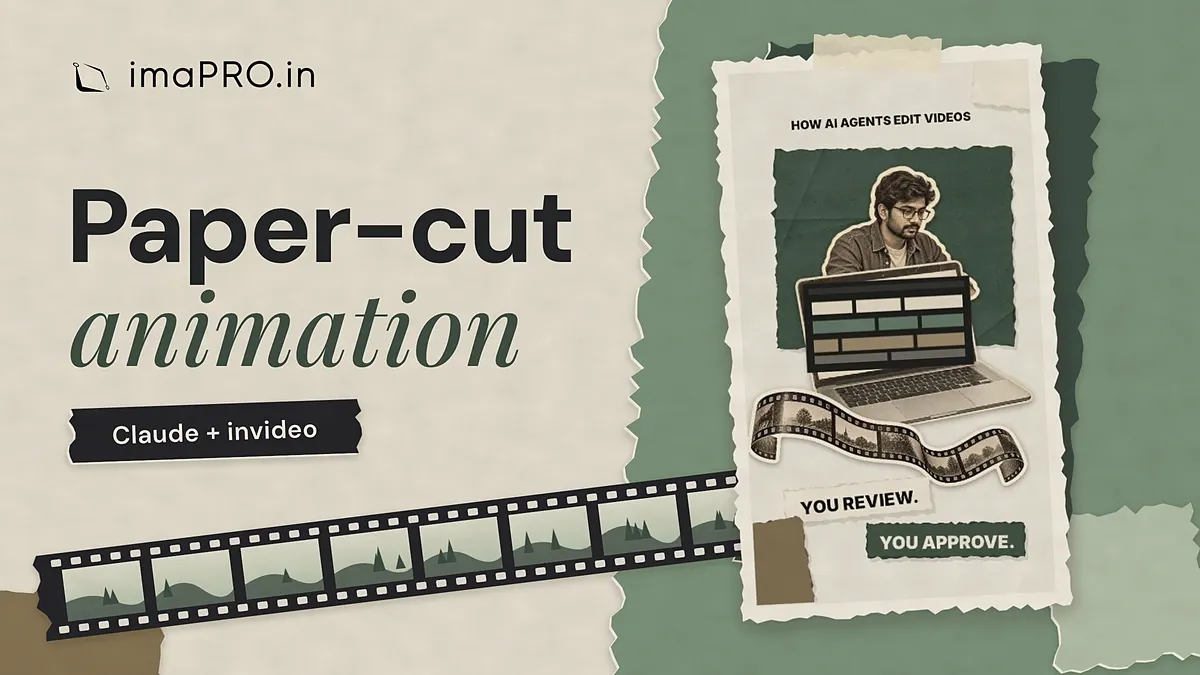
Paper-cut animation with Claude and invideo: a step-by-step guide
You can make a short paper-cut animation by connecting Claude to the invideo Editor and asking it to move three paper cutouts as separate layers. You upload the cutouts, send one prompt that describes the scenes, then review and export the clip as an MP4.
This guide builds a 15-second vertical clip for Reels or Shorts. A person, a laptop and a strip of film slide in like paper pieces, and the view moves between them. Ordinary timeline editing through invideo MCP does not use invideo credits, so you can build and edit the clip without paying for AI-made images or video.
The paper-cut animation you will create
The look is a collage of paper cutouts. The person, laptop and film are separate pieces, so each one can move and overlap the others.

Before you start
Get these ready first.
- A Claude account. The free plan works, but Claude Free users are limited to one custom connector.
- An invideo account. You can create one when you sign in during setup.
- Chrome, signed in to Claude and invideo in the same profile.
- Three PNG images with clear backgrounds: a person, a laptop and a film strip.
- Optional: one or two reference images that show the look you want.
If you are new to Claude, read Claude for small business before you start.
A few words you will see in this guide:
- MCP (Model Context Protocol) is a standard way for an AI app like Claude to use another app's tools.
- A connector is the link inside Claude that uses MCP to reach one app, here the invideo Editor.
- A timeline is the video editor's work area, where clips and images sit in order.
- A layer is one item on the timeline. Separate layers can move and overlap.
- A PNG with a clear background is an image with no box around it, so the cutout sits on top of other layers.
At the end you will have an editable invideo timeline, set up for a 1080 x 1920 MP4 export. If you use Claude on a Team or Enterprise plan, an Owner adds the connector for the whole organization, so ask your admin before you connect.
Step 1: Copy invideo's setup prompt for Claude
invideo gives you a ready-made prompt that tells Claude how to connect. Start there, because it is quicker than adding the connector by hand.
- Open the invideo MCP page.
- Click the Claude tab at the top.
- Scroll to the section where your agent does the setup. Under the prompt box, click Copy.
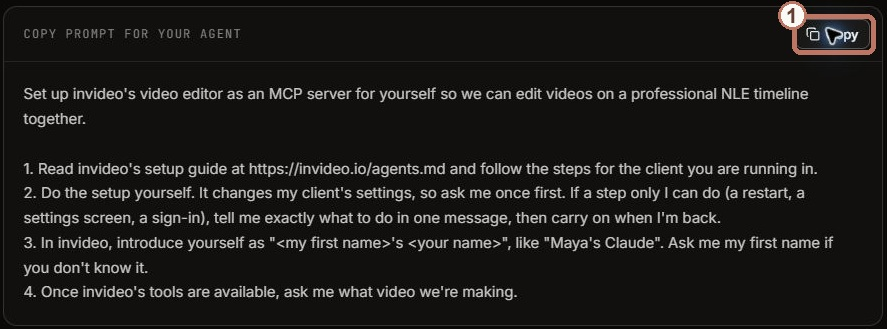
What you should see: the prompt is now on your clipboard. This prompt only sets up the connection. You will send the animation prompt later.
Step 2: Connect invideo to Claude
Open Claude in the same Chrome profile. Paste the setup prompt into a new chat and send it. If Claude asks for your first name, give it.
Already connected invideo before? Send this instead, so you do not end up with two connectors:
Reuse my existing invideo connector. Check that it works without adding a second connector or changing its permissions.
Claude may ask you to add the connector yourself. In that case, follow these steps:
- In Claude, go to Customize, then Connectors.
- Click + Add, then Add custom connector.
- Type
invideoas the name. - Paste the server URL
https://mcp.invideo.io/mcpand click Continue. - Sign in to invideo in the browser window that opens.
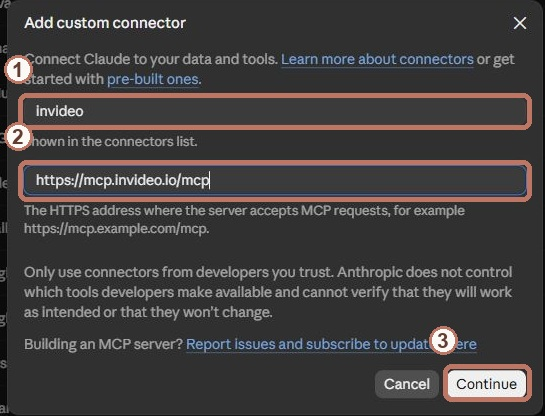
You do not need an API key. Claude simply asks you to sign in to invideo in your browser. Anthropic's advice is to connect only to servers from companies you trust, and the URL above is the one invideo publishes on its own help page.
What you should see: invideo listed in Claude's connectors, signed in to your account.
Step 3: Test the connection before you build
Go back to the same chat and send this:
Use a read-only invideo tool to check that you can reach my account. Do not create, edit or export anything yet.
Claude will ask your permission before it uses an invideo tool. Read what it wants to do, then choose Allow once if it matches your request. If a request asks to buy something, upgrade your plan or spend credits, say no. Anthropic also warns that a harmful MCP server can hide instructions that try to make Claude do things you did not ask for.

What you should see: Claude confirms it can reach your invideo account, and nothing has changed in your projects.
Step 4: Ask for an empty vertical timeline
Ask Claude for a fresh timeline, so this test does not touch your other work. Copy and send:
Create a new empty timeline named Paper Collage V3, 1080 x 1920 at 30 fps. Keep my earlier edits. Use no paid media, credits or upgrades. Give me the editable link and wait for my image uploads.
Open the editable link Claude gives you. If you land on the project overview, click Edits, open the new timeline, then click Edit in the top bar.
What you should see: an empty vertical timeline in the invideo Editor. From now on you can watch every edit appear here, and you can take over at any frame.
Step 5: Upload the three paper pieces
You upload your images straight into the invideo Editor. Claude then works with them from there.
- In the lower-left corner, open Media and click Add media.
- Click Import, then click the drop area to browse your files.
- Select your three PNG files, for example
editor-person.png,laptop-screen.pngandfilmstrip.png. - Wait for all three uploads to finish, then close the import window.
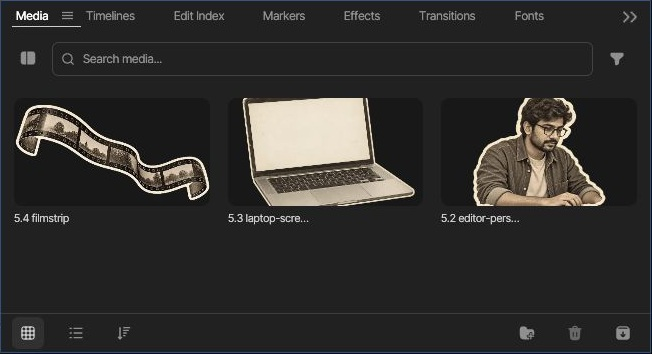
Use the original PNG files. A screenshot or a JPG adds a solid box behind the cutout, and the paper effect is lost. Keep the person, laptop and film as three files. One combined image would move as a single flat picture.
What you should see: three thumbnails in the Media panel.
Step 6: Send the animation prompt
Go back to the same Claude chat. If you have reference images, attach them first with + and then upload from your computer. Then paste the prompt below. Replace the link in square brackets with your own editable link.
The three original PNGs are in this timeline's Media library: [paste your editable link]. Use them as three separate layers: editor-person.png, laptop-screen.png and filmstrip.png.

Make a 15-second paper-collage animation in three scenes.

Scene 1 (0 to 5 seconds): the cutouts slide in one by one, and the view pushes slowly toward the laptop.
Scene 2 (5 to 10 seconds): film frames build up one at a time, a hand-drawn playhead moves along the film, and the view drifts sideways.
Scene 3 (10 to 15 seconds): a torn-paper reveal, the view pulls back, and two labels appear: "You review." and "You approve."

Move each layer on its own so they overlap and the scene feels deep. Use only my uploaded files. Do not generate media, use stock or spend credits. Tell me when it is ready to preview.
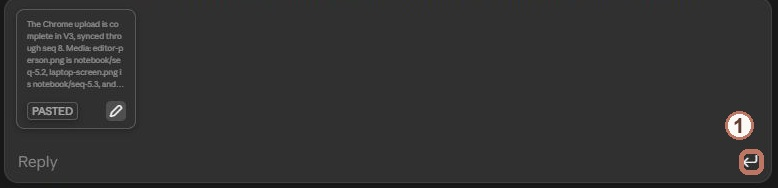
Claude will ask to use invideo tools several times while it builds. Read each request before you choose Allow once, and refuse anything that mentions paid media, stock licences, upgrades or credits.
What you should see: layers appearing on your timeline as Claude works.
Step 7: Review at 2, 7 and 12 seconds
Watch the whole clip from start to end, because a single still frame can hide problems. Click Preview in the top bar, then press the play button at the bottom right.
- Check that the person, laptop and film move on their own and do not slide as one flat image.
- Pause at 2, 7 and 12 seconds, one point inside each scene. Look at the text, the cutout edges and the framing.
- Watch both scene changes, near 5 and 10 seconds, for blank frames, odd cropping or covered labels.
If something looks wrong, ask for one fix at a time and give the exact second. For example:
At 7 seconds, move the film down so the headline stays readable.
Replay after every fix. The depth in this style comes from layers moving at different speeds, so it will not look like a true 3D camera, and your result will differ from ours. Export only when you are happy with it.
What you should see: the person, laptop and film move on their own through all three scenes, with clean edges and readable labels at each pause point.
Step 8: Export and download the MP4
Click Export in the editor and choose these settings:
- Format: H.264 / MP4
- Range: Entire timeline
- Resolution: 1080p
- Frame rate: Same as timeline (30 fps)
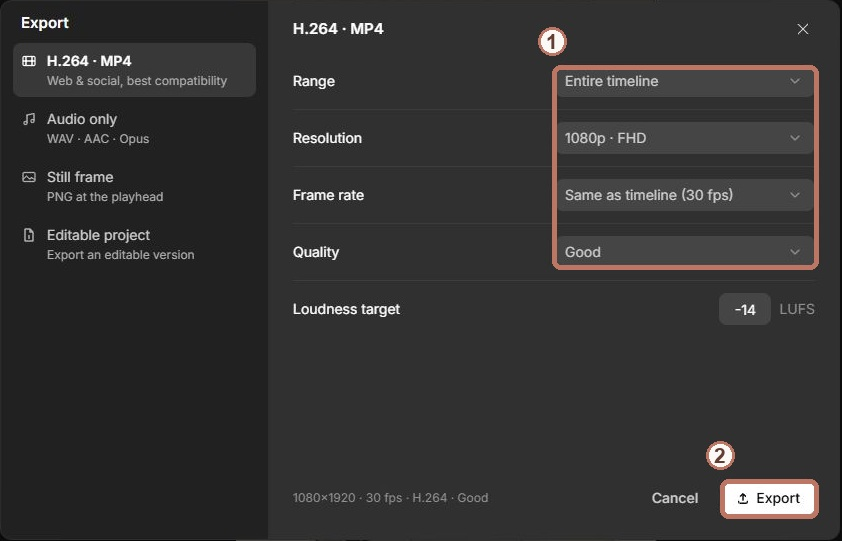
Exporting or downloading does not use invideo credits, but your invideo plan must allow the export you choose, so stop if a price, upgrade or credit request appears. If nothing like that shows up, start the export. When it finishes, open it, click Download, and play the saved MP4 once before you share it.
What you should see: an MP4 file on your computer that plays the whole clip from start to end.
What this costs in invideo credits
invideo spreads its credit rules across a few help pages. Here they are in one place, for the actions in this guide.
| Action | Uses invideo credits? |
|---|---|
| Timeline editing through invideo MCP | No |
| Manual editing in the invideo Editor | No |
| Exporting or downloading | No |
| Generating images, video or audio | Yes |
| Stock footage found by the invideo agent | Yes |
Source: invideo Help Center and invideo blog. Your Claude plan has its own usage limits, which this table does not cover.
If something goes wrong
These are the problems you are most likely to hit, and what to do about each.
- Claude cannot add the connector on the free plan: you may already have a custom connector. Claude Free allows only one, so remove the old one or use it for invideo.
- The cutouts have white boxes around them: you uploaded a JPG or a screenshot. Upload the original PNG files again.
- Everything moves together: the cutouts were merged into one image. Upload three separate files and send the animation prompt again.
- Claude cannot find your images: send the editable timeline link again and name the three files.
- A request asks for credits or an upgrade: refuse it and ask Claude to use only your uploaded files.
Next steps
Once your first clip plays well, reuse what worked.
- Keep your animation prompt and change only the scene lines for the next video.
- Swap in three new cutouts to tell a different story with the same moves.
For ideas on what to make next, see this guide to tutorial video ideas.
Frequently asked questions
Do I need a paid Claude plan?
Not for the connection. Claude Free can add one custom connector, which is enough for invideo. How much Claude can build in one session depends on your plan's usage limits.
Do I need an invideo API key?
No. You sign in to invideo in your browser when Claude connects.
Will this use my invideo credits?
Not for the steps in this guide. Timeline editing through invideo MCP uses no credits. Generating images, video or audio, or using stock found by the invideo agent, does.
Can I use my own images?
Yes. Any three PNG cutouts with clear backgrounds will work. Change the file names in the animation prompt to match yours.
Can I edit the clip myself after Claude builds it?
Yes. The result is a normal invideo timeline, so you can move, trim or delete any layer by hand.
Sources
- invideo Help Center: invideo Model Context Protocol server
- invideo Help Center: plans and credits
- invideo Help Center: Why can't I export my video on a free plan?
- invideo blog: Edit your footage using a video reference with Claude
- Claude Help Center: Get started with custom connectors using remote MCP
- invideo MCP server page