TinEye Reverse Image Search: How to Use It
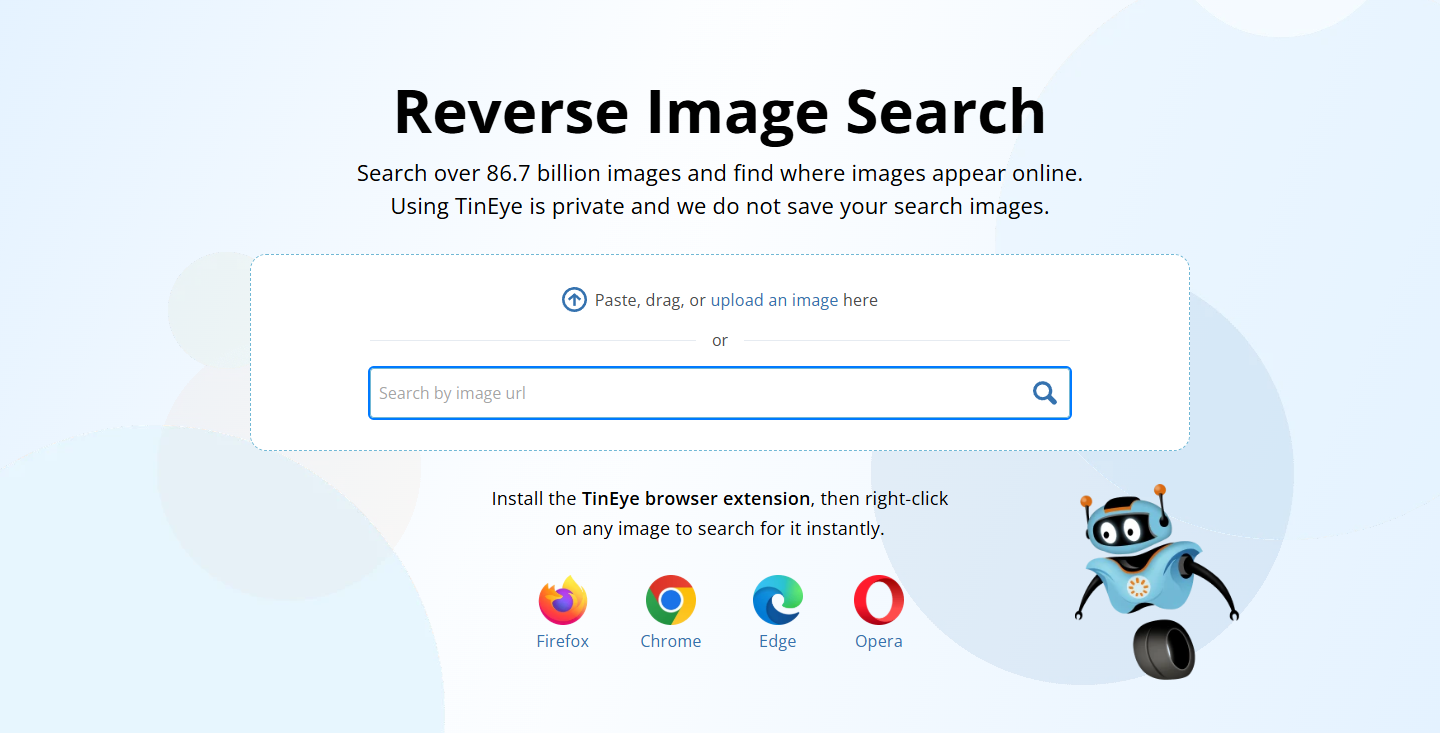
Open TinEye and upload, drag or paste a picture into the search box. You can also paste the picture’s web address into the link field. That’s a reverse image search: you start with a picture to find pages that show a copy.
Is your picture on a web page?
If the file is on your computer:
- Drag the image onto the TinEye search page
If the picture is on a web page:
- Choose Copy Image or Copy Image Link
- Paste a copied image into the search box or paste a copied link into the image address field
If you are on your phone:
- Open the TinEye site and upload the image or paste its web address

How do I do a reverse image search on TinEye?
Start with the picture or its own web address. If you find the picture on a site, copy the address of the picture itself.
- For a file on your computer, drag the image onto the TinEye search page or click Upload an image and select the file.
- For a picture on a web page, right-click the picture and choose Copy Image or Copy Image Link.
- Paste a copied image into the search box or paste a copied link into the image address field.
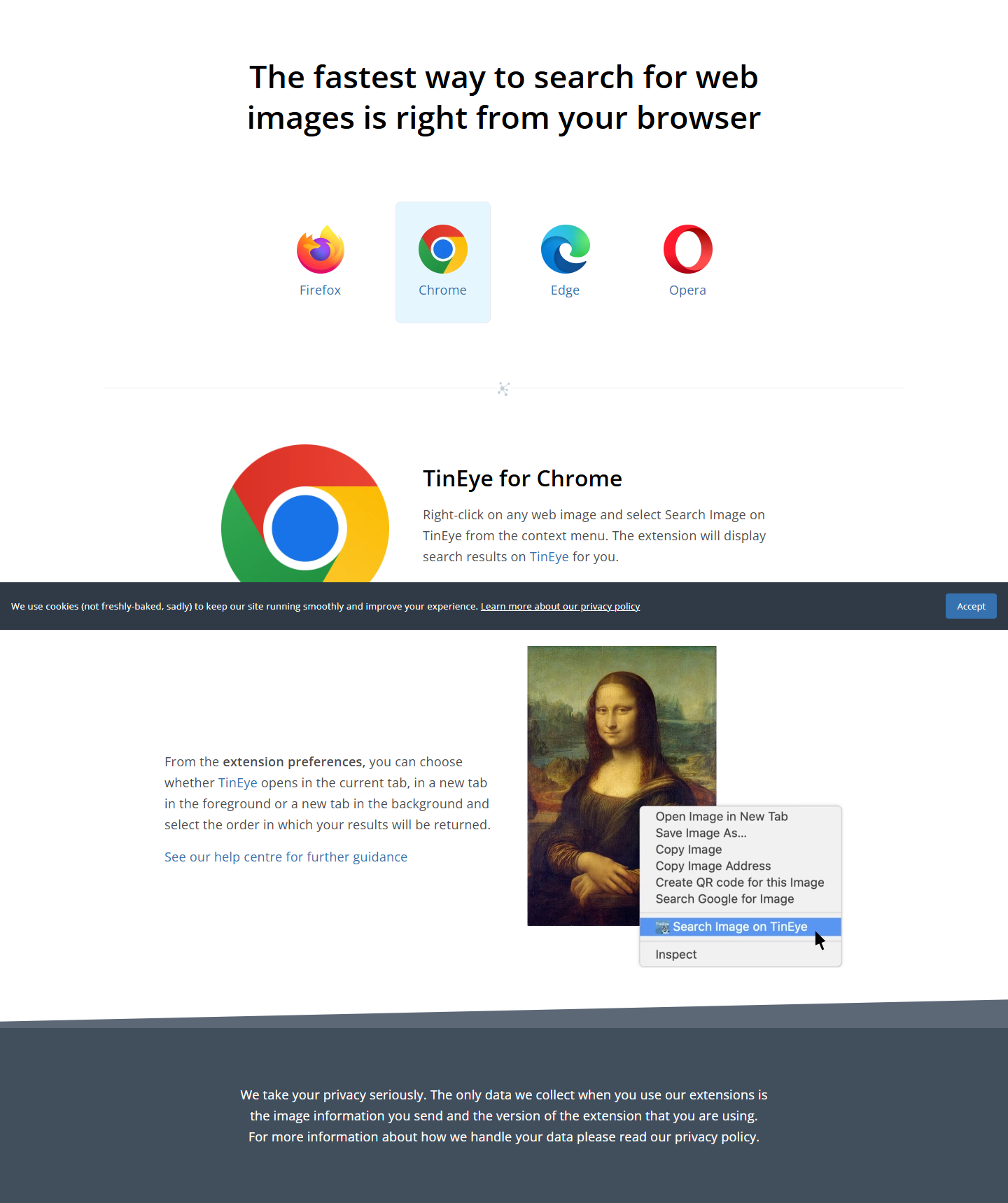
- To skip copying the image, use the TinEye browser extension (an add-on for your browser).
A small copy of your picture sits above the matches so you can see what you searched.
How do I search TinEye on a phone?
TinEye has no phone app, so use your browser. On your phone, open the TinEye site and upload the image or paste its web address.
What kinds of images work best?
Pick a picture that is at least 300 pixels wide or tall. A pixel is one dot in the picture. TinEye accepts images down to 100 pixels, but the larger ones work best.
JPEG, PNG, GIF, BMP and TIFF image files work, up to 20 megabytes each. If you have a copy without a watermark (a name or mark laid over the picture), use that one. TinEye may match the mark instead of the picture.
You don’t need the original file name. TinEye doesn’t use the name or the metadata (details stored inside the file) to find matches.
How do I use the TinEye browser extension?
Open TinEye’s extensions page and pick Firefox, Chrome, Edge or Opera. Once you add the extension, right-click a picture on a web page and choose Search Image on TinEye. The browser opens the matches on TinEye.
In Chrome, click the TinEye icon in your browser toolbar to open its settings. You can set a sort order and choose whether the results open in the same tab or a new one.
How do I sort TinEye results?
Open Sort by above the results and pick the order that suits your search. TinEye keeps your choice while you use the site.
| Sort order | What it shows first | When to use it |
|---|---|---|
| Best Match | The closest copies. | Start here to find a copy that looks like yours. This is the default. |
| Most Changed | The most edited copies. | Look for a new crop or an edit that changed the scene. |
| Biggest Image | The copies with the most pixels. | Find a larger version. The owner often has the biggest copy. |
| Newest | The copies TinEye found most recently. | Look for matches TinEye added lately. |
| Oldest | The earliest copies TinEye found. | Trace a photo back to an earlier page. |
How do I filter and compare the matches?
To see matches from one site, enter its web address in Filter by website. Select Stock to see only results from sites that license their photos.
To look for edits, click the small picture beside a match. Switch back and forth between the match and the picture you searched.
In the search results, tick Include results not available. TinEye will show old matches from pages that have gone offline.
How can TinEye show that a photo is fake or reused?
Sort by Oldest when someone says a picture shows a recent event. If TinEye found the same picture years earlier, the photo could not have been taken at the new event. Open the earlier page to see what the photo showed when it appeared there.
The First found on date tells you when TinEye first saw that copy. TinEye’s crawler (software that visits web pages) may have found it long after it went online.
What can't TinEye find?
TinEye can’t find different photos of the same person or object. It can still find a copy of your picture if someone cropped, resized or recoloured it.
Most social media photos are missing from TinEye’s index (the pictures the site can search). TinEye listed over 86.7 billion images in that collection (checked 12 November 2026).
Is TinEye free and private?
Yes. TinEye is free for personal use, with a limit of 100 searches a day and 300 a week. TinEye says it deletes an uploaded picture after it shows your results. Nobody else can see your uploads.
Should I use TinEye or Google Lens?
Use TinEye to trace copies of one photo and Google Lens to look for photos of the same object. Google Lens is Google’s tool for searching with a picture.
| What you want | TinEye | Google Lens |
|---|---|---|
| Find a copy of your picture | Shows exact and edited copies. | Can show pages that have your image or a similar one. |
| Find when a match turned up | Shows when it found each match. | Open a page in the results to look for a date. |
| Search a web picture from Chrome | With the TinEye add-on, right-click the image and choose Search Image on TinEye. | Right-click the image and choose Search with Google Lens. The results open beside the page. |
Frequently asked questions
Is there a TinEye extension for Safari?
No. TinEye says changes to Safari ended support for its extension.
Can I use an image if TinEye finds it?
No. A match tells you where TinEye found the photo. It does not give you permission to reuse the photo.
Sources
- TinEye image search (search results reviewed 12 November 2026)
- TinEye’s search guide
- TinEye’s file types and image limits
- TinEye’s sort orders
- What First found on means
- What TinEye can and can’t match
- TinEye’s treatment of uploaded pictures
- TinEye’s search limits
- TinEye’s help on unavailable matches
- TinEye’s browser extensions
- Google’s guide to searching with an image
Published