How to Blur the Background of a Photo
Short answer
On iPhone, open a Portrait photo in Photos, tap Edit and Portrait, drag the Depth Control slider, then tap Done. Start with a Portrait photo; on supported models, some Photo mode shots can become portraits too.
Windows Photos: open the photo, select Edit image, then Background. Choose Blur, adjust Blur intensity and select Apply.
Google Photos on a computer: open the photo, choose Edit, Tools and Blur, make your changes, then click Save. Tool options depend on the photo.
Android Google Photos: open the photo, tap Edit or Edit then Tools, make your changes and tap Checkmark. Save as copy keeps the original.
For a product photo that is not a portrait, see If your photo is not a Portrait shot below.

Before you start
Use a photo you can open in the app for your route. On iPhone, Depth Control adjusts background blur in portraits. On supported models, Photo mode pictures of a person, dog or cat can become portraits in Photos.
Windows Photos separates the subject from the background. In Google Photos on a computer, some tools may not be available for every photo. Google’s Available tools section requires at least 4 GB of RAM.
Our suggestion: choose a picture with a clear subject and review its edges at full size. Keep hair, petals and the outline of a product in mind before choosing a strong blur.
On iPhone: Photos
If your photo is not a Portrait shot
Depth Control works with Portrait mode photos. On supported models, Photo mode pictures of a person, dog or cat can become portraits. For a different subject, such as a product on a counter, try the Windows Photos Background panel or Google Photos on a computer.
The Depth Control slider changes the level of background blur. Follow this route with a Portrait mode photo already in your library.
Step 1: open a Portrait photo
Open Photos on your iPhone. Tap a Portrait mode photo to view it in full screen, then tap Edit. You are editing the portrait rather than taking a new picture.
For a Photo mode picture of a person, dog or cat on supported models, open it and apply Portrait first. Apple’s guide describes this as turning a Photo mode picture into a portrait.
Step 2: adjust Depth Control
Tap Portrait, then drag the Depth Control slider at the bottom of the screen. It increases or decreases the background blur effect. A gray dot marks the original depth value.
Our suggestion: start with a small change, then compare the subject’s edge with the background. Stop when the background feels less distracting while the subject still looks natural.
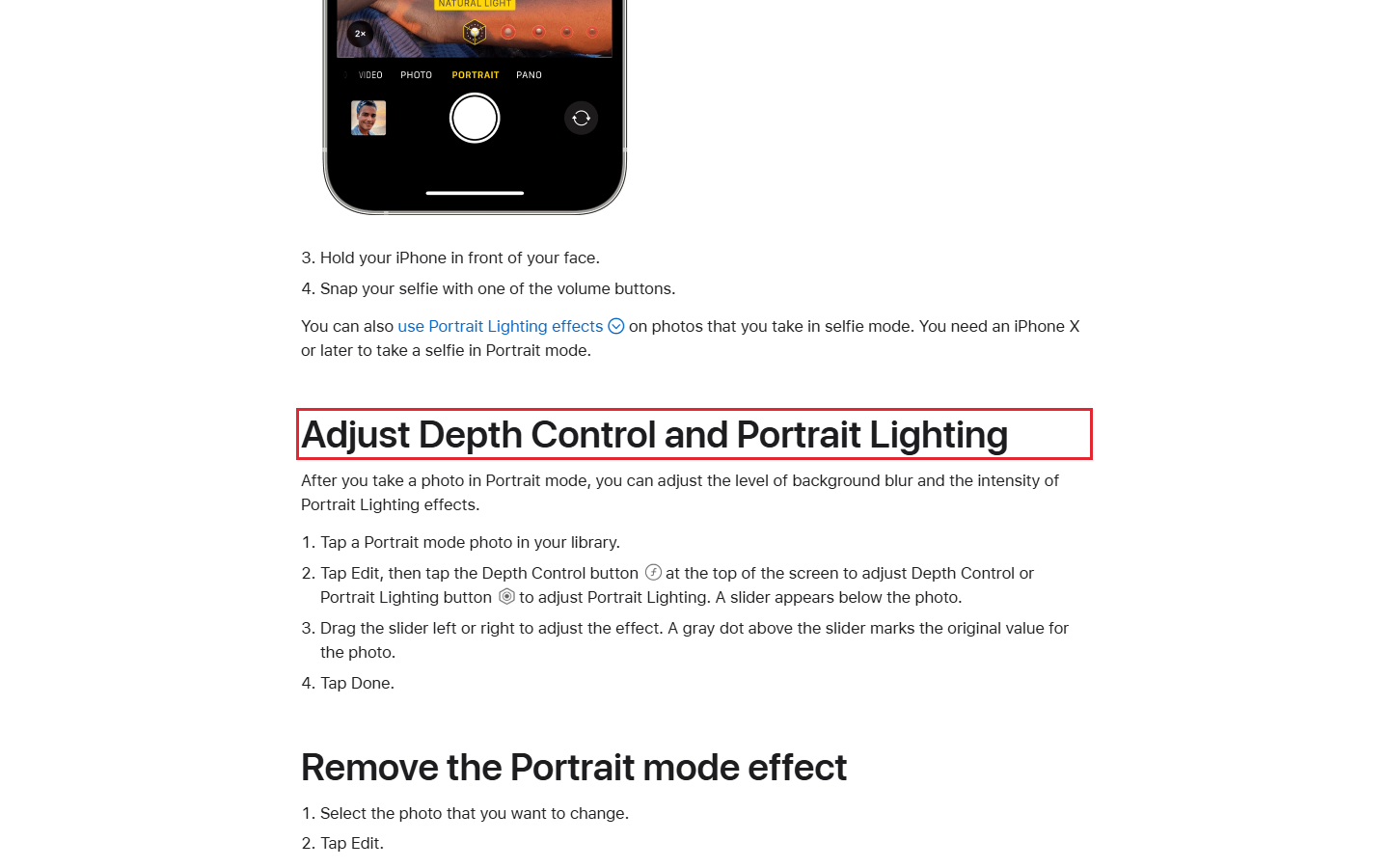
Step 3: tap Done
Tap Done when you are happy with the result. Review the photo at full size before using it. Check that the subject, rather than a background object, gets the attention you intended.
Step 4: remove or change the effect
To remove the portrait effect, open the Portrait mode photo and tap Portrait in the top-left corner. Tap Portrait Off. You can also undo saved edits through Edit, Revert and Revert to Original.
Changing the focus point is available on iPhone 13 or later. Open the portrait, tap Edit and Portrait, then tap a new subject or focus point. Tap Done. The new subject should not already be blurred or too far away.
- open a Portrait photo in Photos
- tap Edit and Portrait
- drag the Depth Control slider
- tap Done
On Windows: the Photos app
Use the Background panel to separate the subject and soften what sits behind it. Microsoft says the background separation is done on your device; your data does not leave it for that separation.
- Open Photos and select the photo you want to change.
- Select Edit image at the top, or press Ctrl + E.
- Select the Background panel. The background is selected automatically.
- If needed, turn on Background brush tool. Use Add mask to add background areas or Remove mask to remove areas from the selection.
- Select Blur and adjust the Blur intensity slider.
- Select Apply to blur the background.
(Our suggestion) Save the edited photo from the Photos app after applying the blur.
You can change Brush size or Brush softness when correcting the selection. Reset at the top left cancels all edits applied to the photo.
On a computer: Google Photos
The Blur tool adjusts background blur. Google says tool options depend on the photo, and some tools may not be available for all photos. The Available tools section requires at least 4 GB of RAM.
- Go to photos.google.com on your computer.
- Open the photo you want to edit.
- At the top, click Edit, then Tools.
- Choose Blur and make your changes.
- Click Save when finished.
To undo an effect, select the tool and click Revert. Some editing features are unavailable on the web; Google suggests trying its Android or iOS app if a feature is missing.
On Android: Google Photos
Google lists portrait blur among its select editing features. Use its editing route for the tools available with your photo:
- Open the Google Photos app on your Android device.
- Open the photo you want to edit.
- At the bottom, tap Edit. Alternatively, you might need to tap Edit, then Tools.
- Select the tools you want to use with your photo and make changes.
- When you finish, tap the Checkmark.
- Tap Save to save your edits in place, or Save as copy to keep the original.
To undo an effect, tap Cancel.
| Device | App | Which photos | Where to start | Finish or undo |
|---|---|---|---|---|
| iPhone | Photos | Portrait photos; some Photo mode pictures of a person, dog or cat on supported models | Edit, Portrait, Depth Control | Done; Portrait Off removes effect |
| Windows | Photos | Photo with a subject and background to separate | Edit image, Background, Blur | Apply; Reset cancels all photo edits |
| Computer | Google Photos | Tools depend on photo; Available tools requires 4 GB RAM | Edit, Tools, Blur | Save; tool then Revert undoes effect |
| Android | Google Photos | Select editing features include portrait blur | Edit, or Edit then Tools | Checkmark; Save in place or Save as copy; Cancel undoes an effect |
Source: Apple, Microsoft and Google, read 5 November 2026.
Which iPhones have Portrait mode?
Apple lists iPhone SE (2nd generation) and later, iPhone X and later, iPhone 7 Plus and iPhone 8 Plus. Portrait mode availability and turning an existing Photo mode picture into a portrait are separate features; the latter needs supported models.
Our example: a florist photo plan
Our example (illustrative, not a real client).
Petal and Stem Florist has a bouquet photo with busy shelves behind it. The proposed edit uses Windows Photos to soften the background around the bouquet.
- Photo: a bouquet on the shop counter.
- Route: Photos, Edit image, Background, Blur.
- Starting strength (our suggestion): start near the low end of the Blur intensity slider and raise it until the shelves stop drawing the eye.
- Selection check: use the brush controls if petals are included in the background.
- Full-size check: inspect petal edges and the vase before choosing Apply.
- Final check (our suggestion): view the edited photo on a phone screen at the size customers will see it.
- Use: a product photo for the shop’s website.
If the photo will be part of a cover image, see making a YouTube thumbnail. For moving footage that needs a tighter frame, see cropping a video.
Frequently asked questions
Can every iPhone photo use Depth Control?
The route here is for Portrait photos. On supported models, Photo mode pictures of a person, dog or cat can become portraits in Photos.
How do I remove the iPhone portrait effect?
Open the portrait, tap Portrait at the top left, then Portrait Off.
Why is Blur missing in Google Photos on my computer?
Tool availability depends on the photo. Google also lists at least 4 GB of RAM for Available tools and says some editing features are unavailable on the web.
Sources
Maker instructions read 5 November 2026.
Published · Updated