How to Edit a PDF on iPhone
Short answer
On iPhone, open the PDF and tap a blank field to type. Use Add Text Form Box for text elsewhere, or Add Signature to sign. Finish with Export, Print or sharing.
Changing words already printed in the PDF is a different job. Acrobat’s mobile text-editing feature requires a subscription.
On Android, use Files by Google for annotations or Google Drive for filling PDF forms.
Fill, sign or change text
iPhone
- tap a blank field to type
existing words
- Acrobat’s mobile text-editing feature requires a subscription
Android
- use Files by Google for annotations or Google Drive for filling PDF forms

On an iPhone: fill, add text and sign
Open the PDF on your iPhone. The icon descriptions below follow Apple’s help-page image.
- If the PDF came in Mail or a chat, open it in Files when prompted. You should see the document there.
- Tap Save if prompted.
- Tap the pen-and-field icon pictured below, then a blank field. The keyboard lets you type an answer.
- Enter your answer. It appears in the blank field.
- To add text elsewhere, tap the plus icon, then Add Text Form Box. A text box appears.
- Drag the box into place.
- Enter the new text using the keyboard.
- To sign, tap the plus icon, then Add Signature.
- Sign your name with your finger.
- Tap Done. Your signature is ready to place.
- Drag the signature where you want it.
- When finished, tap the downward chevron in a circle. Choose Export, Print or the share icon, a square with an upward arrow, for the completed document.
- To save it, tap the left-pointing chevron pictured at the end of Apple’s instructions below.
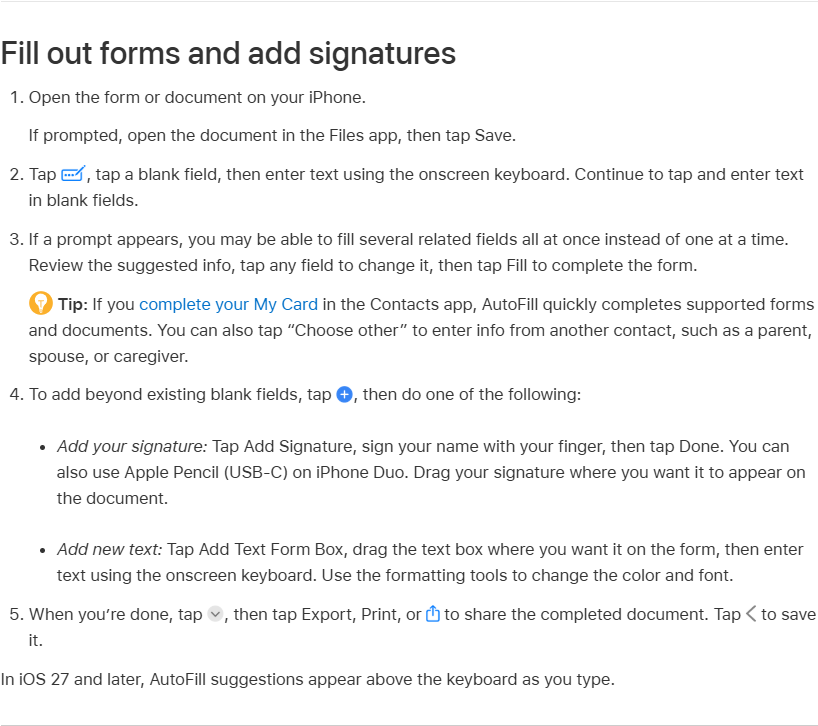
You should now see the filled fields and any text or signature you added. In iOS 27 and later, AutoFill suggestions appear above the keyboard as you type.
Mark up a PDF in Mail or Notes on iPhone
Markup can add text, shapes and a signature to images and documents in supported apps. In Mail, you can mark up a PDF attachment before sending it.
- Open Mail and start a new email or reply to one.
- Tap inside the email body to open the format bar, then tap the Attachment button.
- Use the Document option to find the PDF to attach.
- Tap the attachment, then the gray arrow icon. Tap the Markup button.
- Tap the plus button to add a signature, text or other markup.
- Tap the More button, then Done. Send the email.
In supported apps such as Notes, open Markup to work on the document. To add text, use Add Text, tap the box and type. Tap outside the box when finished, then Done to close the toolbar.
To change the words already in the PDF
Acrobat on mobile can edit existing PDF text. This feature requires an Acrobat subscription. Filling and signing forms are included in the free app.
- Open the PDF in Acrobat on iPhone and select Edit PDF from the bottom menu.
- Tap the text to edit and adjust the selection with the handles.
- Select Edit text from the context menu.
- Make the changes, then select Done to save.
Adobe warns that signatures and initials are permanent once saved. The PDF is flattened on save and cannot be unsigned afterwards, so review it carefully before saving.
On a computer, Word offers another route: it makes a copy and converts the PDF to a Word document. This works best with mostly text files. The layout may change, and a page shown as an image has no editable text.
On Android: Files by Google and Google Drive
Choose Files by Google to draw or highlight. Choose Google Drive to enter information in a fillable PDF form.
Annotate in Files by Google
This route keeps the original unmarked on your device when you upload the new copy.
- Open Files by Google and the PDF.
- At the bottom right, tap Edit.
- Use Pen or Highlighter to add marks. Erase, Undo and Redo let you adjust them.
- At the top right, tap Save copy, then Upload.
The copy uploads to Google Drive. You can rename it and choose the Drive folder. To share an opened PDF in Files by Google, tap Share.
Fill a form in Google Drive
The Form Filling option depends on the PDF. If it does not appear, Google says you may not be able to fill that PDF.
- Open Google Drive and tap the PDF.
- At the bottom right, tap Edit, then Form Filling.
- Enter your information.
- At the top right, tap Save. For a copy, use More, then Save as.
Save and share at a glance
Match the tool to the change you need. Check the destination of a saved copy before sending it.
| Job and app | What it does | Finish or share | Limit |
|---|---|---|---|
| iPhone document tools | Fill blank fields, add text, sign | Export, Print or share | Changing the printed words needs another app; see the Acrobat route above |
| iPhone Mail Markup | Add text, shapes or signature to an attachment | More, Done, then send email | Use Markup in a supported app |
| Acrobat on iPhone | Change existing text | Done saves text changes | Subscription feature; saved signatures are permanent |
| Files by Google, Android | Draw or highlight annotations | Save copy, Upload; copy goes to Drive | Original stays unmarked on device |
| Google Drive, Android | Fill PDF form fields | Save; More and Save as for a copy | Form Filling may be unavailable for the PDF |
Sources: Apple, Google and Adobe, linked below; read 6 November 2026.
If it does not work
Choose the next move that matches the problem.
- If there are no blank fields to tap, use Add Text Form Box to place new text.
- If the form tools do not appear, open the PDF in Files.
- If you want to change printed words, use the Acrobat subscription text-editing route.
- On Android, if Form Filling does not appear in Drive, you may not be able to fill that PDF.
If Word displays the whole page as an image, the text cannot be edited there. Adobe says a saved signature in Acrobat is permanent.
Our example: a landscaping agreement
Our example (illustrative, not a real client).
Greenline Landscaping needs to complete a client service agreement on an iPhone. The manager plans to fill the answers and sign, leaving the printed agreement wording in place.
- PDF: a client service agreement.
- Fields (our choice): business name, service address and visit date.
- Note (our choice): use Add Text Form Box for an access instruction.
- Signature: use Add Signature and drag it to the signing space.
- Send plan (our choice): review the file, then use sharing to email the completed PDF to the client.
- Different job: changing the printed agreement wording would use the existing-text editing route.
Outcome (our suggested plan): the signed agreement is exported and emailed back to the client. The manager reviews the completed PDF before sending it.
For adding a label to a picture rather than a PDF, see how to add text to a photo.
Frequently asked questions
Can I fill a form on iPhone?
Yes. Open it, tap a blank field and type. Add Text Form Box lets you place text elsewhere.
Is editing existing PDF text free in Acrobat?
No. Adobe says that feature requires an Acrobat subscription. Filling and signing are free features.
Will Word change the original PDF?
Word makes a copy and converts it to a Word document. The original PDF remains available.
Where does Files by Google put my marked copy?
Save copy and Upload puts the new copy in Google Drive. The original remains unmarked on your device.
Sources
Maker instructions read 6 November 2026.
- Fill out forms, sign documents, and create signatures on iPhone - Apple Support
- Add text, shapes, stickers, and more with Markup on iPhone - Apple Support
- Use Markup on your iPhone, iPad, or iPod touch - Apple Support
- Open, manage & edit PDFs in Files by Google - Files by Google Help
- Fill out PDF forms in Google Drive - Android phone & tablet - Google Drive Help
- Edit text in PDFs using Acrobat on mobile | Adobe Acrobat
- Fill and sign PDF forms in Acrobat on mobile | Adobe Acrobat
- Acrobat on mobile subscriptions | Adobe Acrobat
- Opening PDFs in Word | Microsoft Support
Published · Updated