How to Free Up Storage on Android
Delete files you no longer need, remove backed-up photo copies, or uninstall unused apps.
What is using your space?
Backed-up photos
- Tap Free up space on this device
Apps
- Tap Uninstall
Downloaded files
- Select the files you want to delete
Files to keep
- Move files and folders to a computer
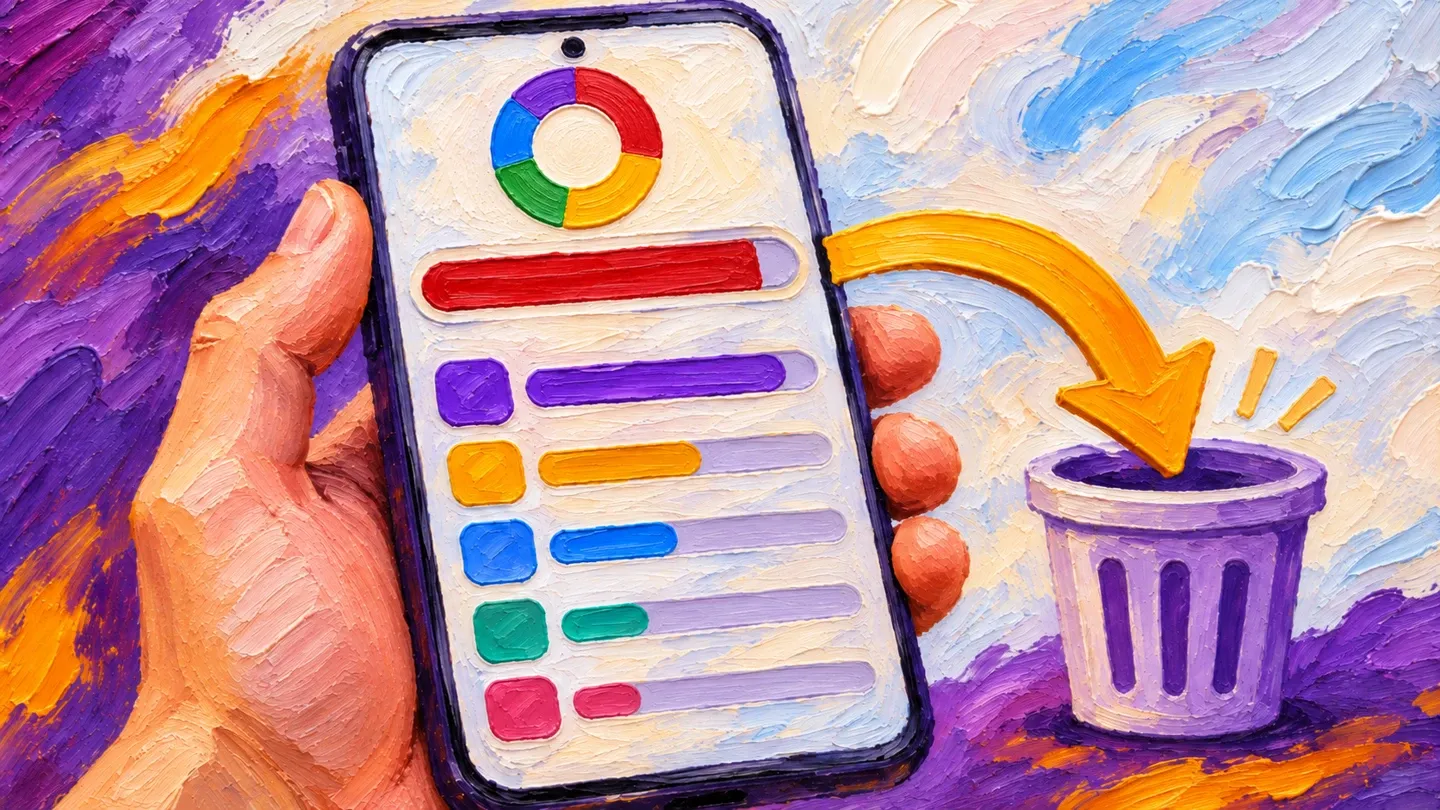
How do I see what is using my storage?
The Storage screen shows which categories take up the most space.
- Open your phone’s Settings app.
- Tap Storage.
- Select a category.
What can I clear on a Samsung Galaxy?
Open Settings, tap Battery and device care, then tap Storage. On some older versions, the menu is called Device care.
From there, you can empty the recycling bin, uninstall unused apps, delete duplicate or large files, or move files to an SD card.
How do I turn on automatic cleanup?
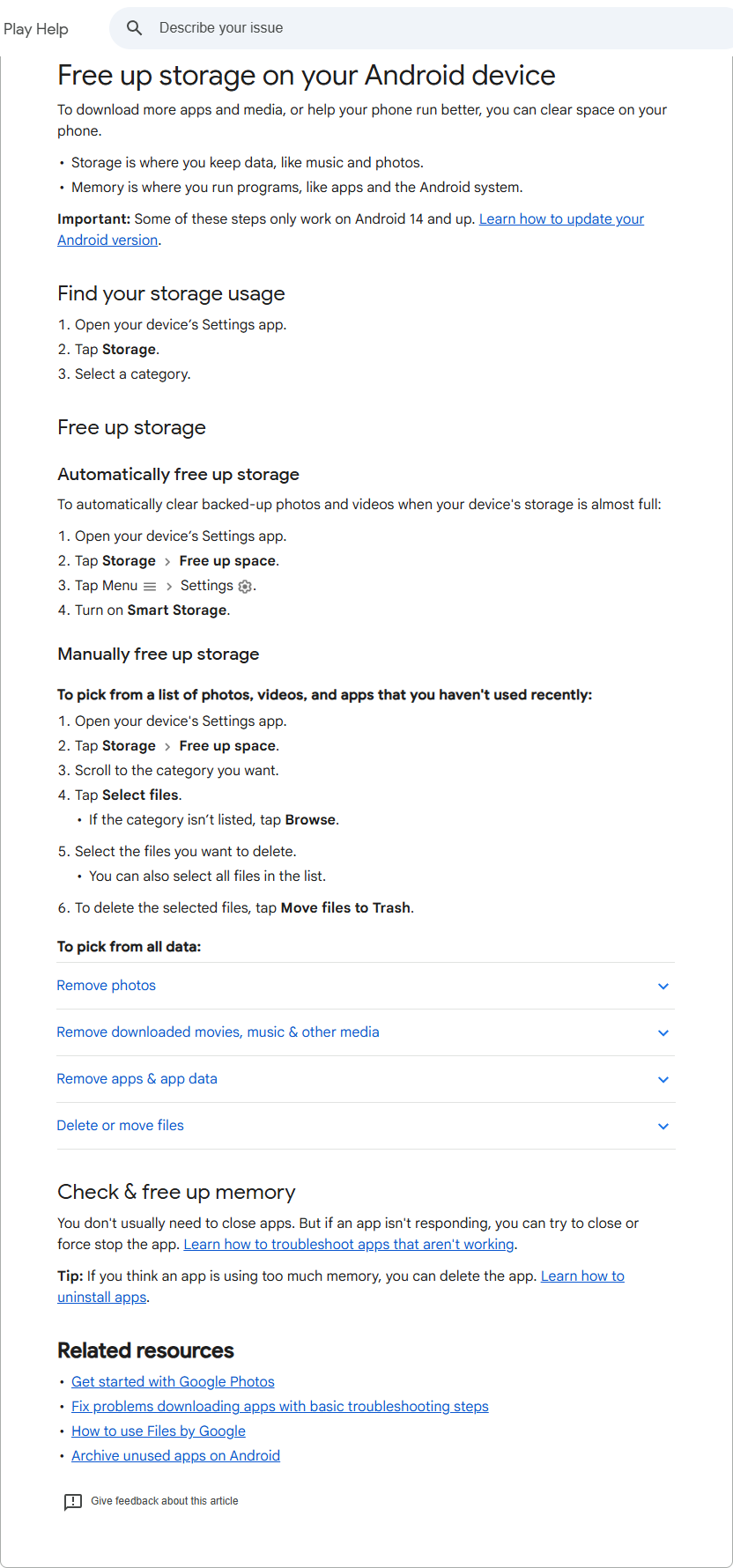
Turn on Smart Storage to automatically clear backed-up photos and videos when your phone is almost full.
- Open Settings.
- Tap Storage.
- Tap Free up space.
- In Free up space, tap Menu, then Settings.
- Turn on Smart Storage.
How do I choose which files to delete?
Use Free up space to choose photos, videos and apps you have not used recently.
- Open Settings.
- Tap Storage.
- Tap Free up space.
- Scroll to the category you want.
- Tap Select files. If the category is not listed, tap Browse.
- Select the files you want to delete.
- Tap Move files to Trash.
How do I remove downloaded music and videos?
Delete downloads in the app you used to download them. To remove all downloads in YouTube Music:
- Tap your profile photo.
- Tap Settings.
- Tap Downloads & storage.
- Tap Clear downloads.
How do I remove photos without losing the backup?
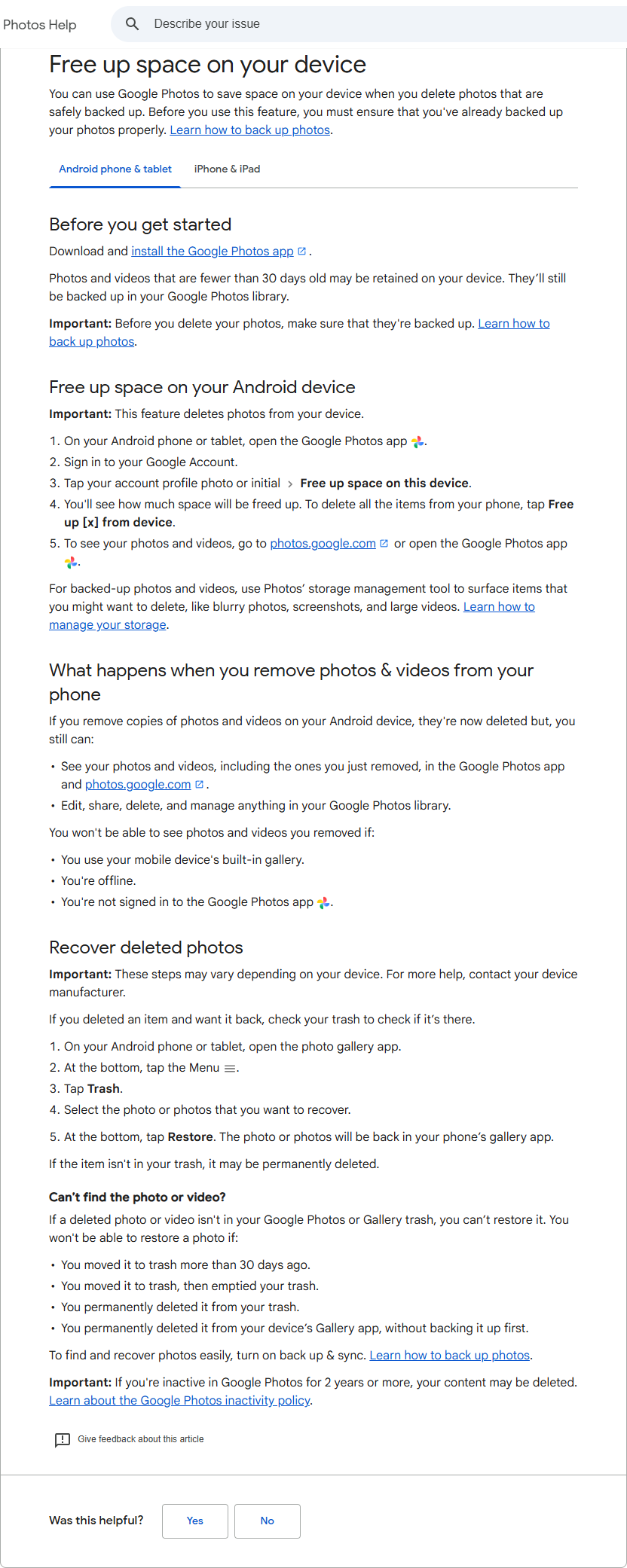
Back up the photos first, then use Google Photos’ Free up space on this device to remove the phone copies.
- Open Google Photos and sign in to your Google Account.
- At the top right, tap your profile picture or initial.
- Check that the status reads Backup complete.
- Tap Free up space on this device.
- Review how much space will be freed up, then tap Free up [x] from device.
To check a particular photo’s backup, open the photo, tap More, then About. Under Details, look for the backup status beneath Backed up.
You can still see the backed-up photos in Google Photos and at photos.google.com. Photos and videos fewer than 30 days old may stay on the phone.
Removed copies no longer appear in the built-in gallery. You cannot view them offline or while signed out of Google Photos. Keep a separate copy of pictures you need offline.
Should I clear cache or uninstall an app?
Clear cache removes temporary data. Try it for an app you still use, though the app may open more slowly next time. Uninstall an app you no longer need.
How do I clear cache on a Pixel?
Use the app’s Storage & cache screen to clear temporary data.
- Open Settings.
- Tap Apps.
- Tap See All Apps.
- Tap the app.
- Tap Storage & cache.
- Tap Clear cache.
Clear storage permanently deletes all app data. Try deleting data within the app first. To clear all data, follow the same steps and choose Clear storage at the end.
How do I uninstall an app?
If you uninstall a paid app, you can download it again later without paying again.
- Open the Google Play Store app.
- Tap the Profile icon at the top right.
- Tap Manage apps & devices.
- Tap Manage.
- Select the app’s name.
- Tap Uninstall.
How do I keep files on my computer instead?
Move files and folders to a computer with a USB cable.
- Unlock your phone and connect it to your Windows computer with a USB cable.
- Tap the Charging this device via USB notification. Under Use USB for, choose File Transfer.
- In the file-transfer window that opens on your computer, drag the files to a folder there.
When you finish, eject the phone from Windows and unplug the cable. Delete the phone copies after you check them on the computer. See our Android-to-PC transfer guide for more detail.
What if my phone still looks full?
On a Galaxy, space in Other cannot be deleted directly. This category contains data from installed apps, including system files, cached data and temporary files.
Open Storage again and check which category is still large. If it is Other, follow the app-cache or app-data steps above to clear some of it.
Sources
Google and Samsung help pages read 6 November 2026.
- Transfer files between your computer and Android device
- Samsung: What is Device Care and how do I use it?
- Free up storage on your Android device
- Free up space on your device
- Back up photos & videos
- Delete apps on your Android device
- Free up space on a Pixel phone
- Samsung: How to clear or free up internal storage on your phone
- Samsung: What is Other Storage on your Samsung phone
Published · Updated