How to Make a Slow-Motion Video on iPhone or Android

Short answer
On iPhone, open Camera, select Slo-mo and record. Then open the clip in Photos, tap Edit and drag the vertical bars to choose which part plays slowly. Keep the slow effect on the moment you want people to notice.
Open Camera and select Slo-mo, record the clip, open the video in Photos and tap Edit, drag the vertical bars, then play it back.
For a video you already have, use iMovie’s Speed control or the Photos control for high-frame-rate footage. On Windows, lower the speed in Clipchamp. The main route below starts with a new recording.
Before you start
Use an iPhone with Slo-mo available on supported models. Have your subject ready before recording. At the end, you will have a clip with a chosen section playing slowly and the rest at regular speed.
Our suggestion: film a clear movement, such as sugar falling or a hand finishing a product. In a Bahrain shop, try good shop lighting or daylight. Keep the phone steady and the background simple so the movement is easy to follow.
Step 1: open Camera and select Slo-mo
Open Camera on your iPhone. Select Slo-mo mode. You should now be in the mode that records normally and plays the video back in slow motion.
Our suggestion: frame the whole action before you start. Leave enough room for the subject to move without leaving the picture.
Step 2: record the clip
Tap the Record button to start. You can also press either volume button, or click the Camera Control on supported models. Stop recording with the Record button, a volume button or the Camera Control on supported models.
Our suggestion: begin before the action starts and stop after it ends. That gives you a clear opening and ending to review.
Step 3: open the video in Photos and tap Edit
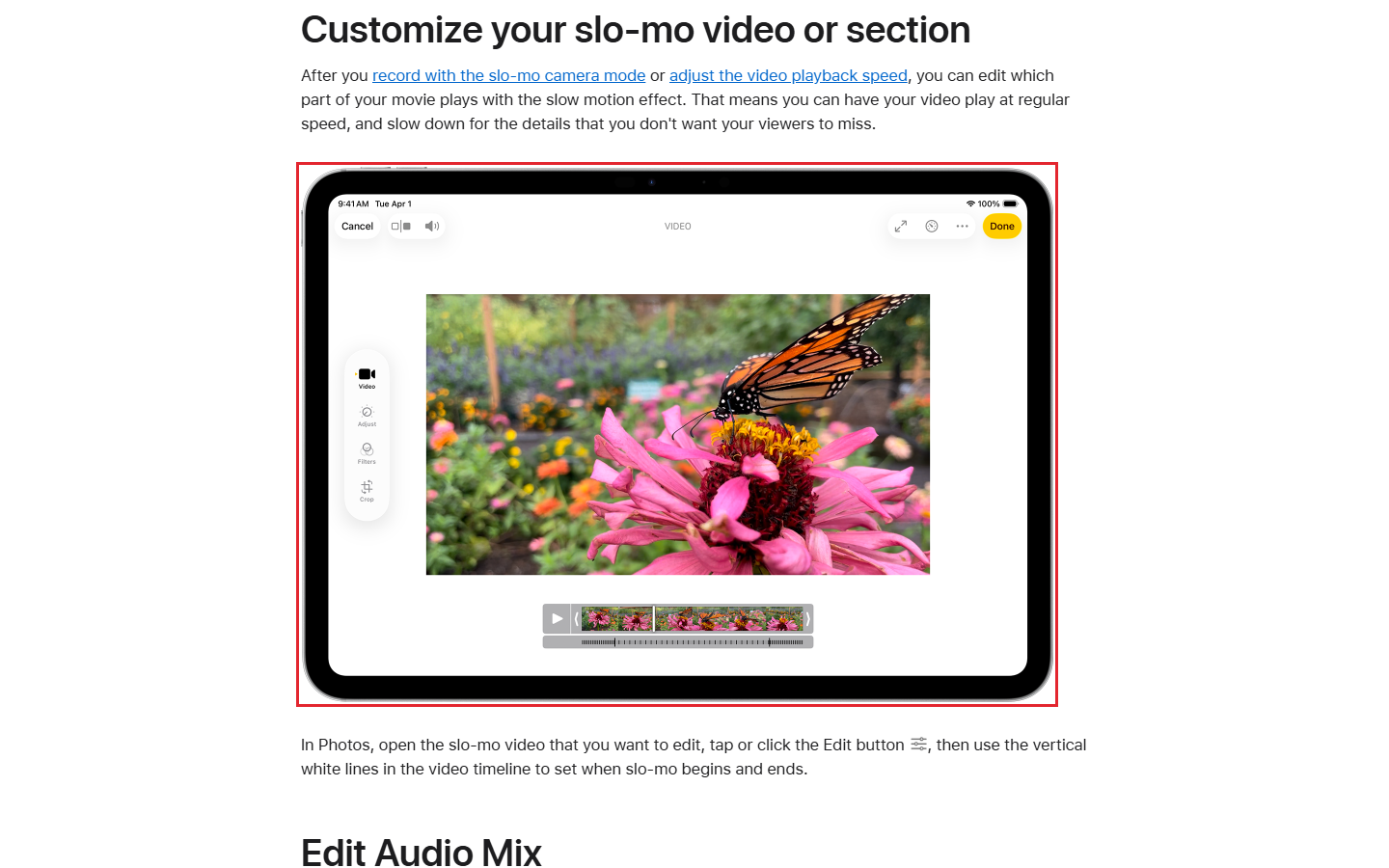
Open Photos and open the video you shot in Slo-mo mode. Tap Edit. You should now be ready to adjust the slow section beneath the frame viewer.
Our suggestion: watch the whole clip before choosing that section. Find the movement that earns the slower pace rather than slowing everything equally.
Step 4: drag the vertical bars
Drag the vertical bars beneath the frame viewer to set where the video plays in slow motion. The rest can play at regular speed.
Our suggestion: let the slow section begin just before the key movement and end just after it. Move the bars again if the effect starts too early or lingers too long.
Step 5: play it back
Play the video and watch where the pace changes. Our suggestion: check that the slow part draws attention to the action you chose. If the whole clip feels slow, shorten the selected slow section and watch it again.
Before sharing, review the opening and ending too. For a different effect that shows a long process quickly, see making a time-lapse video.
- Open Camera and select Slo-mo
- record the clip
- open the video in Photos and tap Edit
- drag the vertical bars
- play it back
Which iPhones and settings
The available slow-motion frame rates and resolutions depend on your model. To change them, open Settings, tap Camera, then Record Slo-mo. Faster frame rates and higher resolutions make larger files.
Apple also describes slow-motion recording in Video mode on iPhone 16 Pro models, iPhone 17 Pro models, iPhone 18 Pro models, and iPhone Duo. On those models, tap the format and resolution values on screen, then select 120 FPS. This is a separate option from the Slo-mo route above.
Slow down a video you already have
In Photos, the playback-speed control can slow footage recorded above 30FPS on iOS 18 or later. Open the video, tap Edit, then the Speed control button and choose a playback speed. The available choices depend on the recorded format.
In an iMovie movie project, tap the clip in the timeline, then Speed. Drag the slider left to decrease speed. The label 1/2x means half normal speed. Tap Reset to return the whole clip to normal.
iMovie on iPhone preserves audio pitch by default when changing speed. For the opposite effect, see speeding up a video.
On a Mac and on Windows
In iMovie on Mac, select the clip in the timeline and click Speed. Choose Slow from the Speed pop-up menu, then a speed button. The slowed clip becomes longer in the timeline.
In Clipchamp, select the video on the timeline and click the speed tab in the property panel. Its slider runs from 0.1x to 16x. Lowering speed makes the clip longer and plays it in slow motion. Set it to 1x to restore normal playback.
| Device | App | Where to start | Official note |
|---|---|---|---|
| iPhone | Camera, then Photos | Slo-mo, record, Edit | Supported models; use vertical bars for the slow section |
| iPhone | Photos | Edit, Speed control | Footage above 30FPS; iOS 18 or later |
| iPhone | iMovie | Clip, Speed, slider left | 1/2x means half normal speed |
| Mac | iMovie | Speed, Slow | Slowed clips become longer |
| Windows | Clipchamp | Clip, speed tab | 0.1x to 16x; 1x restores normal playback |
| Samsung phones | Slow Motion / Super Slow-mo | See your device’s own help | Samsung’s 18 December 2020 page: up to 8 times slower / 32 times slower |
Source: Apple Camera, Apple Photos, iPhone iMovie, Mac iMovie, Microsoft Clipchamp and Samsung, read 5 November 2026.
Android phones
(Our suggestion) Check your phone maker’s own help for a slow-motion mode and instructions for your model. For an existing clip, consider the computer options above.
What the top results show
The results below stay in their original order. Kind and the short descriptions are our labels based on the saved results.
| Result | Kind | What it teaches (our labels) |
|---|---|---|
| Smooth Slow Motion Tutorial in After Effects - Slow Mo Tutorial | video | After Effects smooth slow motion |
| How To Convert iPhone Video to Slow Motion | forum | Convert iPhone video to slow motion |
| Slow Motion Video Maker: Slow Down Video Online | tool | Slow down a video online |
| How to Edit Slow Motion Video (Adobe Premiere Pro) | article | Premiere Pro slow-motion editing |
| How to Shoot Slow Motion Video | video | Shooting a slow-motion video |
| How To Convert iPhone Video into Slow Motion? | article | Convert an existing iPhone video |
| CapCut's Ultra Smooth Slow Motion | video | CapCut smooth slow motion |
| How to Make a Slow Motion Video (or Speed It Up!) | article | Make slow motion or speed up |
| How to Change a Normal Video to Slow Motion | video | Normal video to slow motion |
| How to slow-mo a video | article | Slow down a video |
Source: our snapshot of the Google US results for this search, 4 November 2026.
Our suggestion: choose a route for the footage you have. Start in Camera for a new iPhone recording, or use an editor for an existing clip. This guide brings the maker’s controls and recording limits together so you can choose before editing.
Our example: a bakery slow-motion plan
Our example (illustrative, not a real client).
Golden Hour Bakery wants the falling sugar to be the focus of a short cake video. Our suggestion is to slow that moment while keeping the setup and finished cake at regular speed.
- Subject: icing sugar falling onto a cake.
- Phone position: steady beside the worktop, with the whole cake in view.
- Recording choice: Camera Slo-mo mode.
- Slow section: the sugar falling, selected with the Photos bars.
- Playback check: shorten the slow section if the clip drags.
- Share: review the finished clip before an Instagram post.
Frequently asked questions
Can I slow down a normal iPhone video?
Use iMovie’s Speed control and drag left. Photos also offers slower playback for footage above 30FPS on iOS 18 or later. Its playback choices depend on the recording format.
How do I change only the slow part?
Open the Slo-mo clip in Photos, tap Edit and drag the vertical bars beneath the frame viewer. These set where the slow section starts and ends.
How do I undo an editor speed change?
In iMovie on iPhone, tap Reset in the inspector. In Clipchamp, set the clip’s speed to 1x.
Sources
Maker instructions read 5 November 2026.
Published · Updated