How to Make a Video From Photos on iPhone and Android

Short answer
On iPhone, use Photos to make a slideshow from selected pictures and set it to music. Open Photos, tap Select and pick your photos, tap Start Slideshow, choose a song in Customize, then share it.
On Android, use Google Photos’ Highlight video tool and Add Music. On Windows, open Microsoft Clipchamp and select Create a video with AI. Follow your device’s numbered route below to save and share the result.
Which device are you on?
iPhone
- Open Photos
- tap Start Slideshow
- tap Share
Android
- Open Google Photos
- tap Select content
- tap Save
Windows
- Open Microsoft Clipchamp
- Create a video with AI
- Click Export
Before you start
Choose the photos and the song before opening the controls. For a business video, plan what you want the viewer to notice first.
- Have your pictures ready in Photos on iPhone, Google Photos on Android or your Windows computer.
- Pick the pictures you want to show, or choose an existing album or collection.
- Choose music you have permission to use for your intended purpose.
At the end, you will have a photo slideshow with music and a sharing option. Apple also offers memory movies from albums and collections, with their own sharing controls.
Slideshow or memory movie?
A slideshow plays the photos and videos you select from your library. Apple formats it and sets it to music automatically. You can also start with an album or collection.
A memory movie is another way to watch an album or collection in Photos. You can edit it and share it directly with friends and family. Its length choices are short, medium or long, depending on the photos included.
For this first attempt, follow the slideshow steps. If you prefer the memory-movie route, use Apple’s memory movie guide and its sharing instructions. Keep the controls for each route together.
To play a memory movie instead, use these steps.
- Open Photos and tap Collections. Swipe left under Memories, or tap Memories to see them all.
- Tap the play icon at the bottom right of a memory. Alternatively, select an existing album or collection and tap its play icon.
- As it plays, tap the screen and the menu icon at the top. Tap Share, then choose AirDrop, Messages or Mail.
Step 1: open Photos and tap Library
Open Photos on your iPhone, then tap Library. This is the starting point in Apple’s slideshow instructions.
Before selecting anything, find the pictures you want to use. Leave out near-duplicates so you can judge the sequence without distractions.
Step 2: pick your photos
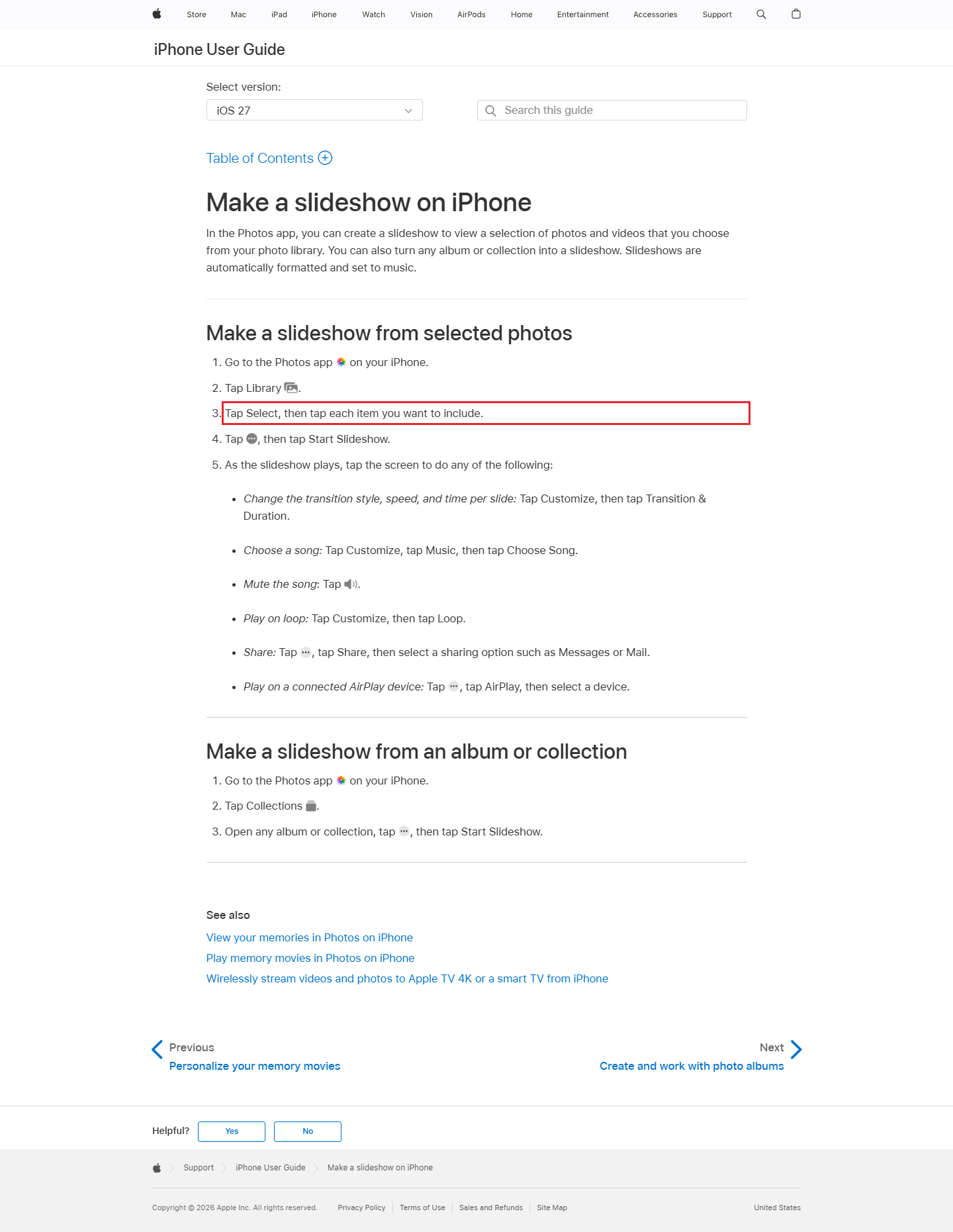
Tap Select, then tap each item you want to include. Choose the pictures for this slideshow from your library.
Our suggestion: begin with a clear opening image, then show the details that support it. Keep a closing image in mind while you choose.
Step 3: start the slideshow
Tap the menu icon shown in Apple’s instructions, then tap Start Slideshow. Use the illustrated Apple guide to match the icon on your phone.
The slideshow is automatically formatted and set to music. Watch it once before changing the timing, so you know what you want to adjust.
Step 4: set the music and timing
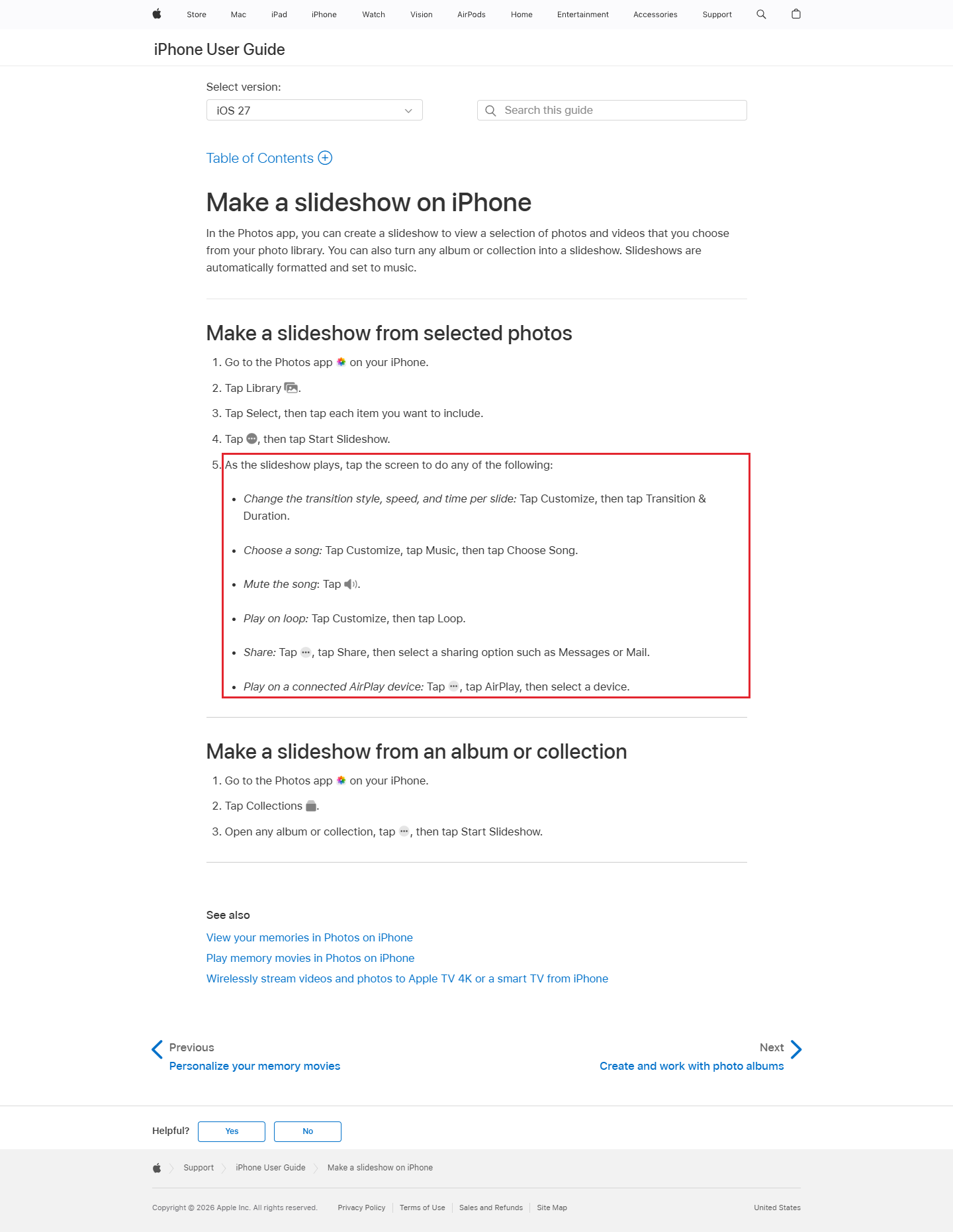
While the slideshow plays, tap the screen. For transition style, speed and time per slide, tap Customize, then Transition & Duration.
For the song, tap Customize, then Music, then Choose Song. These are the slideshow’s controls; a memory movie uses Change Song instead.
Google’s music note matters if you take the Android route: music accompanying its creations is for personal, non-commercial use only. (Our suggestion) Use music you have the rights to for a business video.
Step 5: share it
While the slideshow plays, tap the screen, tap the menu icon, then tap Share. Choose a sharing option such as Messages or Mail.
For a memory movie, Apple lists Share followed by a sharing option such as AirDrop, Messages or Mail. Choose the route that matches what you are playing.
Our suggestion: send a preview to yourself before using it for a customer message. Check the picture order, the song and the pace together.
On Android and Windows
Use the tool for your device. Google Photos calls its music-backed photo video a highlight video. Clipchamp’s blog describes an auto-compose route on Windows.
| Device | App and tool | Where to start | Official note |
|---|---|---|---|
| iPhone | Photos slideshow or memory movie | Select pictures, then Start Slideshow | Memory movies also have their own Share controls |
| Android | Google Photos highlight video | Select photos or videos from the photo grid | Add Music chooses the soundtrack; downloaded music needs music and audio access |
| Windows | Microsoft Clipchamp | Create a video with AI | Clipchamp’s blog says Export saves the video |
Source: Apple Photos, Google Photos Help and Clipchamp’s blog, read 4 November 2026.
On Android: make a highlight video in Google Photos
Choose your own pictures with the content route. A highlight video combines photos and videos with music.
- Open Google Photos. At the bottom, tap Create, then Highlight video.
- At the top, tap Select content. Choose the specific photos or videos you want to include.
- Tap Next after picking the pictures manually. You should now see a video to review.
- Review the video and change the clips, music or text as needed. Add Music opens the soundtrack controls.
- When you are done, tap Save. Tap Play to watch it, or wait for the ready notification.
Prefer a ready-made design? After Create and Highlight video, browse the templates and tap Use template. Templates come with music, text and beat-matching. Select your pictures, tap Next, review the video and tap Save.
Find it later: open Search in Google Photos, then tap Highlight videos. To send it, open the video and tap Share. Under Send in Photos, select the people to receive it. You can also send a link or share through another app. A contact does not need the Google Photos app.
On Windows: make a video in Clipchamp
This route uses Clipchamp’s auto compose tool, which puts the pictures together for you. The steps come from the maker’s slideshow guide.
- Select the Windows Start button and search for Microsoft Clipchamp. Open it, then select Create a video with AI. You should now see the auto compose window.
- Open the Windows Photos app from Start. Open the gallery and the location where your photos are stored.
- Tick the checkbox at the top right of each photo’s small preview. Drag the selected photos into the auto compose window. You can also add pictures from your device with the plus button. Click Get started.
- Choose a style using the thumbs-up and thumbs-down controls, or click Choose for me to let auto compose pick. Click Next.
- Choose the video size. Portrait suits Instagram Reels, YouTube Shorts and stories. Click Next to preview the video. Expand the music or font categories if you want to change them.
- Click Export to save the video. In the video editor, Export is at the top right. Choose a resolution; Microsoft says 720p suits social media videos. The exported file is an MP4.
You should now have the finished video on your computer, usually in Downloads. Your browser may ask where to save it instead. Play that file to review the result (our suggestion).
For sharing, the export page offers OneDrive, Google Drive, YouTube, TikTok and Dropbox. Choose the destination you want to use.
Video from photos by device
Use this table to match the start and finish controls for your device.
| Device | Where to start | Pick photos | Music | Save | Share |
|---|---|---|---|---|---|
| iPhone | Photos, Library | Select, then each item | Customize, Music, Choose Song | Play the slideshow; the route here ends with sharing | Menu, Share, Messages or Mail |
| Android | Google Photos, Create, Highlight video | Select content, select pictures, Next | Add Music, or a template with music | Save; find it under Search, Highlight videos | Share, Send in Photos; a link or another app |
| Windows | Clipchamp, Create a video with AI | Photos checkboxes, drag in; or plus button | Preview and change auto compose’s music | Export as MP4, usually to Downloads | OneDrive, Google Drive, YouTube, TikTok or Dropbox |
Sources: Apple Photos, Google Photos Help, Clipchamp’s slideshow guide and Microsoft’s export instructions, linked below.
Music and device limits
To add downloaded music in Google Photos, allow music and audio access for the app from Settings. Its accompanying music is restricted to personal, non-commercial use. Do not treat a song in the app as permission for an advertisement.
Older Android devices may not support highlight-video creation. Apple Intelligence is also unavailable in some languages and regions; keep that limit in mind if you choose its custom memory-movie features.
On Clipchamp’s free plan, premium features cause diamond symbols to appear beside the export options. Our suggestion: review those choices before you finish.
For a different kind of moving image, see how to make a time-lapse video. For words over your finished footage, use the guide to adding subtitles to a video.
Our example: a bakery photo plan
Our example (illustrative, not a real client).
Juniper Lane Bakery wants to introduce a morning pastry selection. Our suggestion is a short sequence that moves from the whole counter to a detail, then an invitation.
- Opening photo: the full tray of fresh pastries.
- Next photo: a close view of a croissant being opened.
- Next photo: a pastry beside a cup of coffee.
- Closing photo: the shop entrance, ready for a morning visit.
- Song: a track the bakery has licensed for business promotion.
- Timing: our suggestion is 3 seconds per slide, adjusted in Customize.
- Sharing: send the slideshow preview through Messages to the colleague approving it.
Our suggestion: review the sequence without sound first, then listen once with the song. Cut a picture if it repeats what the previous frame already said.
Frequently asked questions
Can I use a whole album?
Yes. Apple says an album or collection can become a slideshow. Albums and collections can also be watched as memory movies.
Where do I change the song?
For an iPhone slideshow, use Customize, Music, then Choose Song. For a memory movie, use Customize, Music, then Change Song. Google Photos uses Add Music for highlight videos.
Can I use the included music for my business?
Google says music accompanying its creations is for personal, non-commercial use only. Our suggestion: choose music licensed for your business use.
Sources
Maker instructions read 4 and 5 November 2026.
- Apple: Make a slideshow on iPhone
- Apple: Personalize your memory movies
- Apple: Play memory movies
- Apple: Share or delete memories
- Google Photos Help: Make creations
- Clipchamp blog: AI slideshow videos
- Google Photos: Share photos and videos
- Microsoft: Exporting and saving a video in Clipchamp
- Microsoft: Sharing a Clipchamp video or project
Published · Updated