How to Rotate a Video on iPhone
Short answer
In iPhone Photos, open the video and tap Edit. Open the crop tools, tap Rotate to turn it 90 degrees, then tap Done.
In Google Photos, use Crop and Rotate. On iPhone, finish with Save copy; on Android, tap Save at the top.
In Clipchamp on a computer, select the clip, open the floating toolbar menu and rotate by 90 degrees. Finish with Export.
Which app has your video?
iPhone Photos
- turn a sideways video and save with Done
Google Photos
- rotate and save a copy
Clipchamp
- rotate the clip and export a finished video
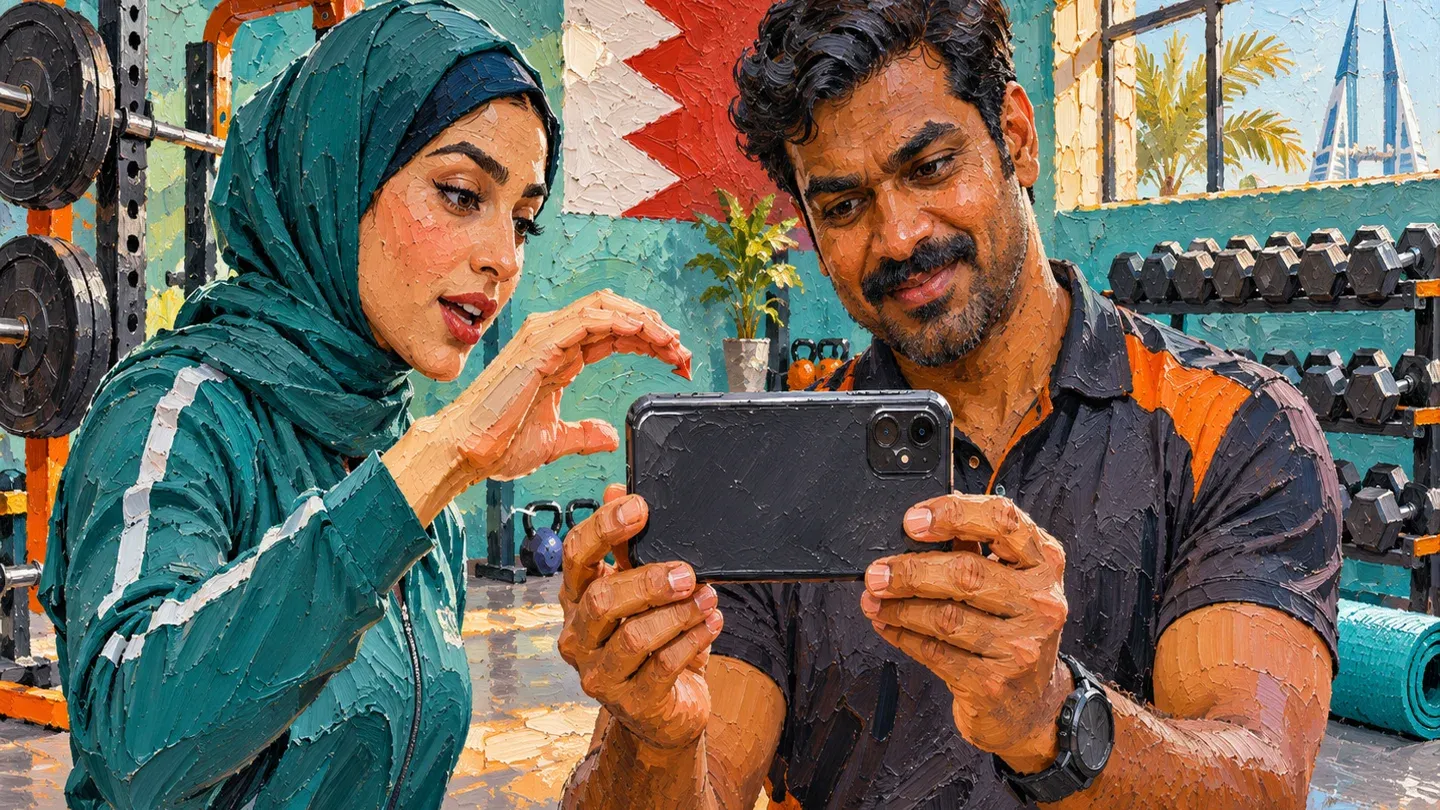
Which app has your video?
Use iPhone Photos to turn a sideways video and save with Done. Use Google Photos to rotate and save a copy. Use Clipchamp on a computer to rotate the clip and export a finished video.
Choose the route for the app where you are working. Our suggestion: play the clip first so you know which way it needs to turn. After editing, play it again before sending it.
On an iPhone: Photos app
Photos has separate controls for rotating and flipping. Rotate turns the image by a quarter turn. Flip mirrors it horizontally, so use Rotate for a sideways clip.
- Open Photos and tap the video.
- Tap Edit, then open the crop tools.
- Tap Rotate to turn the video 90 degrees. Repeat until it is the right way up.
- Tap Done to save the edits.
You should now see the clip in its new orientation. If you use iCloud Photos, edits to photos and videos are saved across your devices.
If you want to undo it
Before saving in Photos, tap Cancel, then Discard Changes if you do not like the result. After saving, open the video, tap Edit, then Revert to undo the edits.
In the Google Photos app
The rotate control is under Crop on both phones. The save button differs, so follow the route for your device.
Google Photos on iPhone
Open the video you want to turn, then follow these steps.
- Open the video in Google Photos.
- Tap Edit, then Crop.
- Tap Rotate to turn the video 90 degrees.
- At the bottom, tap Save copy to save a copy with your edits.
Google Photos on Android
The Android save button sits at the top of the editor.
- Open Google Photos and the video.
- Tap Crop.
- Tap Rotate to turn the video 90 degrees.
- At the top, tap Save to save a copy with your edits.
For a small straightening adjustment, Google places a dial above Rotate. Use Rotate for a sideways clip.
On a computer: Clipchamp
In Clipchamp, select the clip on the editing timeline first. Then use the rotate control above the preview.
- Click the clip on the timeline so it is highlighted.
- Open the 3 dots on the floating toolbar above the preview.
- Click the rotate by 90 degrees button until the orientation is right.
- Click Export at the top right and choose an output resolution.
- Wait for export to finish. The video saves to the computer, usually in Downloads.
Editing progress saves automatically in Clipchamp for personal accounts. Export creates the finished video file.
To undo immediately after rotating, press Ctrl+Z on Windows or Cmd+Z on Mac. Undo reverses the latest edit, so later edits may need to be undone first.
Save and share at a glance
Save the corrected version before sharing it. The route you used determines how you finish.
| App | Rotate | Save | Share | Limit the maker states |
|---|---|---|---|---|
| iPhone Photos | Rotate turns 90 degrees | Done; Revert can undo saved edits | Open video, use sharing options such as Mail, Messages or AirDrop | - |
| Google Photos, iPhone | Edit, Crop, Rotate | Save copy at the bottom | Share; swipe left for another app or tap Get link | iOS 16 or above |
| Google Photos, Android | Crop, Rotate | Save at the top saves a copy | Share; swipe left for another app or tap Create link | At least 1 GB RAM and Android 6.0 or later for crop; no video editing on non-Pixel Android 9 |
| Clipchamp, computer | Floating toolbar menu, rotate by 90 degrees | Export; usually saves in Downloads | Use a sharing integration on the export screen | These steps are for personal accounts |
Sources: Apple, Google Photos and Microsoft, linked below; read 5 November 2026.
Share the corrected clip
In iPhone Photos, open the video, tap the share button and choose Mail, Messages or AirDrop. Your service provider determines attachment size limits.
In Google Photos, select the video and tap Share. Swipe left to choose another app. For a link, tap Create link on Android or Get link on iPhone.
Clipchamp offers sharing integrations on its export screen, including OneDrive, Google Drive and YouTube.
If you do not see Rotate
First check that you are in the route for your app. Google Photos on iPhone starts with Edit, then Crop; the Android instructions start with Crop.
Check the requirements in Before you start if editing is unavailable. Our suggestion: on an unsupported Android device, use the computer route in Clipchamp instead.
For a mirrored picture, Photos has a separate Flip control. For unwanted edges, see how to crop a video. For changes beyond orientation, see how to edit a video on iPhone.
Our example: a workout clip
Our example (illustrative, not a real client).
Ironside Fitness has a sideways exercise clip to send to a customer. The manager chooses Google Photos on iPhone to save a separate edited copy.
- Clip: a sideways exercise demonstration.
- App choice (our choice): Google Photos on iPhone.
- Turn (our choice): start with 1 quarter turn, then inspect which edge is at the top.
- Save choice: tap Save copy to keep a copy with the edits.
- Review (our choice): play the whole clip and check that the trainer is upright.
- Share: select the corrected copy, tap Share, then swipe left to choose the customer’s messaging app.
Frequently asked questions
Is Rotate the same as Flip?
No. Apple’s Rotate turns the image 90 degrees. Flip mirrors it horizontally.
Can I undo a saved rotation in Photos?
Yes. Open the video, tap Edit, then Revert.
Will the edit appear on my other Apple devices?
With iCloud Photos, edits to photos and videos are saved across your devices.
Why can’t I send a large video attachment?
Apple says the attachment size limit is determined by your service provider.
Sources
Maker instructions read 5 November 2026.
- Crop, rotate, flip, or straighten photos and videos on iPhone - Apple Support
- How to edit videos on your iPhone, iPad, or Mac - Apple Support
- Edit your videos with Google Photos - Android phone & tablet - Google Photos Help
- Edit your videos with Google Photos - iPhone & iPad - Google Photos Help
- How to rotate videos, images, and other visual elements in Clipchamp | Microsoft Support
- Exporting and saving a video in Clipchamp | Microsoft Support
- Share photos and videos on iPhone - Apple Support
- Share photos & videos - Android phone & tablet - Google Photos Help
- Share photos & videos - iPhone & iPad - Google Photos Help
Published · Updated