How to Transfer WhatsApp from Android to iPhone
To move WhatsApp from Android to iPhone, use Move to iOS while you set up the iPhone. Pick WhatsApp in the app and let the transfer finish.
Then open WhatsApp on the iPhone and use the same phone number you used on Android.
Can you use Move to iOS?
New iPhone
- Use Move to iOS while you set up the iPhone
Already set up
- Erase the iPhone, then set it up again
New number
- Change your number in WhatsApp on the old Android phone first
WhatsApp Business
- Keep the old phone for those chats
What do I need before I start?
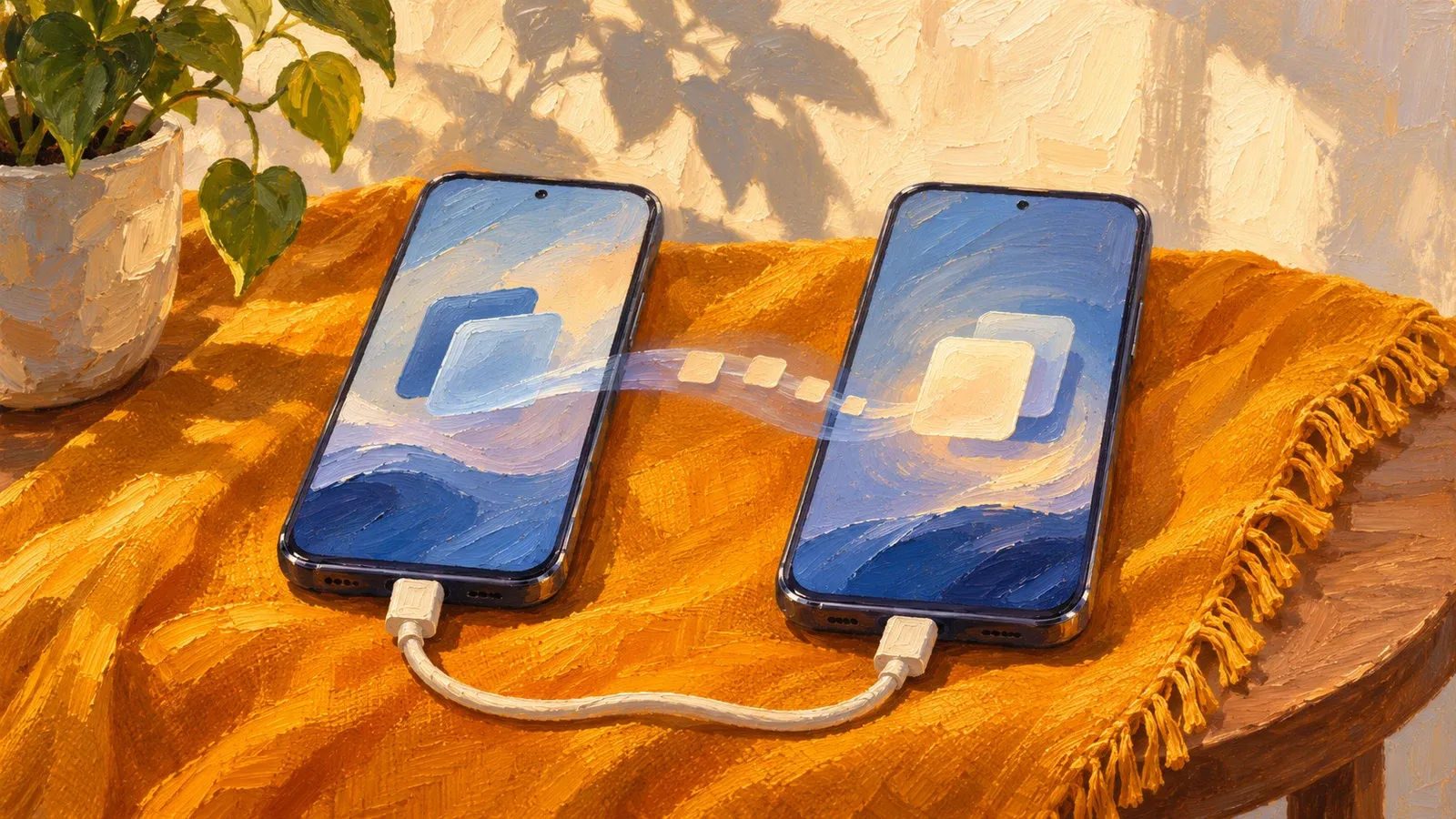
Plug both phones into power. Put them on the same Wi-Fi network before you start. Use Android 5 or later on the old phone and iOS 15.5 or later on the iPhone. Leave room on the iPhone for the chats, photos and other files you want to move. If both phones have a USB-C port, you can also link them with a USB-C cable for a faster transfer.
You also need the Move to iOS app on the Android phone. If you do not have it, tap the QR code button on the iPhone during setup and scan the code with the Android camera. That opens the app in Google Play. Also update WhatsApp on the Android phone to the latest version in Google Play.
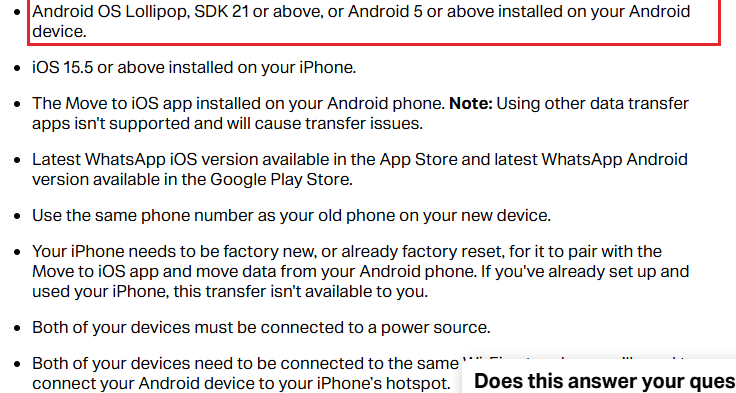
“Your iPhone needs to be factory new, or already factory reset, to pair with the Move to iOS app.”
WhatsApp Help Center, How to move chats from an Android device to an iPhone
How do I move the chats, step by step?
Follow the setup screens on the new iPhone until you reach Transfer Your Apps & Data, then work through these steps.
- On the iPhone's Transfer Your Apps & Data screen, tap From Android, then tap Transfer with App.
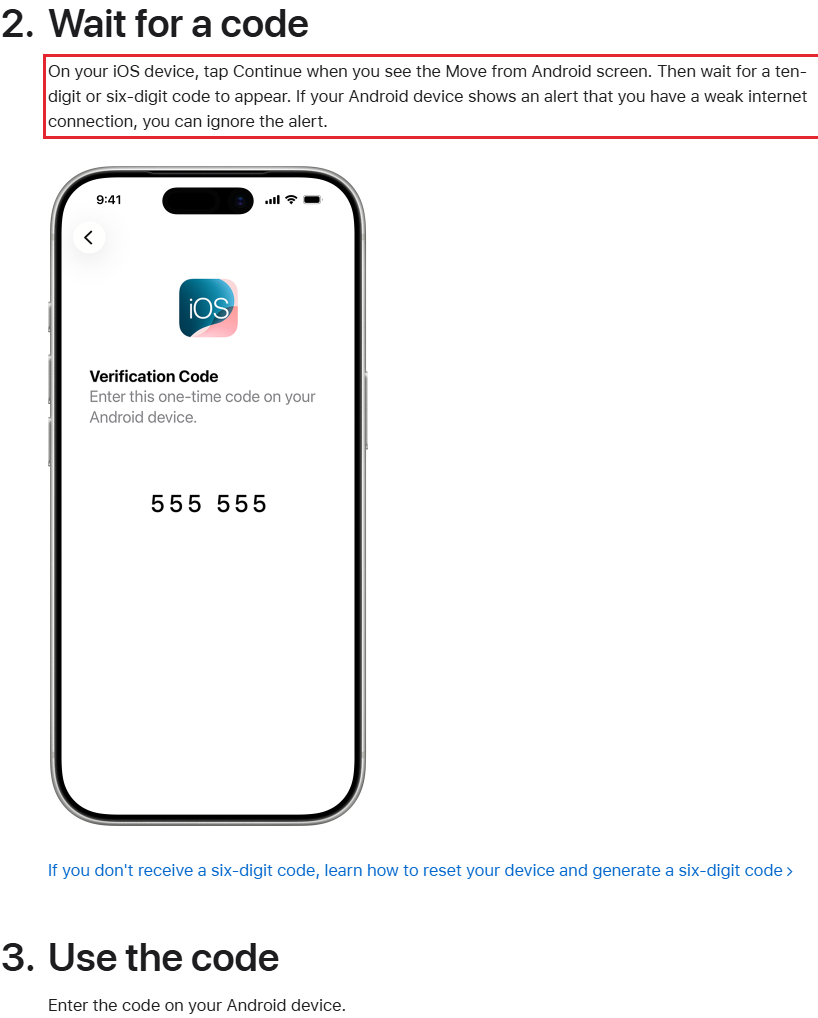
- Open Move to iOS on Android. On the iPhone, tap Continue on the Move from Android screen and wait for a code of six or ten digits. Type that code into the Android phone when it asks.
- The iPhone now makes a temporary Wi-Fi network. When the Android phone asks, tap Connect to join that network, then wait for the Transfer Data screen.
- On Transfer Data, choose WhatsApp. Tap Start on Android to get the chats ready. WhatsApp signs you out on Android when it has finished this part.
- Tap Next to go back to Move to iOS, then tap Continue to send the chats to the iPhone. Leave both phones alone until the loading bar on the iPhone finishes and Move to iOS says the transfer is complete. The transfer can take a while if you are moving a lot of content.
What do I do on the iPhone after the transfer?
After setup, install the latest WhatsApp from the App Store. Open WhatsApp on the iPhone and sign in. When WhatsApp asks to load your chats, tap Start and wait for the chats to appear.
Open a chat with a photo or voice message to check that the media came across. To keep a spare copy in iCloud (Apple's online storage), open WhatsApp and tap Settings, then Chats, then Chat backup, then Back up now. If you need more room, see how to free up iCloud storage.
What moves and what stays behind?
Your chats move to the iPhone with the photos and other media in them. Your call history and display name stay behind.
| What moves to iPhone | What stays behind |
|---|---|
| Account details, profile photo and settings | Display name |
| Individual and group chats, communities, chat history and chat media | Call history |
| Channel updates | Photos and other media you received in Channels |
The chats on your Android phone stay there until you remove WhatsApp or erase that phone. Keep the Android phone until you have checked the new copy.
What if my iPhone is already set up, or my number is changing?
If the iPhone is already set up, erase the iPhone, then set it up again and follow the steps above. Before you erase the iPhone, check that WhatsApp on the Android phone still shows your chats. On the iPhone, open Settings and tap General, then Transfer or Reset iPhone, then Erase All Content and Settings. Erasing removes everything on the iPhone, including any WhatsApp chats you started on it. WhatsApp cannot merge those chats with the ones from your Android phone.
If you cannot erase the iPhone, you can still keep a copy of a chat to read. Open the chat in WhatsApp on the Android phone and tap More options, then More, then Export chat. Tap Without media or Include media, then choose where to send the export, such as Gmail. The exported chat is a text file, and WhatsApp cannot import it again.
If your number is changing, change your number in WhatsApp on the old Android phone first. WhatsApp cannot move your chats to a different number. Open WhatsApp on the Android phone and tap More options, then Settings, then Account, then Change number. Tap Next, enter your old number and your new number, then tap Next and Done. After the move, sign in on the iPhone with the new number.
Chats in the WhatsApp Business app cannot move from Android to iPhone at the moment. Keep the old phone for those chats.
Why did the transfer stop, and how do I fix it?
The transfer stops if you use another app or take a call on the Android phone before it finishes. Restart both phones and try again, and keep Move to iOS on the Android screen until the end. You can also turn off mobile data on Android and retry.
If the iPhone ran out of space, erase it and start again with fewer files selected. On the Transfer Data screen, choose WhatsApp by name. Picking its folder under Files does not run the chat transfer.
Frequently asked questions
Can I use another app to move my chats?
No. WhatsApp says other data transfer apps are not supported and will cause transfer problems. Use Move to iOS.
Can I restore my Android backup on the iPhone?
No. WhatsApp says backups created on Android cannot be restored on an iPhone.
Does moving my chats save a copy in iCloud?
No. The move only puts your chats on the iPhone. They reach iCloud when you make a backup in WhatsApp.
Sources
- WhatsApp Help Center, How to move chats from an Android device to an iPhone
- Apple Support, Move from Android to iPhone or iPad
- WhatsApp Help Center, How to back up your chat history
- Apple Support, How to factory reset your iPhone, iPad, or iPod touch
- WhatsApp Help Center, How to change your phone number
- WhatsApp Help Center, Can't move chats from an Android device to an iPhone
- WhatsApp Help Center, How to export your chat history
- WhatsApp Help Center, How to restore your chat history
Published