How to Trim a Video on iPhone and Computer

Open the video in Photos on an iPhone, Mac or Windows PC. Move the ends of the strip below the video to mark what you want to keep.
If you want to remove something from the middle, split the video in Clipchamp and delete that part.
What do you want to cut?
Cut the start or end
- Move the ends of the strip
Cut a section from the middle
- Split the video in Clipchamp
How do you trim a video on an iPhone?
Trim in Photos and choose how to save the result when you’re done.
- Open the video in Photos and tap Edit. Look for the strip of small pictures below the video.
- Drag the left end of the strip to set the new start. Move the right end to set where the video stops.
- Tap Play to watch the shorter clip before you save it. If it starts partway through a word, move the left end back a little.
- Tap Done to open the save choices.
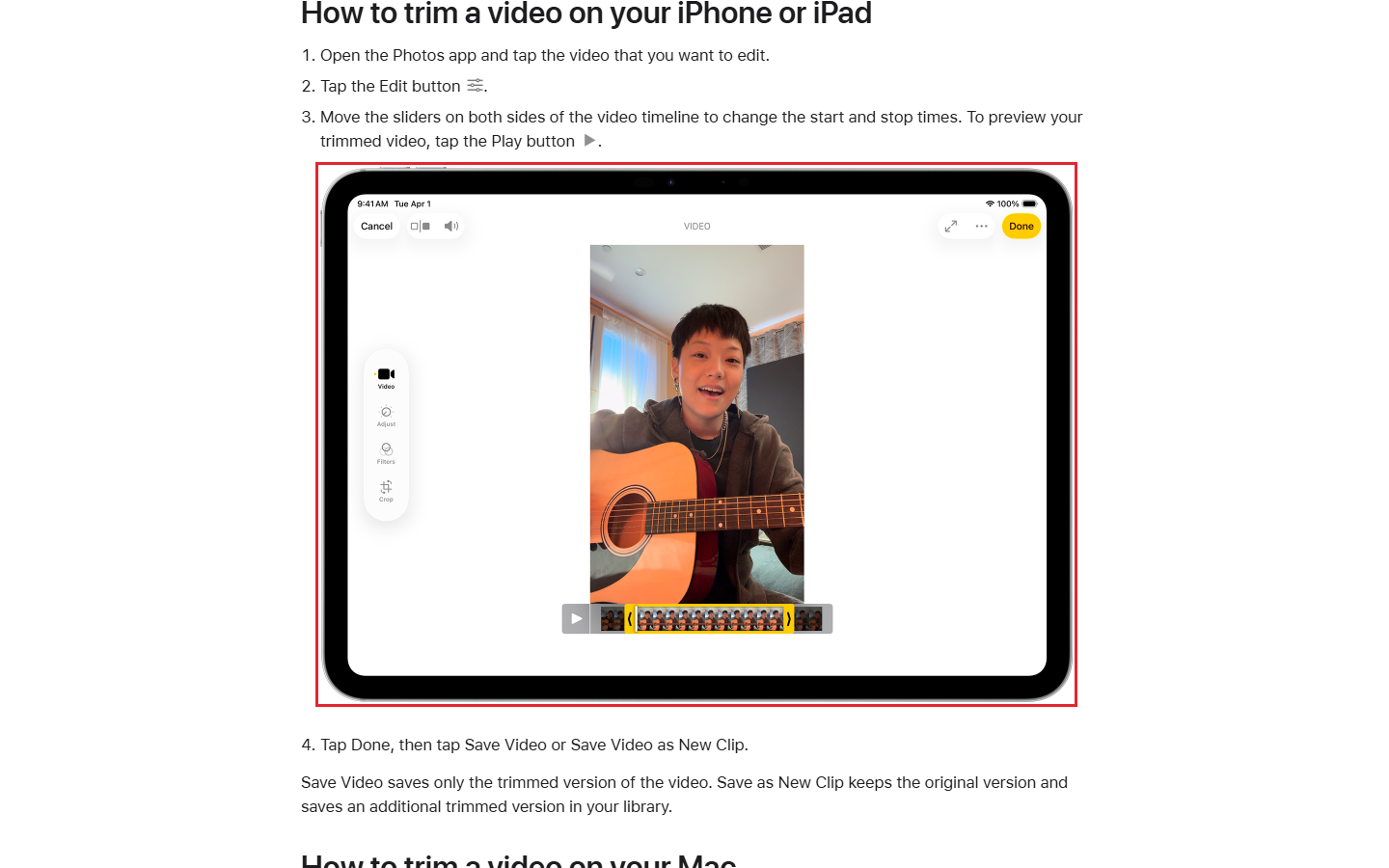
Choose Save Video as New Clip if you want both the short clip and the original.
Choose Save Video to keep just the trimmed version in your library. To restore its full length, open it, tap Edit, then tap Revert and Revert to Original.
The new clip made with Save Video as New Clip cannot grow back to the original length. Open the original if you need the footage you cut off.
How do you trim a video on a Mac?
Use Photos if the video is already in your library. Use QuickTime Player to trim a video file you open on the Mac.
How do you trim in Photos?
Open the video in Photos and click Edit, then Adjust, to see the strip beneath it.
- Pull the end handles inward to set what you want to keep. Click Play to watch the cut before you save.
- Click Done to open the save choices. Pick Save Video or Save Video as New Clip.
You can recover trimmed footage in Mac Photos by moving the handles back. Use Revert to Original if you want to remove all the adjustments.
How do you trim in QuickTime Player?
Open the video in QuickTime Player and choose Edit, then Trim. The video strip appears with a yellow handle at each end.
- Drag the yellow handles to mark what you want to keep. Everything outside the yellow handles is cut.
- Click and hold a handle to see the individual pictures in the video. Use that view if you need to cut at an exact moment.
- Click Trim to apply the change.
How do you trim a video on Windows?
Open the video in Windows Photos to cut the start or end. Use Clipchamp if the video is part of a longer edit.
How do you trim in Windows Photos?
Open Photos from the taskbar search and choose your video.
- Select Trim at the top of the window to show the sliders beneath the video.
- Move the left slider to the new start. Move the right slider to where you want the video to end.
- Select Save as Copy to make a shorter file and keep the original. The Save option beside it replaces the original with the trimmed file.
How do you trim in Clipchamp?
In a Clipchamp project, the timeline is the strip at the bottom where you put the clips that will go into your finished video.
- Open My media and click Import media to choose the video file.
- Drag the video from My media onto the timeline. Click the clip so the handles appear at its ends.
- Drag either handle inward to shorten the clip. If you take off too much, drag that handle back to bring the footage back.
Clipchamp for personal accounts saves your progress as you edit. To make a video file you can share, click Export at the top right.
Choose a resolution, which sets how detailed the saved video looks. Clipchamp makes an MP4 video file and usually puts it in Downloads.
How do you cut a section from the middle?
Use the Clipchamp editor when there’s footage you want to keep on both sides of the part you’re removing.
- Select the clip on the timeline and move the position marker to where the part you want to remove begins.
- Choose Split to break the clip at that point. Move the marker to the end of the unwanted part and split again.
- Select the middle piece and press Delete.
- Hover over the blank space and click Delete this gap to bring the clips together.
- Click just before the join on the timeline and press Play to see where the remaining clips meet.
If the cut needs to land on a specific word or movement, use the plus button at the right end of the timeline. It gives you a closer view to place the marker.
How do you trim a video in Google Photos?
Drag the trim handles over the part you want to keep. Google Photos saves a copy of the shorter video.
Where is Save on Android?
Open the video in Google Photos. Touch and hold a trim handle, then drag it to set the start or end.
Tap Save at the top to make the copy. On Android 9, Google Photos video editing works on Pixel devices only.
Where is Save copy on iPhone or iPad?
Open the video and tap Edit to reach the trim handles. Drag the ends, then tap Save copy at the bottom.
The Google Photos app needs iOS 16 or later on iPhone. You can trim in Apple Photos if you already have the video there.
Frequently asked questions
If your video has to fit a time limit, check the length in your video player after you save it.
Does trimming change what fits in the picture?
Trimming changes how long the video plays. Cropping removes the edges of the picture. If you need to change what fits on screen, crop the video.
Can you trim more than one clip at once?
In Clipchamp on Windows, hold Shift while you select the clips, then drag their trim handles to change their length.
Sources
Published · Updated