
What Is n8n? How to Build a Marketing Automation With It (2027)
n8n is a visual workflow automation tool that connects your marketing apps so they pass data and complete tasks automatically. You drag blocks onto a canvas to capture leads, update spreadsheets or customer databases, alert your team, and send emails without coding. You can run it on n8n Cloud or host the free Community edition on your own server.
What is n8n and what terms do beginners need to know?
n8n is a node-based automation platform that moves data between web forms, spreadsheets, chat apps, email tools, and AI (artificial intelligence) models. Instead of copying lead details by hand from a website form into a sheet and typing a reply, you connect steps left to right on a visual canvas. Data moves between blocks in JSON (a plain text format apps use to pass labelled fields like name and email). You can start on n8n Cloud or install it on your own server.
Learn these six terms before you build:
- Workflow: The map of connected steps that runs from a starting event to your final actions.
- Node: One block on the canvas that starts a workflow, edits data, applies logic, or talks to an app.
- Trigger: The first node that listens for an event, such as a form submission, email, or schedule.
- Execution: One full run of a workflow from trigger to finish, no matter how many nodes sit inside it.
- Credential: A saved login or API (application programming interface, a bridge that lets two apps talk) key stored inside n8n so you never paste passwords into nodes.
- Webhook: A unique URL (web address) that receives data the instant another app sends an event, such as a form entry.
How do n8n workflows turn a new website lead into actions?
An n8n workflow catches a new form entry, cleans data, logs it in a sheet, alerts sales, and sends a welcome email in seconds. Below is a complete lead workflow built node by node for a small business in the US or Bahrain. Figures are for demonstration only, not benchmarks.
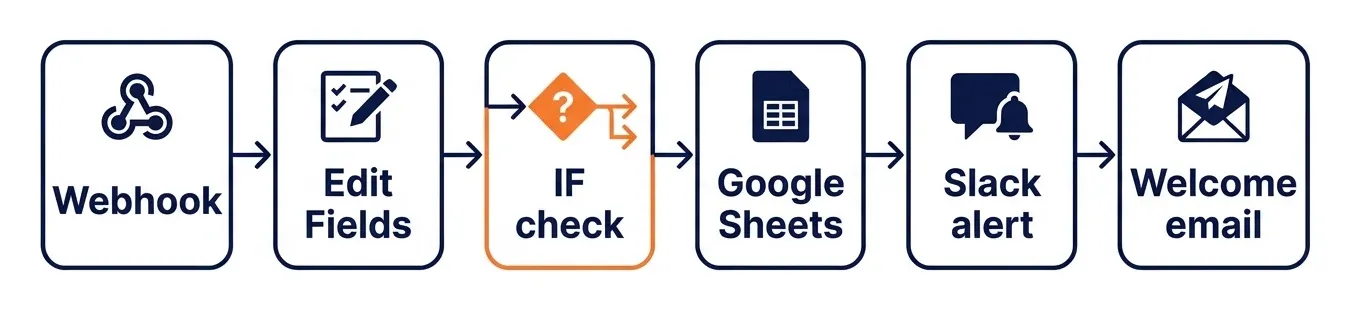
Suppose your website gets 300 contact form leads per month. Visitors enter a name, work email, monthly budget, and a marketing consent box. Every valid new lead is saved in Google Sheets with its consent status, leads with marketing consent receive a short welcome email, leads with a budget above 2,000 USD (or 750 BHD, depending on which currency your form uses) trigger a Slack alert for sales, and duplicate entries stop.
Step 1: Connect your credentials first
Open the Credentials menu in n8n and connect Google Sheets, Slack, and Gmail (or SMTP, the standard mail server protocol for sending email). Sign in through each prompt and save each connection with a clear name like "Marketing Google Account." Every node in your workflow will reuse these credentials safely.
Step 2: Add the Webhook trigger and capture test data
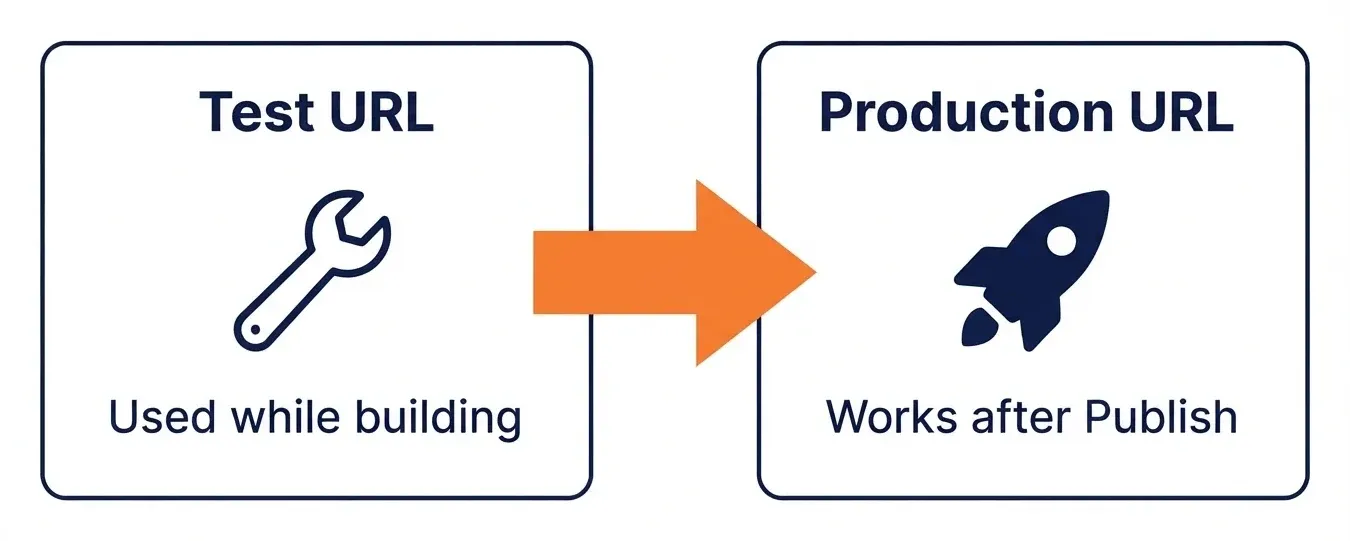
Create a workflow, add your first step, and pick the Webhook node. Set the HTTP (hypertext transfer protocol, the web's data transfer method) method to POST (the method web forms use to submit new data). Copy the Test URL inside the node and paste it into your website form's webhook setting.
Click Listen for Test Event, then submit your form once with sample data (name "Nadia Ali", email "[email protected]", budget "3000", consent "true"). Pin this test data in the Webhook node so you can build downstream nodes without resubmitting the form.
What the incoming data looks like: Below is the sample JSON payload received from the test submission (these names and figures are made up for demonstration):
{
  "body": {
    "name": "Nadia Ali",
    "email": "[email protected]",
    "budget": 3000,
    "consent": true
  }
}
Because n8n wraps incoming POST form fields inside a body object, the email value sits at $json.body.email, which you map to a named column by dragging it in or typing the expression {{ $json.body.email }}.
Step 3: Clean fields with the Edit Fields node
Add an Edit Fields node after the Webhook. Drag the incoming values from body into four clean output labels: lead_name, lead_email, lead_budget, and marketing_consent. Clean names protect later steps if you ever switch form tools.
Step 4: Filter out duplicate leads with an IF node
Add a Google Sheets node set to Get Row(s) to search your sheet for {{ $('Edit Fields').item.json.lead_email }}. Open the node's Settings tab and turn on Always Output Data so the lookup outputs one empty item when no matching row exists, rather than stopping the run with zero items. Next, add an IF node (Is New Lead?) checking whether the looked-up email field from the Google Sheets node ({{ $json.email }}) is empty: the true branch continues for brand-new leads, while the false branch stops immediately so duplicate submissions are ignored.
Step 5: Log every valid lead, then branch for email and Slack
On the true branch of the duplicate check, add a Google Sheets node set to Append Row and map lead_name, lead_email, lead_budget, and marketing_consent (recorded as true or false) directly from the Edit Fields node output (such as {{ $('Edit Fields').item.json.lead_email }}) into your sheet columns, rather than from the empty lookup item. From that append node, split into two parallel checks reading from Edit Fields:
- Consent check (IF node): Checks whether
{{ $('Edit Fields').item.json.marketing_consent }}equals true; the true branch connects to a Gmail (or SMTP) node to send the welcome email tolead_email, while the false branch ends without emailing. - Budget check (IF node): Checks whether
{{ $('Edit Fields').item.json.lead_budget }}is above 2,000 (for a USD form) or 750 (for a BHD form); the true branch connects to a Slack node to alert sales with the lead's details, while the false branch ends quietly.
Run a manual test and confirm every node turns green, one row lands in Google Sheets, one alert posts in Slack, and one welcome email reaches your inbox.
Step 6: Switch from the Test URL to the Production URL
Open the Webhook node and switch to the Production URL tab. Copy that URL, replace the Test URL in your form settings, and click Publish in n8n. Official docs note that test webhooks register only while testing an inactive workflow, whereas production webhooks register once published. Live runs appear in your Executions tab.
Step 7: Attach an Error Workflow
Create a second workflow named "Lead Error Alert." Add the Error Trigger node first, then connect a Slack or Gmail node that emails or messages you the failed workflow name and error message. Save it, open your main workflow, go to Options > Settings, and pick "Lead Error Alert" under Error Workflow. If an app fails later, you get an alert right away instead of losing leads silently.
Which n8n nodes handle each job in a marketing workflow?
Six core node roles handle almost every beginner marketing automation, from catching leads to routing replies and catching errors. Use this table when mapping your next build.
| Node or Type | Role in Workflow | Marketing Example |
|---|---|---|
| Webhook / Form Trigger | Starts a workflow when an app or form sends data. | Captures a new website contact form entry. |
| Schedule Trigger | Starts a workflow on a clock or calendar rule. | Pulls weekly ad spend every Monday at 8:00 AM. |
| Edit Fields | Renames and cleans incoming data fields. | Standardizes lead fields before CRM (customer relationship management) sync. |
| IF / Switch | Routes leads down branches using rules. | Sends high-budget leads to sales and consenting leads to email. |
| App Action Nodes (Google Sheets, HubSpot, Slack, Gmail) | Reads, writes, or sends data in connected apps. | Appends a sheet row, updates a CRM, and sends a welcome email. |
| Error Trigger | Runs an alert workflow when a live run fails. | Posts a Slack warning if an API call breaks overnight. |
How do n8n executions count against your plan limits?
n8n bills Cloud plans by monthly production executions rather than node count. A three-node workflow and a twenty-node workflow each count as one execution per run. Manual test runs and Error Workflow runs are free of quota charges.
Your trigger type decides how fast you use monthly executions:
- Webhook triggers: Count one execution per inbound request (300 monthly leads use 300 executions).
- Polling triggers: Check an app on a timer, counting an execution only when new data is found.
- Schedule triggers: Count one execution every time the clock fires regardless of new data. Hourly runs use about 720 per month, 5-minute runs use about 8,640, and minute-by-minute runs use about 43,200.
Watch concurrency (how many workflows run at the same second) and execution duration limits too. During a lead spike, Cloud queues extra runs according to your plan's concurrency cap.
What is the n8n price in 2027 for Cloud and self-hosting?
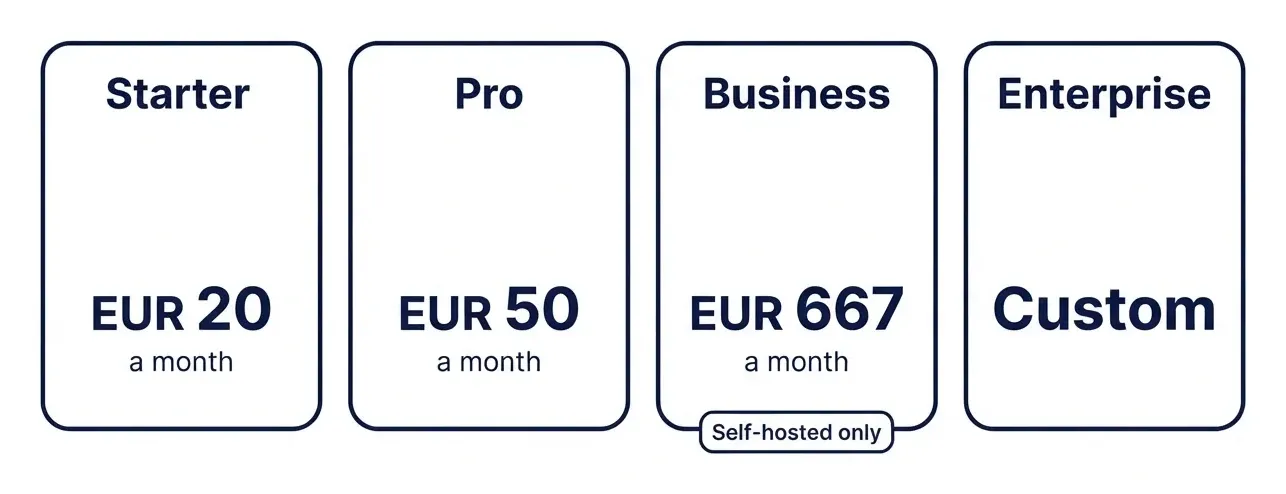
You can start free by self-hosting the Community edition or opening a Cloud trial, while paid Cloud plans start at EUR 20 per month billed annually. Prices below were read on the n8n pricing page on 30 Nov 2026 and may change. That page showed euros on annual billing; check checkout for your local currency.
Every paid plan includes unlimited users, unlimited workflows, and all integrations. Third-party sites disagree on the total number of integrations, and no official count was confirmed in our sources. Here are the official tiers:
- Free Cloud Trial: No credit card needed. Includes 1,000 executions, 5 concurrent executions, 180-second timeout, 1 team project, 800 Assistant credits, and 100 AI credits.
- Starter (Cloud): EUR 20 per month billed annually. Includes 2,500 monthly executions, 1 shared project, 5 concurrent executions, 2,500 saved executions (2.5 GB), 7-day log retention, 5-minute max duration, 1 day of workflow history, 1,600 Assistant credits per month, and forum support.
- Pro (Cloud): EUR 50 per month billed annually. Includes 10,000 monthly executions, 3 shared projects, 25,000 saved executions (25 GB), 30-day log retention, 40-minute max duration, 5 days of workflow history, 7 days of insights, admin roles, and metric-based evaluations. Two details conflict on the official page: Pro concurrency reads "Up to 50" on the card and "20 / 50" in the table, while Assistant credits read up to 9,600 on the card versus 4,000 or 9,600 in the FAQ.
- Business (Self-hosted only): EUR 667 per month billed annually. Includes 40,000 monthly executions, 6 shared projects, 30 days of insights, SSO (single sign-on), LDAP (a directory login system), multiple environments, and Git (a tool for tracking file changes) version control. Business is self-hosted only, with Cloud on a waitlist, and offers a Startup plan at 50% off for companies under 20 employees.
- Enterprise (Cloud or Self-hosted): Custom price via sales. Adds 200+ concurrent executions, 50,000 saved executions, unlimited log retention, 365 days of insights, custom overage fees, and dedicated support with an SLA (service level agreement).
- Free Community and Registered Community (Self-hosted): Free on GitHub; you pay only for your server. Registering an email adds folders, in-editor debugging, and custom execution data. One source conflict exists: the pricing page puts queue mode (spreading heavy workloads across servers) under Business, while the Community docs say Community includes it.
Before self-hosting, check the Sustainable Use License (Version 1.0). n8n uses a fair-code, source-available licence rather than an OSI open-source licence. You may use or modify it only for internal business, personal, or non-commercial use, and cannot resell or host it for clients without written permission. Files marked .ee. require an Enterprise License.
What common n8n mistakes trip up marketing beginners?
Most beginner issues stem from basic setup gaps. Avoid these six mistakes:
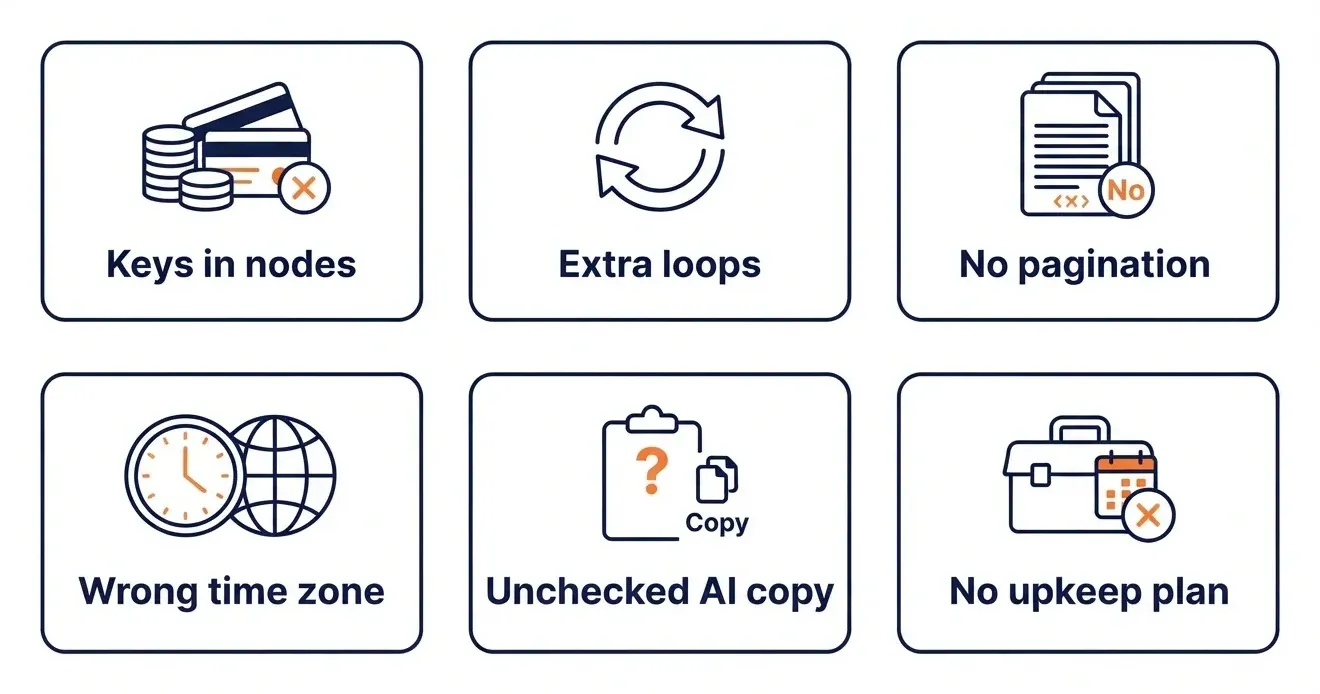
- Hardcoding keys inside nodes: Pasting an API key into an HTTP node exposes it to teammates and makes rotation hard. Store keys in n8n Credentials.
- Adding manual loops for simple lists: n8n already processes arrays item by item. Extra loops slow runs down and complicate debugging.
- Skipping API pagination: Many APIs return only the first page of contacts unless you turn on pagination (splitting long lists across multiple pages) in your node settings.
- Forgetting workflow time zones: Scheduled campaigns fire at the wrong hour if the workflow uses a default server clock instead of your US or Bahrain audience time zone.
- Sending unreviewed AI copy to leads: Have AI draft replies or tag leads for human review before letting it email customers directly.
- Underestimating self-hosting upkeep: Running Community yourself still requires a paid server, HTTPS (an encrypted web connection) for webhooks, updates, and database backups.
What should you check before you publish an n8n workflow?
Run this seven-point check before going live to protect customers and quota:
- Swap every Test URL in your forms for the Production URL.
- Confirm every node uses a saved Credential rather than a pasted key.
- Submit a duplicate test lead to verify your check blocks duplicate rows or emails.
- Match the workflow time zone to your audience if you use a Schedule Trigger.
- Attach an Error Workflow under Options > Settings so failures trigger alerts.
- Run a deliberate failure test by breaking a credential on purpose, submitting a test lead, and confirming the Error Workflow alert arrives before restoring the valid login.
- Watch the Executions tab after the first live leads arrive to confirm clean runs.
Download the n8n marketing automation build checklist (PDF)
What else do beginners ask about n8n?
Marketers often ask four quick questions about n8n:
What does n8n stand for?
Pronounced "n-eight-n", the name stands for "nodemation," blending "node" and "automation" with eight letters between the first and last "n."
Do you need coding skills to build n8n workflows?
No. You can build lead capture, CRM sync, Slack alerts, and email follow-ups using visual nodes alone. Code nodes exist for developers, but beginners do not need them.
Can you use AI nodes in n8n without buying separate AI keys?
Yes on n8n Cloud. Starter and Pro plans include AI models without separate API keys and monthly Assistant credits, though you can add your own keys later.
What happens if you hit your monthly execution or saved-execution limit?
Starter and Pro plans charge capped overage fees above monthly executions, while Business and Enterprise tiers may face charges if you do not upgrade. Hitting saved-execution limits does not stop live workflows.
Sources
- n8n Official Pricing Page (read 30 Nov 2026): https://n8n.io/pricing/
- n8n Documentation Home: https://docs.n8n.io/
- Choose n8n (Cloud vs Self-Hosted Editions): https://docs.n8n.io/choose-n8n/
- Community Edition Features: https://docs.n8n.io/hosting/community-edition-features/
- n8n Sustainable Use License (Version 1.0): https://github.com/n8n-io/n8n/blob/master/LICENSE.md
- n8n License FAQ: https://support.n8n.io/article/can-i-use-your-license-for-my-use-case
- Understand Executions and Quotas: https://docs.n8n.io/build/understand-workflows/understand-executions/
- Understand Cloud Concurrency: https://docs.n8n.io/deploy/use-n8n-cloud/understand-concurrency
- Webhook Node Documentation: https://docs.n8n.io/integrations/builtin/core-nodes/n8n-nodes-base.webhook/
- Schedule Trigger Documentation: https://docs.n8n.io/integrations/builtin/core-nodes/n8n-nodes-base.scheduletrigger/
- Handle Errors Gracefully: https://docs.n8n.io/build/flow-logic/handle-errors-gracefully/
- Workflow Components: https://docs.n8n.io/build/understand-workflows/workflow-components/
- Build Your First Workflow: https://docs.n8n.io/build-your-first-workflow/
Published