How to Back Up Your iPhone to a Computer
Plug your iPhone into your computer. Open Finder on a Mac or Apple Devices on a Windows PC. Select your iPhone and click Back Up Now. Use iTunes if you have an older Mac or your PC has no Apple Devices app.
To save your Health and Activity data, turn on Encrypt local backup first. This locks the copy with a password. Keep that password safe so you can use the backup later.
Mac or Windows PC?
macOS Catalina
- Use Finder if your Mac's system software is macOS Catalina 10.15 or later
macOS Mojave
- If it is macOS Mojave or earlier, use iTunes
Windows PC
- Open Apple Devices on a Windows PC
- Use iTunes if your PC has no Apple Devices app
How do I back up my iPhone to a Mac?
Use Finder if your Mac's system software is macOS Catalina 10.15 or later. If it is macOS Mojave or earlier, use iTunes instead. To see which macOS your Mac has, click the Apple menu in the top-left corner of the screen and choose About This Mac. The window that opens shows the name and version number of the macOS.
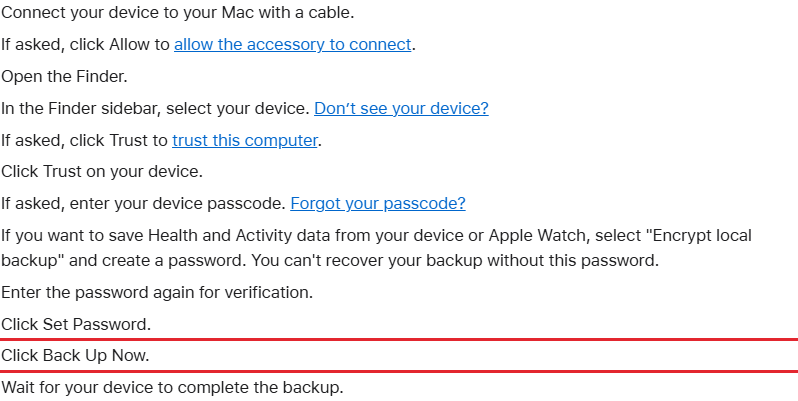
- Plug the iPhone into the Mac. Click Allow on the Mac if it asks to connect.
- Open Finder and pick your iPhone in the list at the side of the window.
- If a Trust prompt appears, confirm it on the Mac and on the iPhone. Unlock the iPhone with its passcode if asked.
- At the top of the Finder window, click General. Then select "Back up all of the data on your iPhone to this Mac".
- Click Back Up Now. When the copy is done, look for the date and time of the last backup.
On macOS Mojave or earlier, open iTunes, select your iPhone and click Summary. Then click Back Up Now. iTunes also backs up the iPhone by itself each time you plug it in.
How do I back up my iPhone to a Windows PC?
Use the Apple Devices app and follow these steps.
- Open Apple Devices and plug in the iPhone. Follow any Trust or passcode prompt.
- Select the iPhone in the sidebar (the list at the side of the window), then click General.
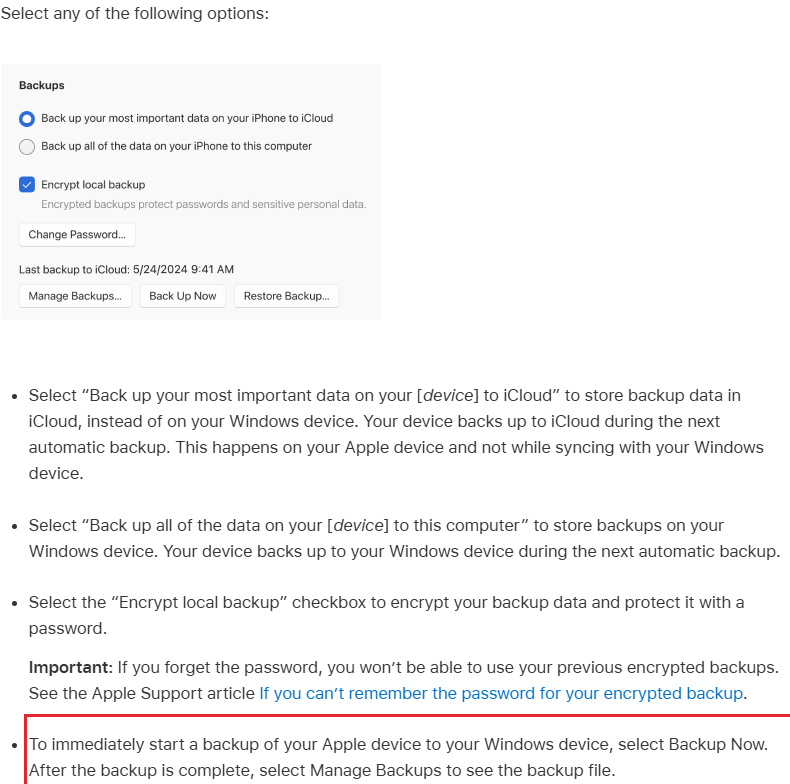
- Select "Back up all of the data on your iPhone to this computer".
- Click Backup Now to start the backup. When it is complete, click Manage Backups to see the backup file.
If your PC has no Apple Devices app, open iTunes instead. Select your iPhone, click Summary, then click Back Up Now. When it finishes, the iTunes window shows the date and time of your last backup.
If you only need your pictures, see how to copy iPhone photos to a PC.
Should I encrypt the backup?
Yes, if you want the backup to keep your saved passwords or your Health data. Encryption is off until you turn it on, so a basic backup leaves both out.
| Data | Basic backup | Encrypted backup |
|---|---|---|
| Saved passwords, Wi-Fi settings, web history and call history | Left out | Included |
| Health, Activity and Keychain (Apple's store of saved sign-ins) | Left out | Included |
| Face ID, Touch ID and your phone's unlock code | Left out | Left out |
| Photos or messages already stored in iCloud | Left out | Left out |
| Apple Pay information, Apple Mail data, offline maps, and App Store, iTunes Store and Apple Books content | Left out | Left out |
A computer backup saves almost all the other data and settings on the iPhone.
To turn encryption on, tick Encrypt local backup on the General screen in Finder or Apple Devices, then create a password. When you confirm the password, a new backup starts at once. It replaces your earlier backups with encrypted ones.
“Write down your password and store it somewhere safe, because there's no way to recover your encrypted backups without this password.”
Apple Support, Back up your iPhone or iPad with your Windows device
Where are my backups, and how do I keep or delete one?
In Finder or Apple Devices, select your iPhone, click the General tab, then click Manage Backups. Right-click the backup you want. Choose Archive to keep it, so that later backups do not replace it. Choose Show In Finder on a Mac, or Show in Explorer on a PC, to open its folder. Choose Delete to remove it; a deleted backup cannot be recovered.
On a Mac, you can also open Finder and choose Go to Folder from the Go menu. Paste this path and press Return.
~/Library/Application Support/MobileSync/Backup/On Windows, press the Windows key and R together. Type the first path below and press Enter. If no folder opens, type the second path instead.
%USERPROFILE%\Apple\MobileSync\Backup
%AppData%\Apple Computer\MobileSync\Backup
What if my computer doesn't see my iPhone?
Unlock the iPhone and tap Trust if it asks. Then try another cable, because the cable must carry data as well as charge the phone. On a Mac, if Finder shows no list at the side, choose View in the menu bar, then Show Sidebar. If the Mac still does not show the iPhone, try another USB port and check that macOS and iOS are up to date.
Frequently asked questions
Can I use iCloud and a computer backup together?
Yes. Apple says you can back up with iCloud, your computer, or both. A computer backup uses the free space on your Mac or PC. If iCloud runs short of space, see how to free up iCloud storage.
Can I back up without a cable?
Yes, once you have set it up with a cable. Plug the iPhone in, open Apple Devices, click your iPhone, then click General. Tick Show this iPhone when on Wi-Fi and click Apply. After that, the iPhone appears in Apple Devices whenever it and the PC are on the same Wi-Fi network. On a Mac, the Show this iPhone when on Wi-Fi checkbox is on the General screen in Finder.
How do I put a backup back on my iPhone?
Plug the iPhone into the computer, select it in Finder or Apple Devices, click General, then click Restore Backup. Choose the backup you want from the pop-up menu, then click Restore. If the backup is encrypted, you must enter its password before your files and settings are restored.
Sources
- Apple Support, Back up your iPhone or iPad with your Mac
- Apple Support, Back up your iPhone or iPad with your Windows device
- Apple Devices User Guide, Back up and restore an iPhone or iPad
- Apple Support, About encrypted backups
- Apple Support, Locate backups
- Apple Support, Backup methods
- Apple Support, Trust This Computer alerts
- Apple Support, If your computer does not recognise your iPhone
- Sync content between your Windows device and iPhone, iPad, or iPod touch over Wi-Fi
- Apple Support, Find out which macOS your Mac is using
- Update, back up, or restore your iPhone, iPad, or iPod touch to your Mac or to iCloud
- Sync content between your Mac and iPhone, iPad, or iPod touch over Wi-Fi
Published