How to Blur a Face in a Video
For a YouTube video, open YouTube Studio on a computer. Use Face blur to pick the faces to hide and save the edit.
For any other video, use CapCut on your phone or computer. It blurs faces for free.
Where is the video going?
YouTube
- Under Video editor, choose Blur, then Face blur
iPhone
- Tap Overlay to add a clear copy
- On the top copy, tap Mask and pick the circle
- Tap Export to save the edited video
Computer
- Open Mask and pick a shape that fits the face
- If the face moves, choose Track mask
When your editor has no blur tool
- In Clipchamp, cover the face with a sticker
- Crop the clip if the face stays near the edge
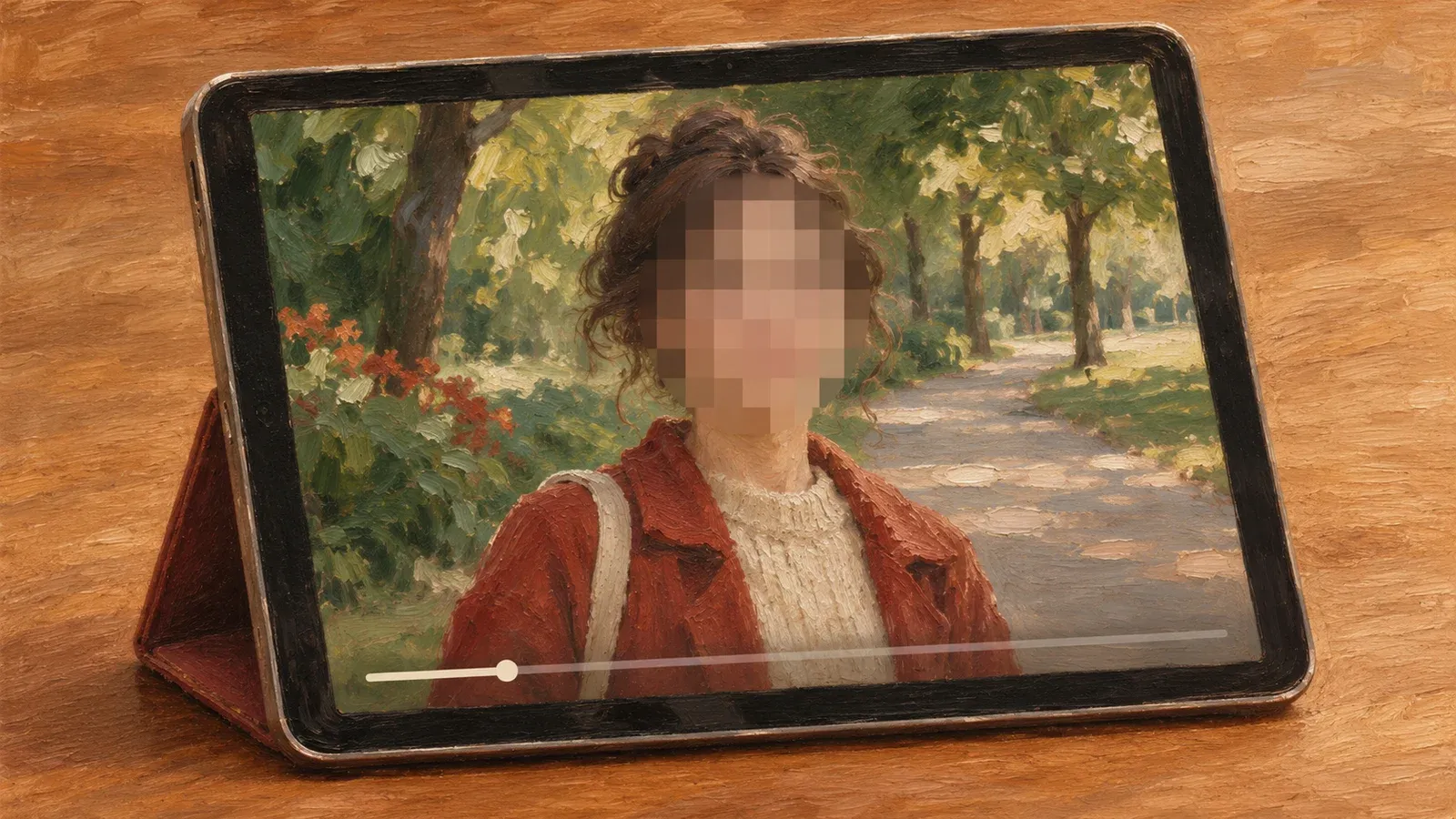
How do I blur a face in a YouTube video?
On a computer, YouTube Studio can blur the faces in a video on your channel. Keep your own copy of the original video before you start. Since June 2025, YouTube Studio cannot undo an edit once it is saved.
- Sign in to YouTube Studio. Click Content in the left menu.
- Click the video’s title or thumbnail, then choose Editor in the left menu.
- Under Video editor, choose Blur, then Face blur.
- Wait for the faces to show up. Pick the ones you want to hide and click Apply.
- Drag the blur box until it covers the face. Click Save.

If Face blur misses someone, go back to Blur and choose Custom blur. Pick Rectangle or Oval, then drag the shape over the face. Choose Track object to make the blurred area move with the face, or Fix blur position to keep it in the same place.
Drag the ends of the blur on the timeline (the strip that shows when things play) to set when it starts and stops. Start the blur as soon as the face comes into view.
If the video has more than 100,000 views and no earlier edits, face blur may be the only change you can save. Channels in the YouTube Partner Program are exempt from this limit. To share the edited copy elsewhere, download it from YouTube.
How do I blur a face on my phone?
Use the CapCut app. On iPhone, you blur the whole clip, put a clear copy on top, then cut a hole in the top copy over the face. The blur shows through the hole.
- Open a new project, add your video and tap the clip in the timeline.
- Tap Effects. In the video effects, search for blur and apply a blur effect.
- Tap Overlay to add a clear copy of the same clip on top. Line up the two copies so they start at the same time and fill the same space.
- On the top copy, tap Mask and pick the circle. Tap Invert to turn the circle into a hole. Drag the circle over the face and resize it until it covers the whole face.
- If the face moves, tap the Keyframe button at different points along the timeline and move the circle back over the face each time. CapCut saves each point, so the circle moves smoothly with the face.
- Tap Export to save the edited video to your phone.

On Android, the CapCut app is also free. CapCut’s steps for Android use the same Mask, Keyframe and Export buttons.
How do I blur a face on a computer?
Use CapCut on your computer. The blurred copy of the clip goes on top, and a mask (a shape you place) trims the blur to the face.
- Import the clip, then copy it and paste the copy onto a second layer, above the first.
- Click the Effects tab, then Video effects in the left menu. Search for blur and drag a blur effect onto the top copy.
- Right-click the blurred clip and choose Create compound clip. That puts the clip and its effect into one piece you can edit.
- Open the Mask tab at the top right and pick a shape that fits the face. Resize it and place it over the face.
- If the face moves, choose Track mask, which follows the face automatically. Play back the clip, then click Export at the top right to save the video.
For a quicker way in CapCut, open Effects, then Body effects, and search for Face Mosaic. Drag it onto the timeline and stretch it to the length of the video. A mosaic hides detail behind blocks of color.
If you use Adobe Premiere, open the Effects panel. Choose Video Effects, then Stylize, then Mosaic. Drag Mosaic onto the clip. In Effect Controls, choose the Ellipse tool to draw an oval mask. The effect stays inside that shape. To follow a moving face, use the tracking buttons under the mask in Effect Controls.
What if my editor has no blur tool?
Hide the face behind something solid, or crop it out of the picture. In Clipchamp, cover the face with a sticker or a solid block of color. You can also use text on a solid background.
Crop the clip (cut away the edge of the picture) if the face stays near the edge. If the person moves toward the middle, use a cover or trim that part of the clip.
Which tool should I use?
Pick the tool by where the video is going.
| Tool | Device | Cover | Moving face | Note |
|---|---|---|---|---|
| YouTube Studio | Computer | Blur | Yes | Edit a video in your channel |
| CapCut | iPhone | Blur | By hand | Work on a file on your phone |
| CapCut | Computer | Blur or mosaic | Yes | Work on a file on your computer |
| Adobe Premiere | Computer | Mosaic | Yes | Use it if you already edit in Premiere |
| Clipchamp | Computer | Cover or crop | No | Use it if you already edit in Clipchamp |
Frequently asked questions
Does blurring a face make the person anonymous?
Not on its own. Look for other clues, such as a name tag, that could still give the person away.
Can VSDC keep a blur on a moving face?
Only in VSDC Pro. Following a moving person needs motion tracking, and that tool is part of the Pro version.
Sources
- YouTube Help, Blur your videos, read 12 November 2026
- CapCut, Blur a face on iPhone and computer
- CapCut, Face Mosaic and other ways to blur faces
- CapCut, How to Blur a Face in a Video and Check Every Visible Frame
- Adobe, Create masks in Premiere
- Adobe, Track masks in Premiere
- Microsoft, How to delete elements and assets from a video
- VSDC, How to blur faces using VSDC
Published