How to Reverse a Video
Select the clip in a video editor and choose Reverse. Play it back, then export it (save the edit as a new video file).
On iPhone, use Premiere. On Android, use CapCut. On a Mac, use iMovie. On a Windows PC, use the CapCut desktop app. In a browser, use the CapCut Web Editor or an online tool such as Ezgif.
Which device are you on?
iPhone
- Use Premiere on iPhone
- Scroll along the bottom toolbar and tap Reverse
Android
- Use CapCut on Android
- Tap Edit, then tap Reverse
Computer
- In iMovie, select the Reverse checkbox
- In the CapCut desktop app, click Reverse in the editing toolbar
- In Premiere, open Clip, then Speed/Duration
Browser
- In the CapCut Web Editor, open your project and select the clip
- Click Reverse in the editing toolbar

How do I reverse a video on my iPhone?
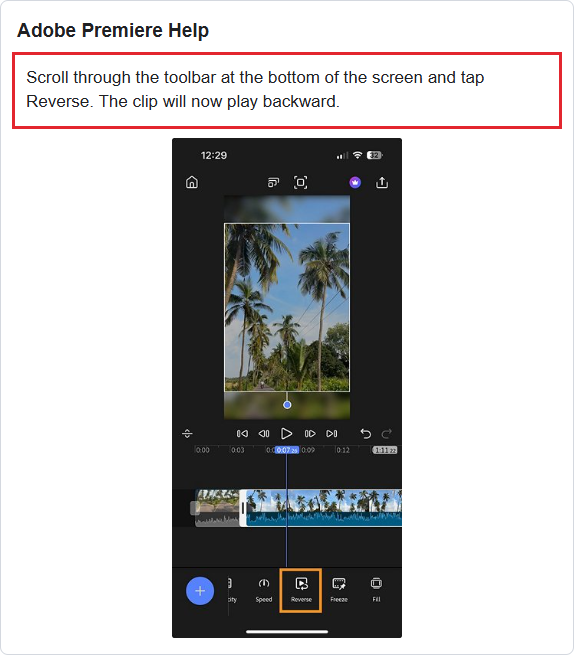
Use Premiere on iPhone. The Reverse button sits in the toolbar at the bottom of the screen.
- Tap the clip in the timeline (the strip that holds your video).
- Scroll along the bottom toolbar and tap Reverse.
- To save the reversed clip, tap the Export icon at the top right of the screen, then tap Export video.
To undo the reverse, tap the clip again. Scroll along the toolbar and tap Forward, which takes the place of Reverse.
How do I reverse a video on Android?
Use CapCut on Android. Premiere on Android does not have the Reverse option.
- Open your project and tap the clip in the timeline.
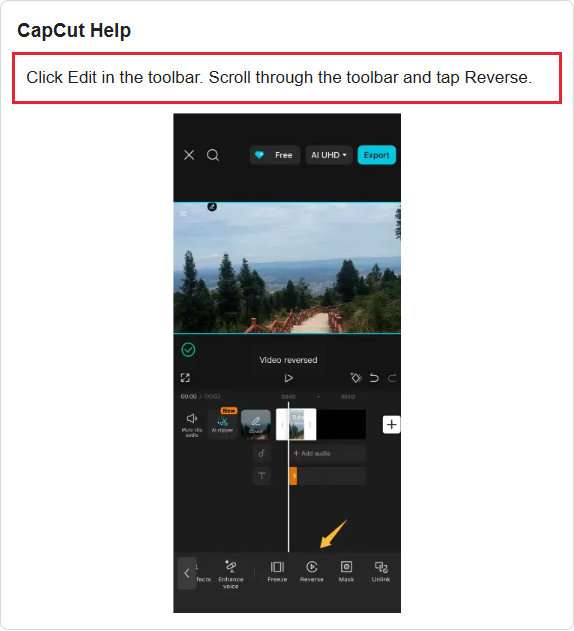
- Tap Edit in the toolbar, then scroll along the toolbar and tap Reverse. Wait while CapCut reverses the clip.
- Play the clip back. Tap the export icon at the top right when you are ready to save.
How do I reverse a video on a Mac or Windows computer?
On a Mac, use iMovie. On a Windows PC, use the CapCut desktop app. If you already have Premiere on your computer, it can reverse a clip too.
iMovie on Mac
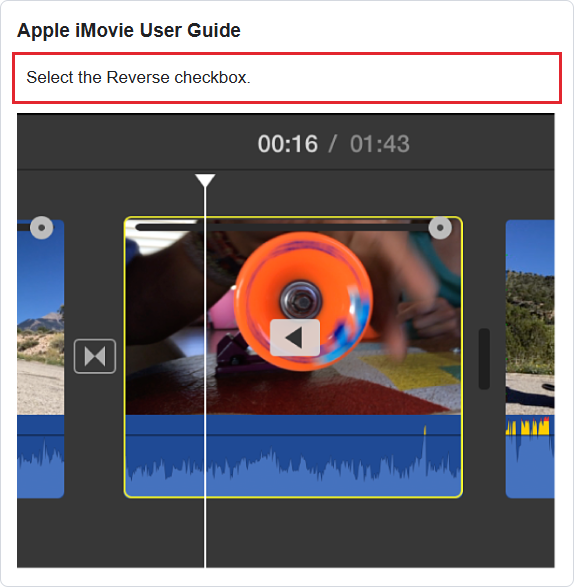
In iMovie, select the clip in the timeline and click the Speed button, then select the Reverse checkbox in the speed controls. A reverse-play icon appears on the clip.
CapCut or Premiere on a computer
In the CapCut desktop app, select the clip and click Reverse in the editing toolbar. Wait for the change to finish before you play the clip back.
In Premiere, select the clip, open the Clip menu in the menu bar, then choose Speed/Duration. You can also right-click the clip and choose Speed/Duration. In the box that opens, select Reverse speed and click OK.
Can I reverse a video in my browser without an app?
Yes. In the CapCut Web Editor, open your project and select the clip. Click Reverse in the editing toolbar.
If you only want to reverse one file, upload it to Ezgif and download the result. Ezgif accepts files up to 200 MB. It deletes uploads one hour after you send them.
For a private clip, use an editor on your device and skip the upload.
What happens to the sound when I reverse a video?
The sound usually plays backward along with the picture.
Reversing a clip plays both the video and its audio backward, creating effects like rewinds or unique motion sequences.
Premiere on a computer reverses the sound too. Ezgif lets you keep the original sound, reverse it with the video or mute it. If the backward sound gets in the way, mute the clip or use a music track.
Can I make the reversed clip faster or slower?
Yes. You can speed up a reversed clip or play it in slow motion, like any other clip. In iMovie, the reversed clip plays at the speed you set in the Speed controls. In Premiere on a computer, a speed of minus 200% in the Speed/Duration box plays the clip backward at twice its normal pace.
Why won't the Reverse button work?
In CapCut, Reverse can fail when your phone is low on storage or memory, or the video is very large or high resolution.
On a phone, close other apps first. Restart the phone or update CapCut from Google Play or the App Store. If the video is large and you need just one part, trim the video before you try again.
In the CapCut desktop app, remove speed changes or keyframe effects first. A keyframe effect is one that changes as the clip plays. If Reverse still fails, export the clip, bring the exported file back into the project and reverse that copy.
In the CapCut Web Editor, take off heavy effects and layers for now. A layer can be text or an image over the video. If Reverse still fails, refresh the page or try Chrome or Microsoft Edge.
Which app should I use?
Any editor in this table reverses a clip, so start with the one you already have.
| Editor | Device | Where Reverse is | Sound | What to know |
|---|---|---|---|---|
| Premiere | iPhone | Bottom toolbar | Plays backward | Tap Forward to undo |
| CapCut app | Android | Edit, then Reverse | Listen before saving | Wait for Reverse to finish |
| iMovie | Mac | Speed, then Reverse | Listen before saving | Look for the reverse-play icon |
| CapCut desktop app | Windows PC | Editing toolbar | Listen before saving | Remove speed changes if Reverse fails |
| Premiere | Computer | Speed/Duration, then Reverse speed | Plays backward | Set the speed in the same box |
| CapCut Web Editor | Browser | Editing toolbar | Listen before saving | Try Chrome or Edge if it stalls |
| Ezgif | Browser | Video reverser | Keep, reverse or mute | 200 MB file limit |
Frequently asked questions
Can I reverse a video for free?
Yes. Adobe says everything you need to make a video in Premiere on iPhone is free. Ezgif is free too and adds no watermark.
Sources
- Adobe, read 12 November 2026 · Reverse on iPhone · Premiere on iPhone · Mobile feature table · Export on a phone
- Adobe · Speed and Duration · Reverse a clip on a computer
- CapCut · Reverse controls and fixes · How to save a reversed clip
- Apple · iMovie speed and reverse controls
- Ezgif · Video reverser and file limits
Published