How to make YouTube Shorts: record, edit and publish

Make a YouTube Short in the YouTube phone app: tap Create, choose Short, record, add details and upload. You can also film first, use a template editor or start with an AI draft. The finished video must be square or vertical and no longer than three minutes. Pick the route that shows your subject clearly. Before you post, check the sound and picture. Also check you have the rights.
| Route | Good starting point | Main limit |
|---|---|---|
| YouTube phone camera | A real action you can film now | You need the subject and sound on hand |
| Film, edit, upload | Several real clips to choose from | You must review format and media rights |
| Template editor | Pictures, clips and a short script | Sample scenes can misrepresent your subject |
| AI draft | A script without enough visuals yet | Generated scenes and claims need human review |
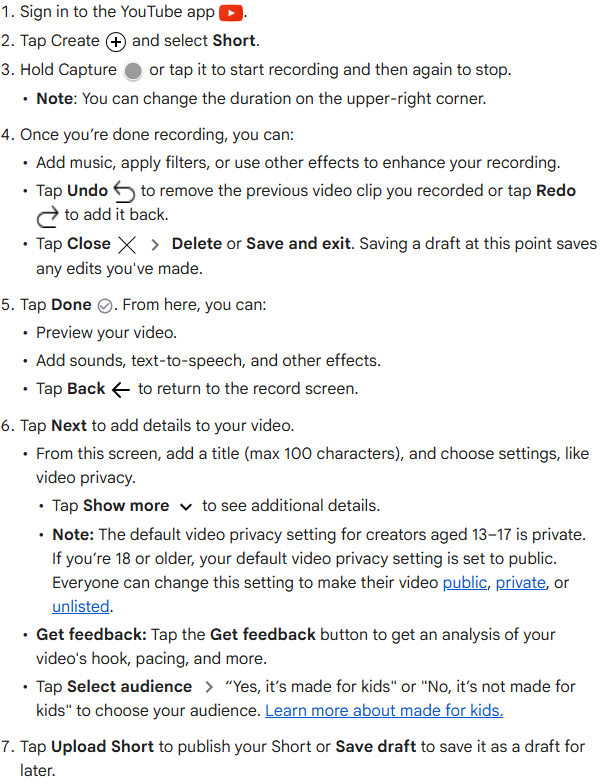
- Open the YouTube app and sign in.
- Tap Create, then Short.
- Hold the round recording button, or tap it to start and tap again to stop.
- Add music or effects. Tap Done.
- Tap Next. Add a title of up to 100 characters. Choose privacy and select the audience.
- Tap Upload Short to publish, or Save draft to finish later.
If you have never made one, start with a single question your viewer might ask. Write the answer in one sentence. Then decide what the viewer needs to see while you say it. The same plan works whether you hold a phone, arrange existing clips or start with a template.
What counts as a Short?
On a standard channel, a video counts as a Short if it is square or vertical. It must also be three minutes or shorter. This rule covers videos uploaded from 15 October 2024. A vertical frame is the familiar phone shape. A square frame is as wide as it is tall. You can upload a file made outside the Shorts camera.
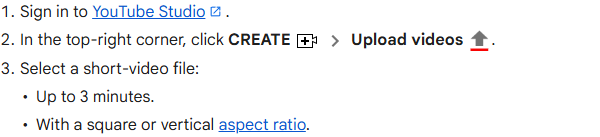
YouTube's phone camera can record several clips that add up to three minutes. Before upload, you can add sounds and effects. You can also use text-to-speech. YouTube Studio accepts a square or vertical file of up to three minutes from a computer. Sign in to Studio, click Create, then Upload videos. Select the file and complete its details before publishing.
Those are the current format rules, not a promise about views. Decide what the viewer should learn or see before you choose a tool.
Route one: record in the YouTube app
Use this route if you can show the subject now, for example a craft being made or a product up close. Put the phone upright. Record the first moment that answers the viewer's question. Add another clip only when it moves the explanation forward.
YouTube says its Shorts camera can record one or more clips. Its help page describes music, filters and other effects. Those options let you assemble the video on the same phone. You still need the real subject, clear sound and time to review the result.
Choose the point your viewer should know. Write your first line before you tap record. For example, if the subject is a woven basket, the first shot could show a hand starting the weave. The next shot might show the pattern coming together. That is a clearer start than a long greeting before the action.
Route two: film first, upload later
Make a rough script and shot list. Use your phone's normal camera when you want more control over where and when you film. You can collect several short shots, pick the clearest ones and edit them before upload. This also works when someone else has filmed material you have permission to use.
YouTube Studio lets you upload a Short from a computer if the file meets its square-or-vertical shape and three-minute limit. Keep the original file until you have reviewed the posted version; a crop, caption or music choice may need changing.
Check rights before you upload. YouTube warns that copyrighted material used in a Short made elsewhere can lead to a Content ID claim. Check the footage and music you use. Check permission for every platform where you plan to post.
Route three: use a template editor
Build the video with your chosen route. Choose a template when you have pictures or short clips but need a starting layout. Adobe Express has YouTube Shorts templates and video editing tools. Canva has Short templates and a blank Short starting point.
Use the template's spaces for your pictures and text. Replace the sample scenes with your own material. Check that every line describes what is actually on screen. The template is a layout, so the story and factual details still come from you.
This route suits a product comparison, a quick tip or a sequence of images. Show real action with your own footage when the viewer needs to see it. Replace a generic workshop clip with your own footage when showing how your own shop handles a repair.
Route four: start with an AI draft
YouTube offers Edit with AI in some regions. In the YouTube app, tap Create and select Short. Tap Add at the bottom left. Pick your clips or photos, then tap Edit with AI. Choose a style, tap Next, and review the generated edit before you continue uploading. YouTube says the selected assets must total at least five seconds and no more than three minutes.
If you have a script but little footage, Invideo says its AI tool can generate an explainer video from text with visuals. Treat that output as an early draft.
Give the tool a narrow subject and the words you want the viewer to hear. Check every scene the tool makes. Check what it says and what text it shows. Replace scenes that show the wrong object, a made-up place or an untrue result. For a real business, use its photos only with permission. Check that the details are current.
Check the AI output against the same upload rules. Export a copy and check its shape and length. Then check you have the rights to its media. Choose this route for a draft you will edit. Do not use it as evidence that a real event happened.
Make one original Short on paper first
Here is an original, fictional example. A Bahrain craft seller wants to show how a woven basket begins. The shop and video are invented for this guide. If you need a starting subject, see our YouTube Shorts ideas guide.
| Moment | Words or text | Picture | Check before filming |
|---|---|---|---|
| Opening | “How does the first row hold?” | A close view of the first strips crossing. | Show the crossing clearly. |
| Middle | “One strip goes over, the next goes under.” | Hands repeat the pattern once. | Keep the same basket in both shots. |
| Ending | “Now the base can grow.” | A wider view of the partly woven base. | Do not imply the basket is finished. |
The example asks a question, shows the action and ends when that small point is clear. It does not need a long introduction. If you were making this for a real shop, ask the maker what the step is called and film the actual basket. Replace every invented line that does not match their process.
From question to Short
- Choose the point your viewer should know
- Pick the route that shows it clearly
- Make a rough script and shot list
- Build the video with your chosen route
- Review the video and upload the file
Can the same file go to Reels and TikTok?
A vertical master file may be a useful starting point for several short-video services. TikTok's help page describes recording a video or uploading one from a device. It then offers sound and effects. Meta's description of Instagram Reels includes clips recorded in its app or uploaded from a gallery.
Before posting the same work again, check the current format and length in that service's help page. Check whether your music is cleared there. Review the crop and on-screen words in its preview. Keep your own clean source file so you can change a caption or remove an app-specific ending.
Which way should you pick?
Pick the route that shows it clearly. Choose by the material you actually have. If you have a person and a clear action, start with a phone camera. If you already have footage, edit the file and upload it. If you have still images, try a template. If you have only a script, an AI draft may help you see what is missing, but inspect every scene.
Review the file before you upload
Review the video and upload the file. Play the finished file on a phone before you post it. Watch it once with sound and once without. Make sure the opening picture answers the question you wrote at the start. If a spoken line needs a picture that never appears, add that shot or change the line. If a caption covers the object, move it. Read every on-screen word at normal phone size.
Then listen without watching. Check whether the words make sense without pointing at a part of the picture. Replace vague pointing words with the object's name. Keep the original footage and a clean exported copy. You may want a different crop or a new caption for another platform.
Finally, check everyone and everything that appears in the video. Get permission for someone else's footage. Remove private details from any visible screen. If you show a real Bahrain service, check its current details before putting them in a caption. These checks help the viewer understand the real subject.
Frequently asked questions
Do I need to film in the YouTube app?
YouTube Studio accepts a suitable square or vertical file from a computer. Prepare the clips before uploading them. Use the app camera if you prefer to record and arrange clips on your phone.
How long can a Short be?
YouTube's current rule allows up to three minutes for a square or vertical Short on a standard channel. Check the upload preview if your file is close to the limit. Use the current YouTube Help page when an older guide gives a different limit.
Should I use a template or AI?
Use a template if you already have pictures or clips and want a layout. Use an AI draft if you need to explore scenes from a script. Review either result against your real subject before posting.
Can I reuse music from another app?
Check the rights for each platform before reuse. YouTube warns that copyrighted material in an externally made Short can bring a Content ID claim. Use only audio you are allowed to share there.
What should I make first?
Write one question your viewer has. Choose one action or picture that answers it. Make a rough shot list, then choose the route that lets you show those moments.
Sources
YouTube Help: three-minute Shorts; YouTube Help: create Shorts in the phone app; YouTube Help: upload Shorts from a computer; YouTube Help: getting started with Shorts; Adobe Express: YouTube Shorts templates; Canva: YouTube Shorts templates; TikTok Help: making a post; Meta: introducing Instagram Reels; Invideo: script-to-video description.
Last checked: 29 October 2026.
Published · Updated