Bahrain finance guides
Register BenefitPay in Bahrain: official setup and account checks
By Gaurav Agarwal · Sources checked 6 October 2026
Use BENEFIT’s official app links, create your profile with your mobile number, then add a supported account or card and complete the bank’s verification. On a new phone, finish any identity check and review scheduled transfers, which the terms say are cancelled after a device or registered-number change.

Jump to a section
- 1. Start with the personal BenefitPay app
- 2. Create the profile, then complete the verification requested
- 3. Add the payment method you actually intend to use
- 4. Resolve an ID or selfie check through the official route
- 5. Recheck access and scheduled transfers after changing phones
- 6. Match the problem to the right support question
To register BenefitPay in Bahrain, start from BENEFIT’s official app links, create your profile using your mobile number, then add a supported bank account or card and complete the required verification. Creating the app profile and activating a payment method are separate checks. A new phone can also trigger identity verification before your linked accounts become usable.
Checked 6 October 2026. This guide follows BENEFIT’s public instructions and terms. No private account, registration form or identity document was accessed during the research. Screen labels can change, so use the current prompts in the official app alongside the linked instructions.
1. Start with the personal BenefitPay app
Open BENEFIT’s personal BenefitPay page and use its app-store links. The page’s public setup sequence is to download the app, create an account with a mobile number and add a payment method, such as a debit card or bank account. It describes the app download as free.
Check that you are following the personal-user route. The site also links to a separate BenefitPay Merchant app; a business registration or merchant-service application is not the same setup task.
Before starting, have access to your own mobile number, the device you intend to use and your bank’s official support channel. Ask the bank whether the particular account or card you want to add is supported. The public setup outline does not establish universal eligibility for every card, account type or device.
2. Create the profile, then complete the verification requested
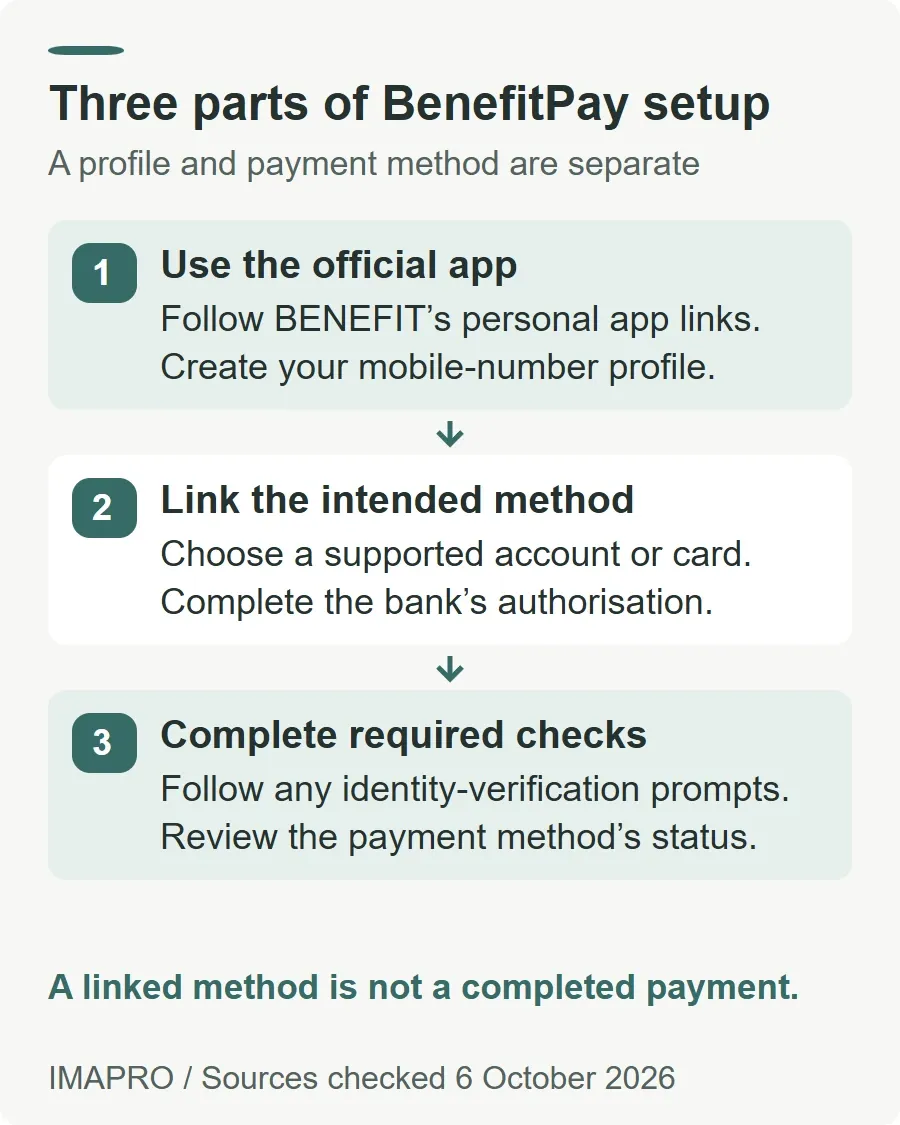
Follow the registration prompts using your own accurate details. Read the displayed terms and complete authentication privately. BENEFIT’s Support Hub includes a public video titled “How to: Register as a new BenefitPay user”, as well as a profile-completion tutorial. These are useful references if the app’s current wording differs from an older guide.
The BenefitPay terms say account and card registration require the bank’s verification and authorisation. The bank can use its own authentication tool, including an OTP. Identity checks may also require documentation or video identification. Do not assume that receiving one code completes every part of setup.
Keep the distinction clear: the app profile identifies your BenefitPay access, while the bank authorises the payment method. If one step succeeds and the other does not, describe the failed step precisely when asking for help.
3. Add the payment method you actually intend to use
Use the account or card option provided in the app and complete that bank’s instructions. BENEFIT’s personal service page publishes separate demonstrations for adding a bank account and adding a bank card. Follow the demonstration for the item you are linking, rather than entering account information into a card field or vice versa.
Before treating linking as complete, review the bank name, account or masked-card identifier and the status shown by the app. If several payment methods are present, identify which one you will select for the intended service. A saved payment method is not evidence that you have submitted or completed a payment.
If the bank rejects the link, ask it to check the specific account or card’s eligibility and the authentication record. If bank verification appears complete but BenefitPay still shows an unresolved status, give BENEFIT the stage and error message. Do not guess a different account number or use someone else’s card to work around the problem.
4. Resolve an ID or selfie check through the official route
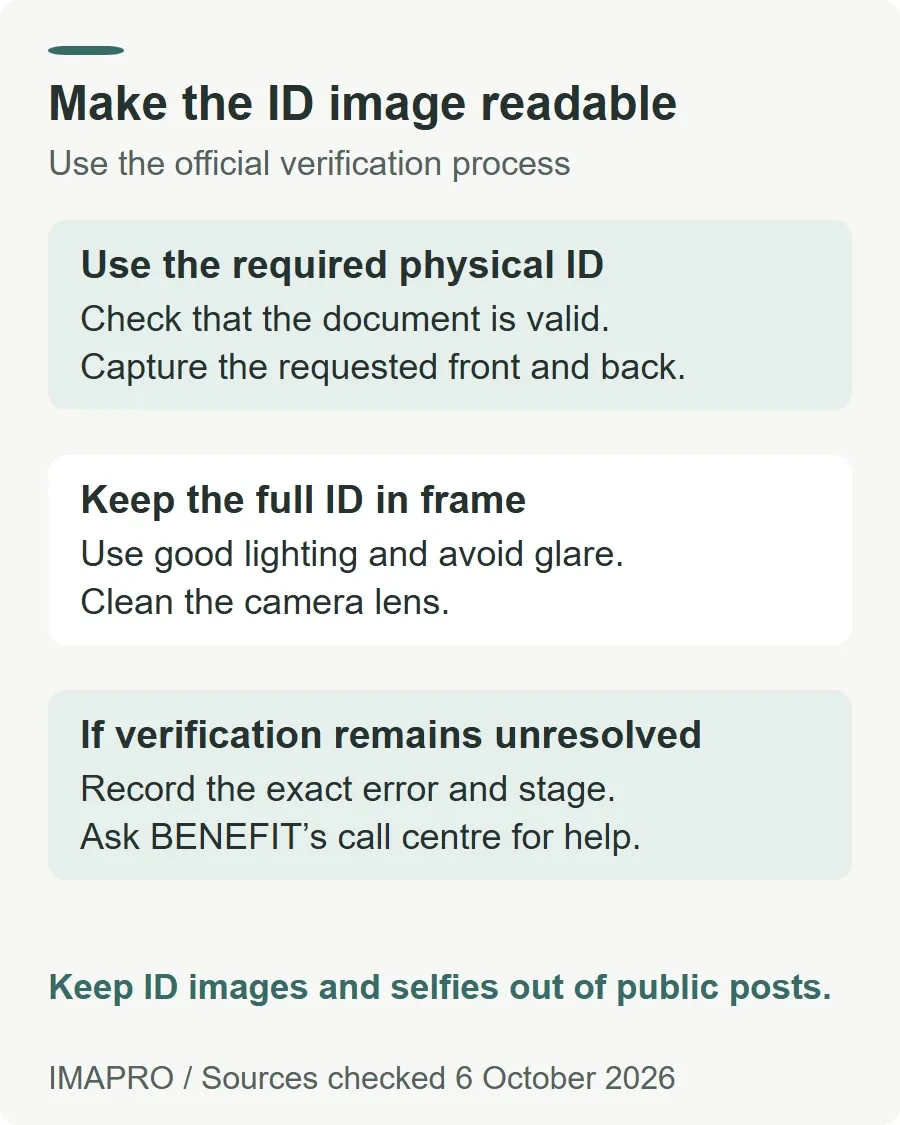
BENEFIT’s identity-verification FAQ describes matching identity documentation with a selfie. It lists a national or GCC ID and a selfie, says there is no fee for this check, and explains that accounts remain deactivated if the required process is skipped.
For an ID image that will not process, the FAQ advises using a valid physical ID, capturing the requested front and back, keeping the whole ID within the frame, cleaning the camera lens and avoiding glare. Use good lighting and check whether physical damage prevents a clear scan. Complete the check within the official process; do not post the images publicly.
The same FAQ directs users to the call centre if verification takes a long time. It does not give a universal completion time or a guaranteed number of retries. Record the error wording and when it appeared, then request help with that stage.
5. Recheck access and scheduled transfers after changing phones
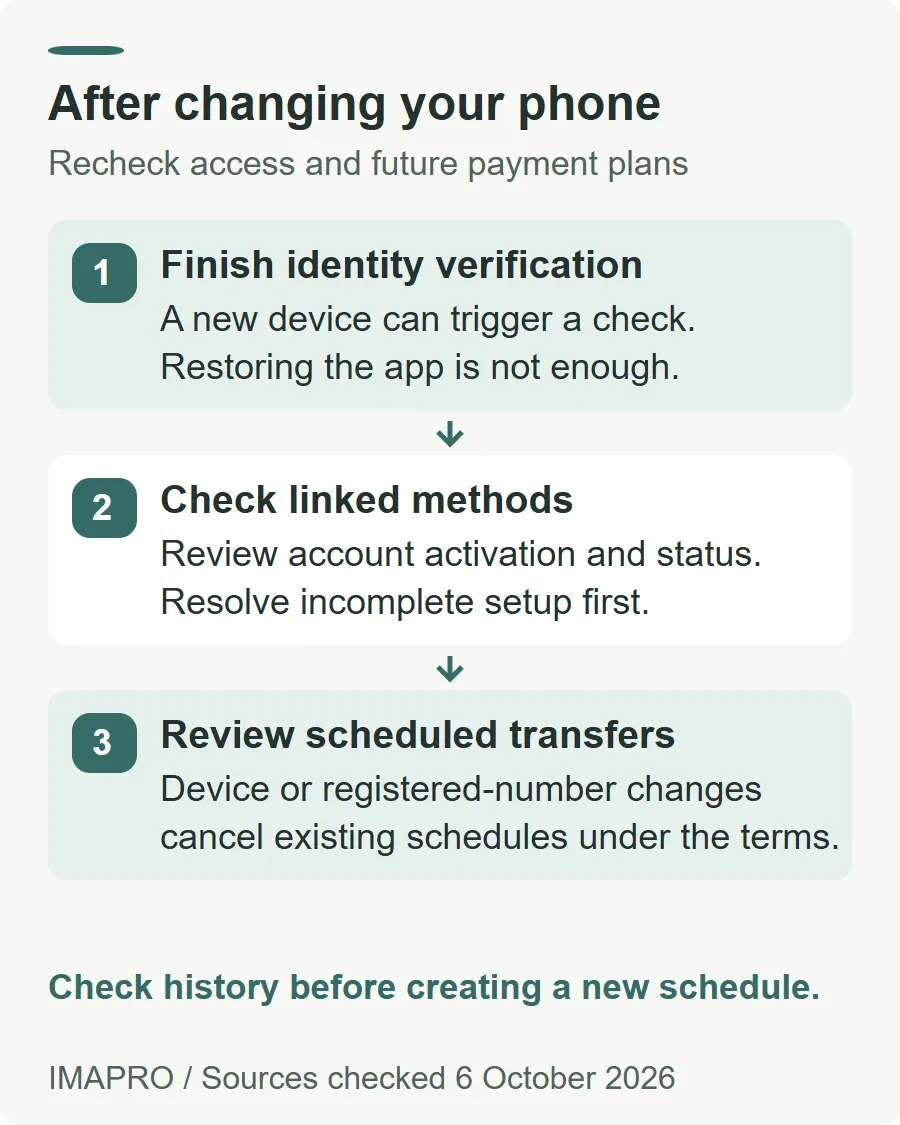
The identity FAQ identifies logging in from a new device and the first sign-out from the app as triggers for identity verification. Restoring the app on a replacement phone therefore does not by itself establish that all linked accounts are active. Official IDV FAQ.
There is a separate consequence for scheduled payments: the scheduled-transfer terms say a change of registered mobile number or device automatically cancels existing scheduled transfers. New schedules must be set up after updating or reactivating access, as applicable.
After recovering access, review each payment method and any recurring transfer you expected. Reconcile recent payment history before creating a replacement instruction, so you do not confuse a cancelled future schedule with a payment already completed. Keep the original payee and timing details available for your own review.
6. Match the problem to the right support question
| Where setup stopped | What to ask |
|---|---|
| Profile or app access | Ask BENEFIT which registration or recovery stage remains incomplete. |
| Bank verification or payment-method linking | Ask the bank whether the selected account or card can be linked and whether authorisation completed. |
| ID scan or selfie verification | Use BENEFIT’s IDV guidance and ask its call centre about the recorded verification status. |
| Access restored after a device change | Check account activation and cancelled scheduled transfers separately. |
BENEFIT publishes +973 13300300 in its terms and emergency guidance. Report a lost device or suspected misuse immediately. The terms also prohibit sharing authentication codes and explain that repeated incorrect passwords or biometric attempts may temporarily lock access. Contact support instead of repeatedly guessing.
For an ordinary setup query, describe the device change, bank, failed stage and exact error without sending an OTP, password or full card details. Follow any identity-document request only through the verified official process.
Before the first payment, review the selected funding method, recipient or biller, reference and amount. Registration is the setup task; payment instructions still need their own checks. Use the Fawri and Fawri+ guide for domestic transfers, or the Fawateer guide for bill references and payment confirmation.
General information only. Public instructions do not guarantee bank approval, device compatibility or a particular recovery time. This guide does not register an account or collect personal information.