Official process guide
Sijilat Login Bahrain: eKey 2.0 Steps and Fixes
By Gaurav Agarwal · Checked 5 October 2026
For related tasks, use Sijilat Bahrain: CR Search, Login and Online Services.
For a Sijilat login in Bahrain, open sijilat.bh, choose E-KEY 2.0 LOGIN, approve the matching request in the eKey 2.0 phone app, then open Dashboard. If you only need to search a public CR, use Business Search without signing in.

01The fastest Sijilat login route
- Open the official Sijilat portal.
- Close any event announcement covering the page.
- Select E-KEY 2.0 LOGIN.
- Continue in eKey 2.0 and compare the browser code with the phone-app code.
- Tap Approve in the app before the timer ends.
- When Sijilat opens, use Dashboard, My Businesses or E-Services for the task you need.

02Choose the right Sijilat login button
- E-KEY 2.0 LOGIN: the normal route for a Bahrain citizen or resident whose eKey 2.0 app is active.
- LOGIN: use the account route already assigned to you when Sijilat or support specifically directs you there.
- GCC LOGIN: use this route only when signing in as an eligible GCC user.
The Ministry of Industry and Commerce identifies Sijilat as Bahrain's Commercial Registration Portal. Use the official sijilat.bh address, not a login link copied from an advertisement or message.
If you only need to verify a business, use the public CR status search before attempting account access.
03Approve the eKey 2.0 request safely
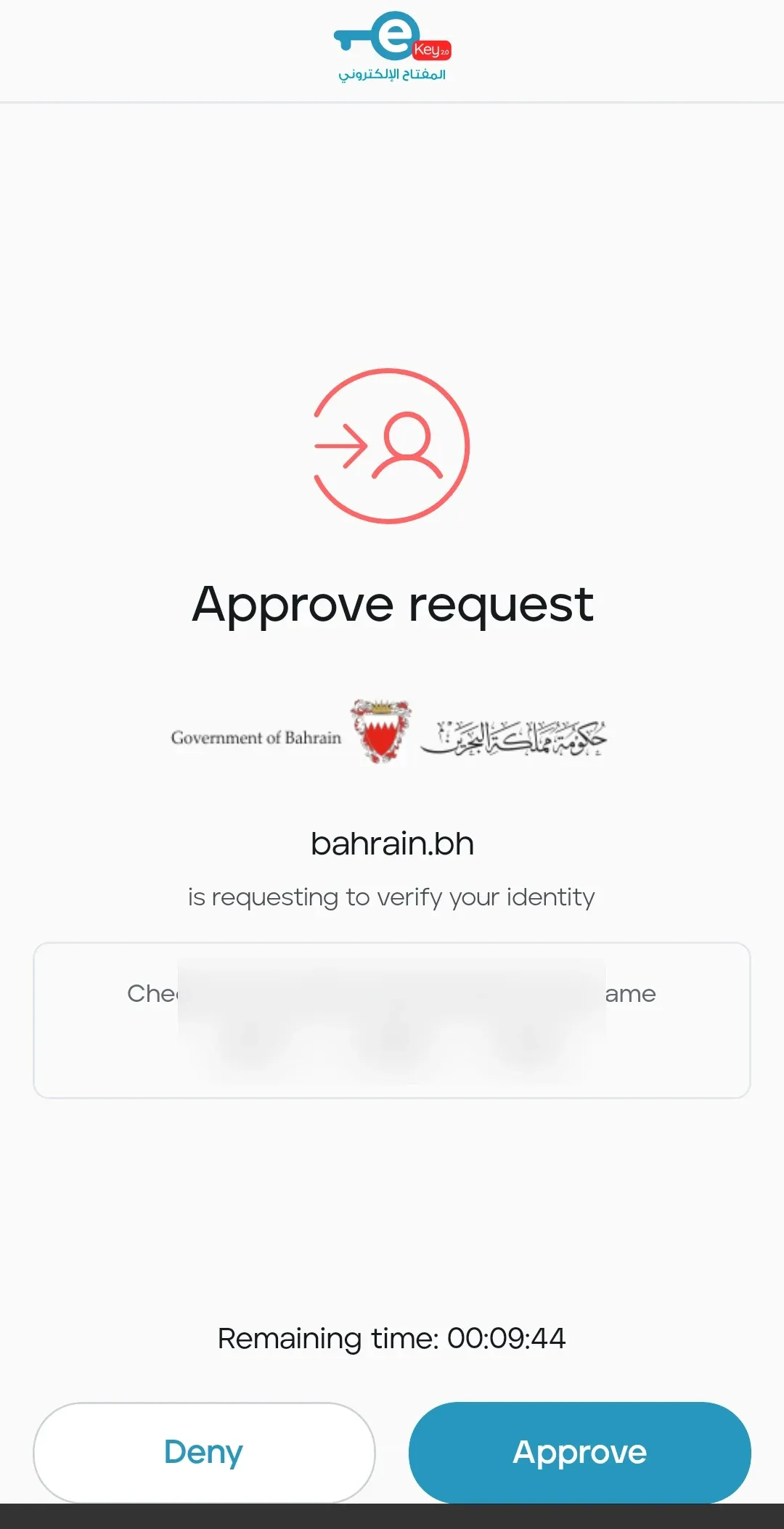
Open eKey 2.0 on the registered phone. Confirm that the code displayed in the browser matches the code in the app. Approve only the request you started. If the code is different, deny it and begin again from Sijilat.
04Confirm that the correct account opened
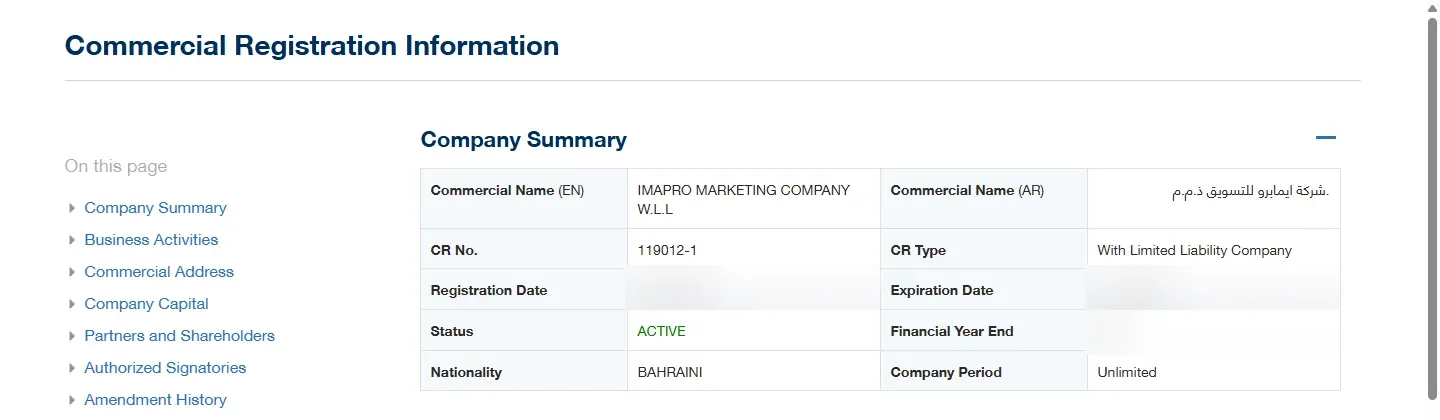
A successful login opens the Sijilat Dashboard. Open My Businesses to see CRs linked to the account, or E-Services to start a permitted service. If the business is absent, the login worked but the account may not be recorded as an owner, partner or authorized representative for that CR.
For an expiring registration, follow the CR renewal workflow from the authorised account.
05Fix common Sijilat login problems
- An announcement blocks the page: close it with the X in its top corner, then use the login buttons in the header.
- No eKey request appears: open the eKey 2.0 app, confirm the phone has internet access, and restart the login from Sijilat.
- The codes do not match: deny the request. Never approve a mismatched code.
- Sijilat returns to the login page: use a normal browser window, allow cookies for sijilat.bh and ekey.bh, and retry once.
- The session expired: return to the Sijilat home page and sign in again. Avoid using an old bookmarked page from inside the account.
- Your CR is missing: check that you used the eKey account authorized for that business. Contact Sijilat if the relationship should already be recorded.
06Official help and related guides
Sijilat lists 8000 8001 and [email protected] for help. For eKey registration or approval problems, the official eKey pages also direct users to 8000 8001.
Sijilat login choices: use the route that matches your identity
The public Sijilat header may show more than one sign-in choice. Start at the official Sijilat portal, then use the eKey route linked to the person who is authorized for the commercial registration. Do not use another person's account merely because that person can receive the phone approval request.
| Situation | Best next step |
|---|---|
| You have a Bahraini CPR and are an owner, partner, shareholder or authorized person | Use the eKey option and approve the request in the official eKey app. |
| You do not have a Bahraini CPR | Check the applicable Sijilat service instructions. The official new CR service page says a registered professional body may apply for the stated service. |
| You only need to look up a business | Use the public CR search. You do not need to enter an owner's account merely to check public registration information. |
| You are opening a different MOIC service | Follow that service's own login page. The ministry's service login page separately labels its eKey and eKey 2 choices. |
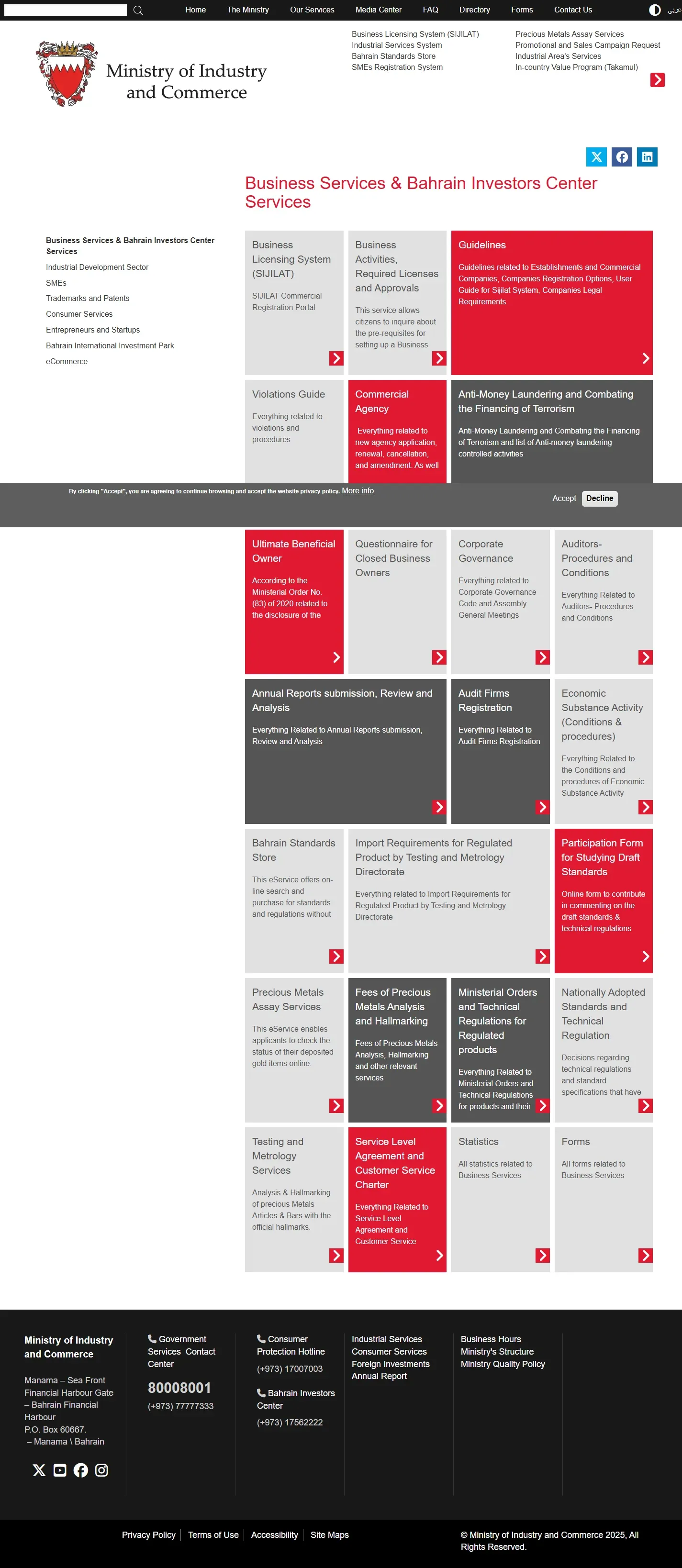
The MOIC business services directory identifies Sijilat as the official commercial registration portal and links its business activities, guidelines and violations material. Use that directory when an old bookmark or a search result sends you to an unfamiliar page.
Prepare these checks before trying again
- Confirm that the person signing in is recorded in the relevant business capacity or has the required authorization.
- Open Sijilat in a current browser and allow the page to redirect to the official eKey flow.
- Keep the phone with the eKey app nearby and confirm that it has connectivity and notifications enabled.
- Compare the approval request shown on the phone with the browser request. Never approve an unexpected request.
- Return to the same browser tab after approval and wait for the Sijilat redirect to finish.
The ministry's commercial registration procedures guide describes Sijilat as the single online platform for applications, payments, notices, certificates and transaction verification. A successful identity approval can therefore reveal multiple business records or tasks, depending on the person's recorded role.
Do not share a password, approval code or phone screen with a person who claims that they can repair the login. Sijilat and eKey are identity-sensitive systems. Use the ministry or government contact channels when the account mapping appears wrong.
Common Sijilat login problems and the shortest fix
| What you see | What to check |
|---|---|
| No approval request reaches the phone | Confirm that the correct eKey identity is active, the phone is online and notifications are allowed. Start one fresh request rather than approving an old notification. |
| The request is approved but the browser stays on the login page | Return to the original tab, allow the redirect and refresh once. If the session has expired, begin again from Sijilat. |
| The login works but the expected CR is missing | Check whether the signed-in person is recorded as an owner, partner, shareholder or authorized person for that CR. This is an authorization issue, not a browser display issue. |
| The portal says the session expired | Close duplicate Sijilat tabs, start from the home page and complete the phone approval without a long delay. |
| You can see public CR data but cannot open a transaction | Public search access does not grant authority to change a record. Use the correct authorized identity or the professional-body route stated for the service. |
| A submitted task is blocked by a violation or missing approval | Open the task details instead of repeating the login. The ministry's violation-status guide shows that enquiry and correction are separate from sign-in. |
The MOIC registration FAQ also distinguishes submitting an application from receiving the approvals and licences required to practise an activity. Repeated login attempts cannot resolve a pending regulator approval, an inactive licence or an authorization mismatch.
Sijilat login questions
Can I check a Bahrain CR without logging in?
Yes. Use Sijilat's public CR search for public registration information. Sign in only when you need an authorized account action or a service that requires identity verification.
Does eKey approval mean the transaction was submitted?
No. eKey approval authenticates the user. You must still open the correct service, review the task and complete any submission or payment steps required by that service.
Why can I log in but not see my company?
The most useful check is whether your CPR is recorded in the business role that grants access. If the role or authorization is missing, use the official MOIC support route rather than creating repeated sessions.
Should I use a normal eKey login or eKey 2.0?
Use the option presented by the current official Sijilat flow and the eKey account configured for you. The portal can change how its choices are labelled, so begin at Sijilat rather than a saved identity-provider URL.
Is a Sijilat login free?
The login itself has no payment step. Individual commercial registration transactions can have their own published fees, which should be reviewed before submission.
Who should I contact if the portal still fails?
Use the current contact details on the MOIC business services page or Bahrain's Government Services Contact Center. Describe the exact page, time and error without sending passwords or approval codes.